How do I connect Qlik Cloud to PipeDrive in 5 minutes?
Execute the following steps to connect Qlik Cloud to PipeDrive. You only need knowledge of Qlik Cloud, your own business and the PipeDrive administration.
PipeDrive is cloud-based CRM and sales software. PipeDrive is used by over 100.000 companies.
No technical knowledge is needed nor knowledge on the PipeDrive APIs to connect PipeDrive to Qlik Cloud. This step-by-step plan will tell you exactly which steps you need to go through on Invantive Cloud to create your own Azure data warehouse with data from PipeDrive.
The steps to connect Qlik Cloud to PipeDrive are:
- Register an Invantive Cloud account.
- Create a PipeDrive database.
- Make the PipeDrive database available through the Tableau OData connector.
- Connect Qlik Cloud to PipeDrive through the connector.
- Load data from PipeDrive into Qlik Cloud.
Invantive Cloud offers a PipeDrive connector to download data from PipeDrive into Qlik Cloud, but there are over 105 other connectors available also for SQL, Power BI, Power Query, Qlik, Tableau og Azure Data Factory.
With the PipeDrive connector for Qlik Cloud you will by default fetch the data from all connected PipeDrive companies in your dashboard. You can limit the number of PipeDrive companies that are retrieved in Qlik Cloud through the Database settings. For example, you can also limit the connector for Qlik Cloud to the data from exactly one PipeDrive company. Of course, you can also filter the data by a specific PipeDrive company using a filter step in Qlik Cloud. The PipeDrive connector for Qlik Cloud has advanced optimizations for great real-time performance with both a single PipeDrive company as well as with hundreds of PipeDrive companies.
When you are having questions, please check the forums for PipeDrive.
Register Account on Invantive Cloud
Skip this step when you already have an account on Invantive Cloud. Otherwise execute the following steps one time to register an account on Invantive Cloud:
-
Go to Invantive Cloud start page.
Select the Log on-button.
-
Select the Sign Up-button.
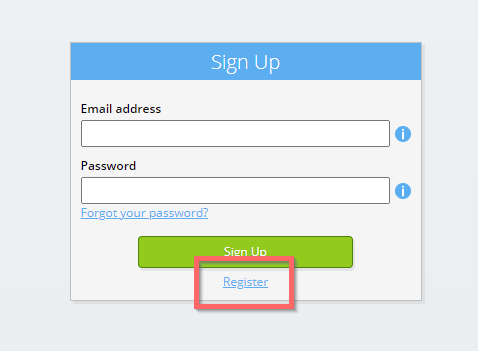
-
Enter your business email address.

-
Select the Next-button.
-
Enter your personal data.
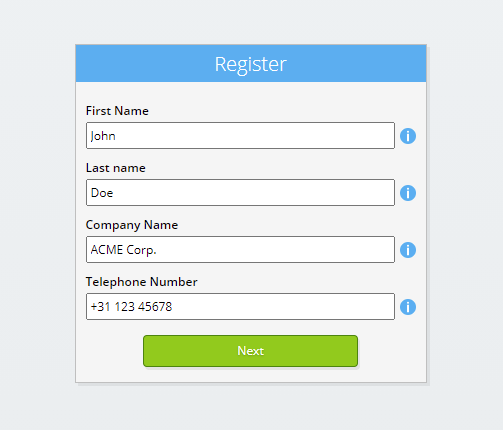
-
Select the Next-button.
Enter your password and repeat the provided password.
-
Select the Next-button.

You will receive a six-digit verification code by email within 2 minutes.
-
Enter the six-digit verification code.

-
Select the Sign Up-button.
-
Log on now.
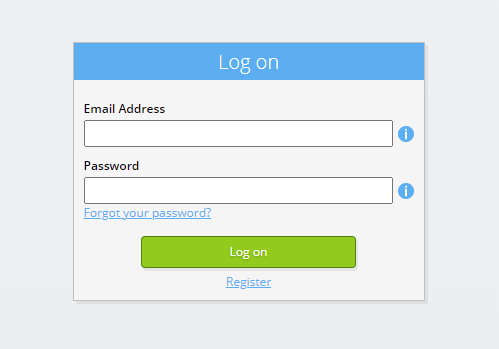
-
Make sure you have an authentication app installed on your phone. Select the Next-button.
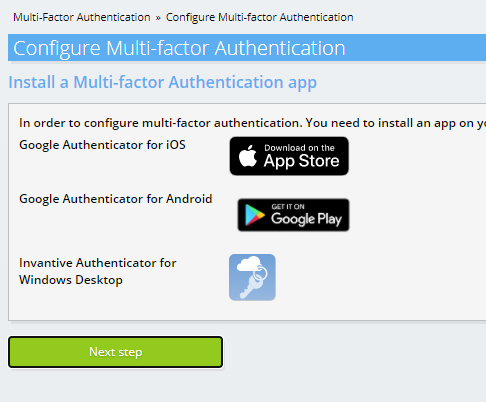
-
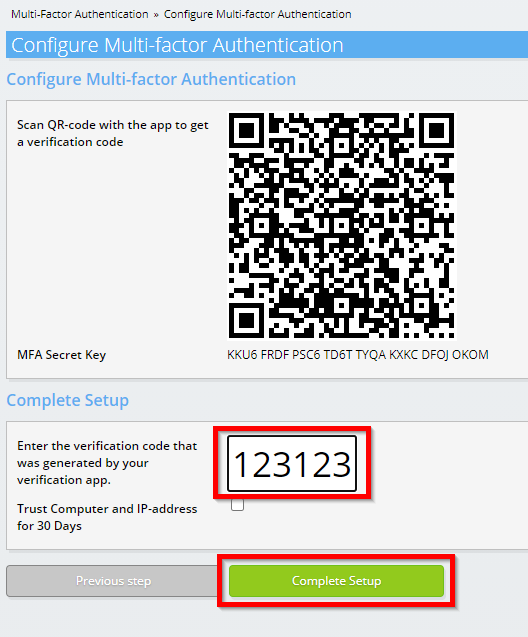
Add the displayed QR code to the authentication app, enter the current verification code, and choose "Finish".
-
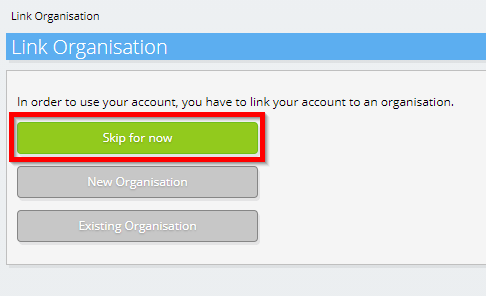
Skip registration of the organisation.
-
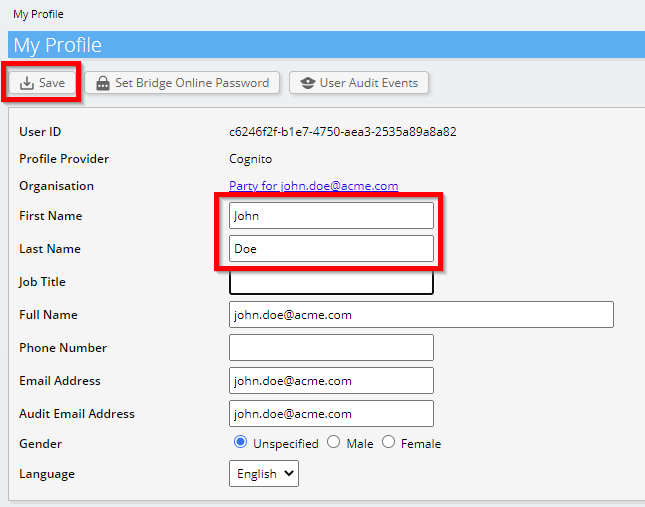
Complete your personal data and choose 'Save'.
-
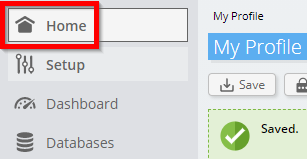
Go to the dashboard.
-
The Invantive Cloud dashboard will be shown.
You now have a login code on Invantive Cloud with which you can set up the connection with PipeDrive and numerous other platforms. You will use the same Invantive login code and workflow for all other platforms.
Create PipeDrive database
In this step, we set up a database with data from PipeDrive. The database is "virtual" because it is not a traditional database, but is fed real-time from PipeDrive. Invantive Cloud provides Qlik Cloud with a real-time link to PipeDrive. The database will be used for all your PipeDrive reporting with Qlik Cloud. So you only need to perform these steps once.
-
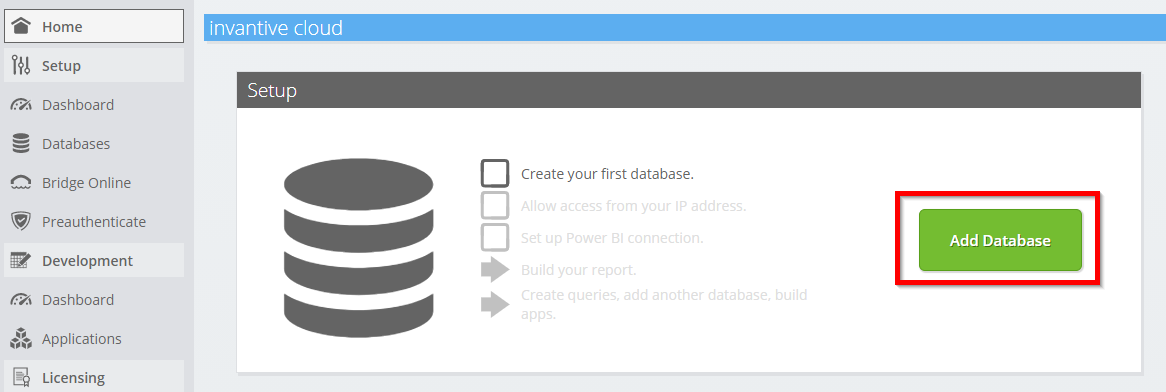
Click the Add Database button.
-
Select PipeDrive from the list.

-
Please fill out the form with login information for PipeDrive.
Select the OK-button.
Congratulations! You can now process data from PipeDrive within the Invantive Cloud website. You can do this for example with the interactive SQL editor.
Grant connection from Qlik Cloud access to PipeDrive
To retrieve the data from Qlik Cloud we create a link via Invantive Bridge Online. This creates a "bridge" between the cloud of Invantive and the standard OData connector that is available in every version of Qlik Cloud. You do not need to install anything locally: no connector, no ado.NET provider and no Qlik Cloud add-on neither.
Execute the following steps to safely use the data from PipeDrive outside of Invantive Cloud:
Next to the database you will find an orange text requesting you to allow access from your current location (IP address). Select the nearby orange button.
You can completely disable IP address checking by entering an asterisk ("*").
You are now ready to import the PipeDrive data into Qlik Cloud.
Configure Qlik Cloud connector for PipeDrive
You will now pull in Qlik Cloud data from PipeDrive through the established link.
Please note again that Invantive Cloud under the hood handles all complexity such as setting up credentials such as a refresh token, acquiring an access token, optimizing and parallelizing access, accessing an API within the rate limits, scopes and security restrictions. There is absolutely no need for knowledge on complex technical topics such as OAuth access tokens or API.
Execute the following steps:
-
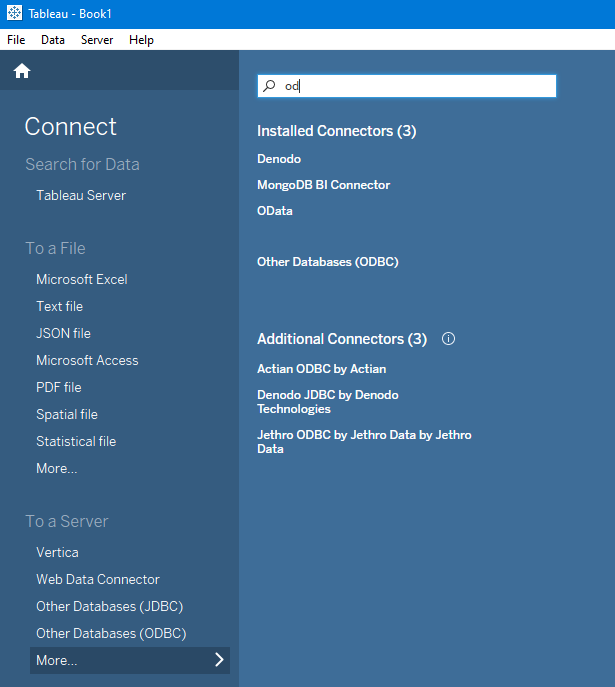
Start Qlik Cloud and choose "More..." from the "To a Server" menu on the left menu "Connect".
-
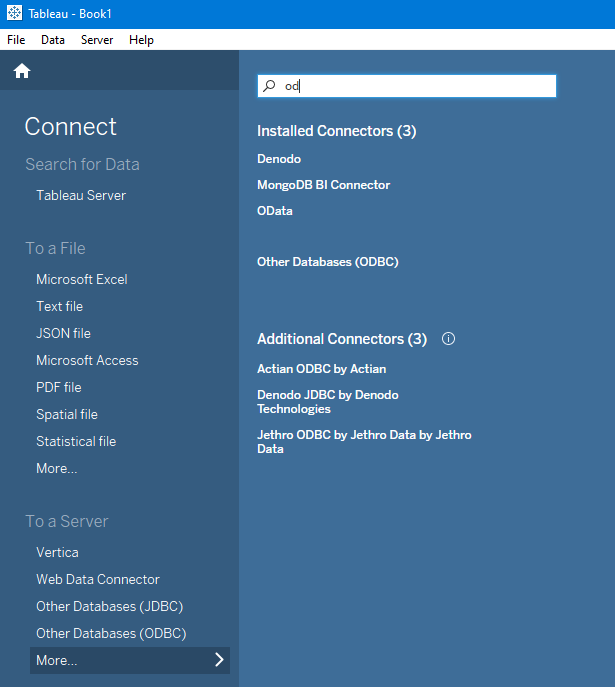
Search and select the OData connector.'
-
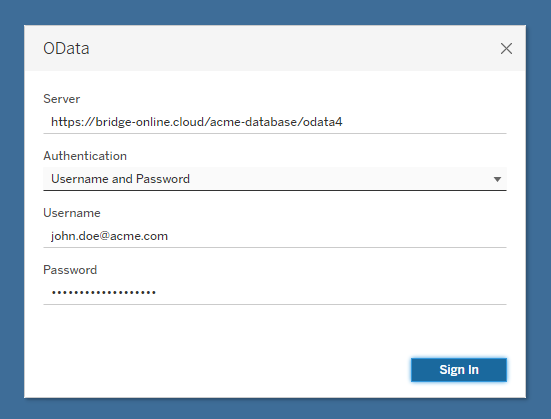
Enter in the window the Bridge Online URL of the Qlik Cloud database. This URL containing the data can be found in the Database-form of Invantive Cloud. Choose authentication type "Username and Password". Enter the Invantive Cloud user name and password.
-
The list of available PipeDrive tables appears. Select the desired tables and construct your Tableau dashboard.