


Hur tar jag mig från Invantive Drive till Zoom på 5 minuter?
Följ stegen nedan för att ansluta Invantive Drive till Zoom. Du behöver bara ha kunskaper om Invantive Drive, din egen verksamhet och Zoom-administrationen.
Zoom är ett program för video-, telefon- och webbkonferenser.
No technical knowledge is needed to show the documents of Zoom in Windows Explorer with Invantive Drive. This step-by-step plan tells you exactly which steps to go through on Invantive Cloud and on your PC.
Så här ansluter du Invantive Drive till Zoom:
- Skapa ett Invantive Cloud-konto.
- Skapa en Zoom-databas.
- Install Invantive Drive on Windows.
- Sign in to Invantive Drive and choose the Zoom database.
- Open your Zoom documents in Windows Explorer.
Invantive Cloud offers a Zoom connector for Invantive Drive, and 29 other platforms show their documents in the same folder of Windows Explorer.
Om du har frågor, vänligen kolla in -forumet för Zoom.
Skapa ett konto på Invantive Cloud
Hoppa över det här steget om du redan har ett konto på Invantive Cloud. I annat fall ska du utföra följande steg en gång för att registrera ett konto på Invantive Cloud:
-
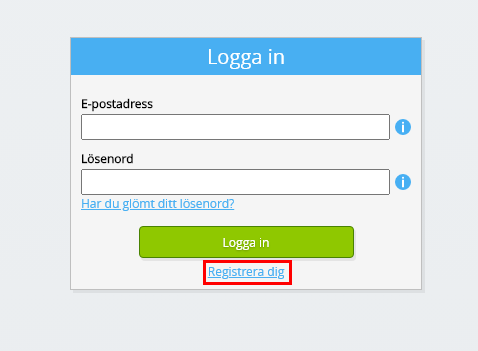
Gå till Invantive Clouds startsida.
Klicka på knappen ”Logga in”.
-
Klicka på knappen ”Registrera dig”.
-
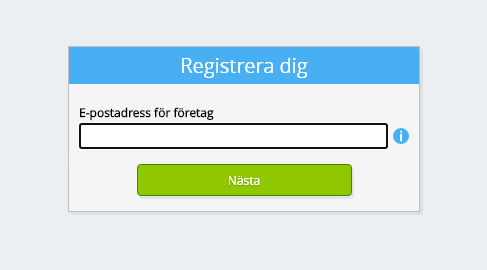
Ange din e-postadress på jobbet.
-
Klicka på knappen ”Nästa”.
-
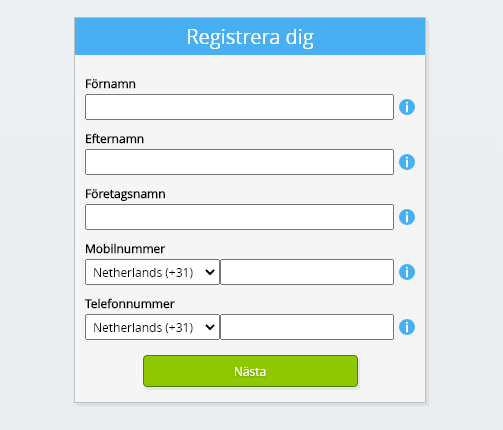
Ange dina personuppgifter.
-
Klicka på knappen ”Nästa”.
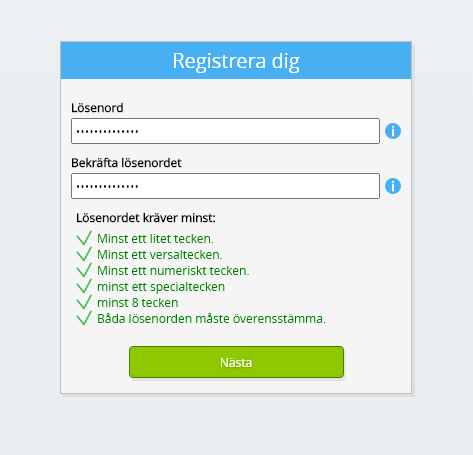
Ange ditt lösenord och bekräfta det angivna lösenordet.
-
Klicka på knappen ”Nästa”.
Du kommer att få en sexsiffrig verifieringskod via e-post inom två minuter.
-
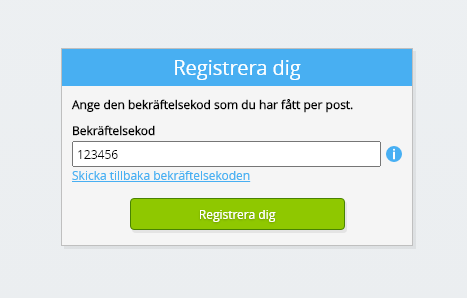
Ange den sexsiffriga verifieringskoden.
-
Klicka på knappen ”Registrera dig”.
-
Logga in nu.

-
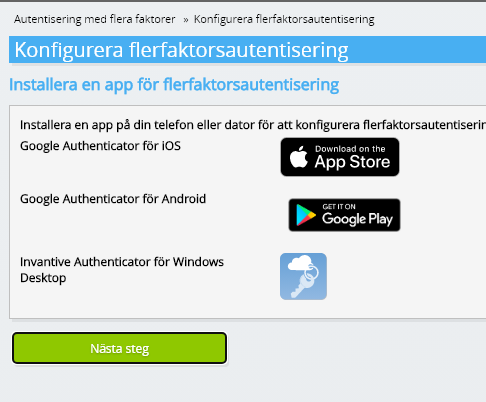
Se till att du har en autentiseringsapp installerad på din telefon. Klicka på knappen ”Nästa”.
-
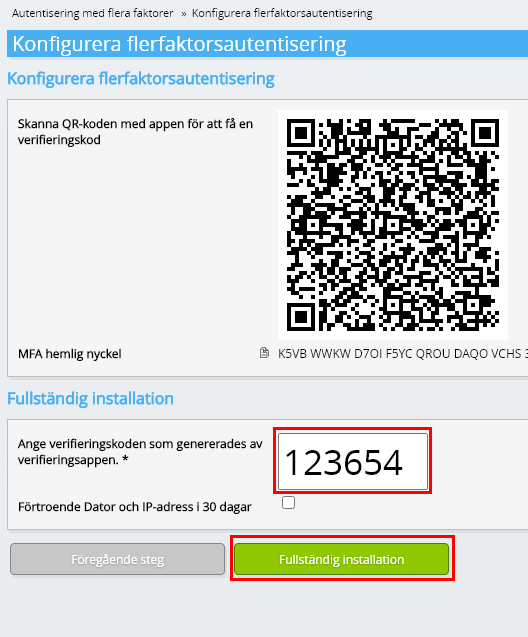
Lägg till den visade QR-koden i autentiseringsappen, ange den aktuella verifieringskoden och välj ”Slutför”.
-
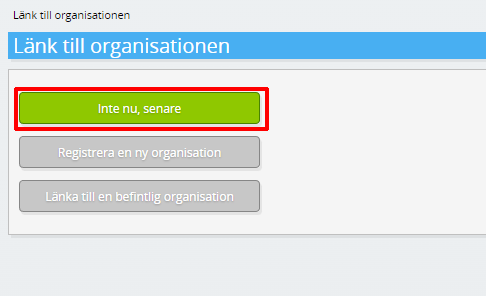
Hoppa över registreringen av organisationen.
-
Fyll i dina personuppgifter och välj ”Spara”.
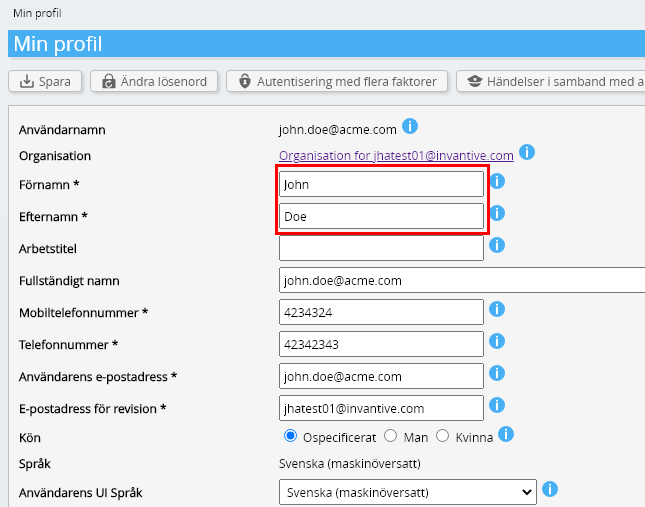
-
Gå till instrumentpanelen.
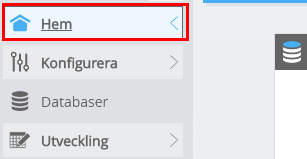
-
Invantive Clouds kontrollpanel visas.
Du har nu en inloggningskod på Invantive Cloud som du kan använda för att konfigurera anslutningen till Zoom och många andra plattformar. Du använder samma Invantive-inloggningskod och arbetsflöde för alla andra plattformar.
Skapa databasen Zoom
I det här steget skapar vi en databas med data från Zoom. Databasen är ”virtuell” eftersom den inte är en traditionell databas, utan matas i realtid från Zoom. Invantive Cloud förser Invantive Drive med en realtidslänk till Zoom. Databasen kommer att användas för all din Zoom-rapportering med Invantive Drive. Du behöver alltså bara utföra dessa steg en gång.
-
Klicka på knappen Lägg till databas.
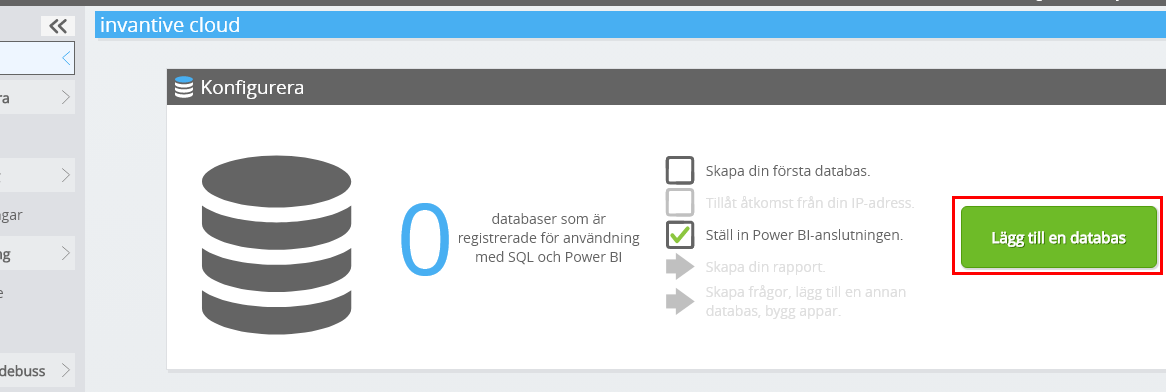
-
Välj Zoom från listan.
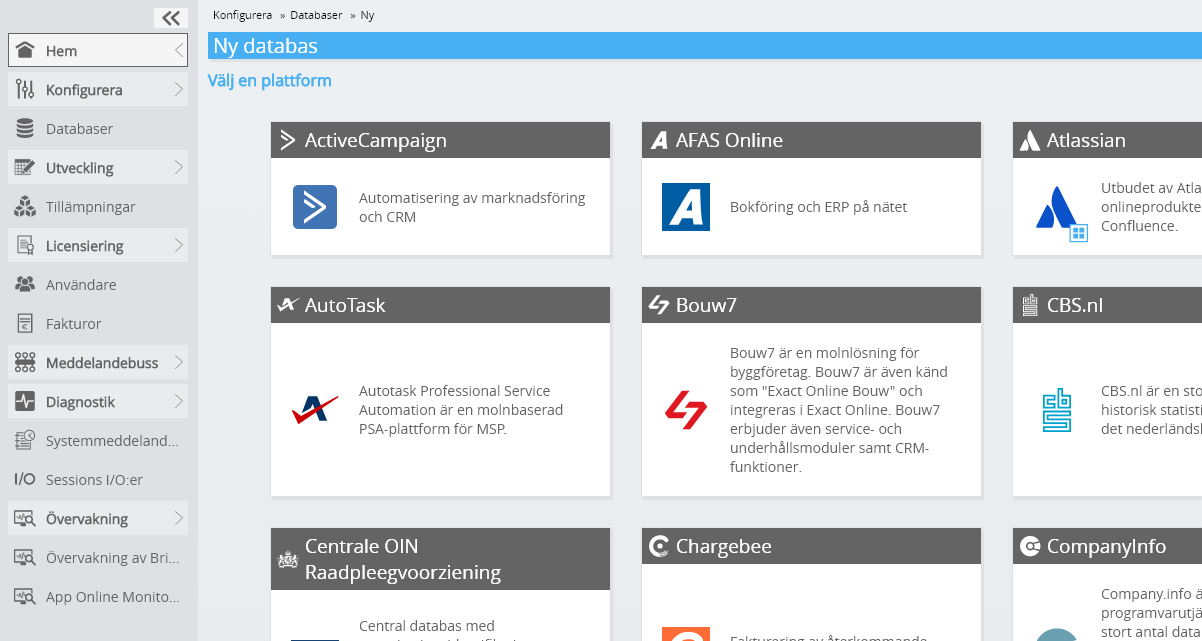
-
Vänligen fyll i formuläret med inloggningsuppgifter för Zoom.
Klicka på OK-knappen.
Grattis! Du kan nu bearbeta data från Zoom på Invantive Cloud-webbplatsen. Det kan du till exempel göra med hjälp av den interaktiva SQL-redigeraren.
Install Invantive Drive on Windows
Invantive Drive is a small Windows program. It registers a folder named Invantive Drive in Windows Explorer and fetches a document from the platform the moment you open it, the way OneDrive and Google Drive work.
-
Download the installer of Invantive Drive and run it.
Follow the installer; no settings are needed.
After the installation, Windows Explorer shows a folder named Invantive Drive under This PC, and the Invantive Drive window opens.
Sign in to Invantive Drive and choose the Zoom database
Invantive Drive signs in with your Invantive Cloud account and lists the databases of that account. Pick the one you created in the previous step.
In the Invantive Drive window, choose Sign in and enter your Invantive Cloud user name and password, plus the code of your authenticator app when asked.
Choose Add database and select the Zoom database from the list.
A folder named after the Zoom database appears under Invantive Drive in Windows Explorer, with a subfolder per company and per kind of document.
Open your Zoom documents in Windows Explorer
Explorer lists the names, dates and sizes of the Zoom documents. A document is fetched the moment you open it.
- Online only: listed in Explorer, fetched when you open it, no disk space.
- Kept on this device: you opened it or marked it to keep, so it also works without internet.
Each app is a folder and each company a subfolder. A document is fetched the moment you open it.
Browse to a folder and double-click a document; it opens in the program Windows uses for that kind of file.
A cloud icon marks a document that is online only and takes no disk space; a green check mark one that is kept on this device. Right-click a document to keep it on this device or to free up space.
Right-click a document and choose Open in Zoom to jump to it on the platform, where the platform offers a web page for it.
The Zoom folders are read-only: Zoom does not accept files from outside, so nothing is changed or deleted by accident.
What Invantive Drive Can And Cannot Do
Invantive Drive shows documents; it does not copy or move them. A document is fetched only when you open it, and every fetch is an ordinary request to Zoom within the limits of your subscription. Only a platform that accepts uploads takes a changed file back; the folders of the other platforms are read-only.
Invantive Drive runs on Windows. On any other device the file browser in Invantive Cloud shows the same folders in your web browser.