


Como é que ligo Invantive Drive a Nmbrs em 5 minutos?
Siga os passos seguintes para ligar Invantive Drive a Nmbrs. Basta ter conhecimentos sobre Invantive Drive, o seu próprio negócio e a gestão Nmbrs.
O NMBRS é um software de gestão de salários na nuvem. O NMBRS oferece funções tanto de gestão de salários como de recursos humanos. Estão disponíveis funções de gestão de salários em conformidade com a legislação holandesa e sueca. O NMBRS é utilizado por empresários e empresas de contabilidade.
No technical knowledge is needed to show the documents of Nmbrs in Windows Explorer with Invantive Drive. This step-by-step plan tells you exactly which steps to go through on Invantive Cloud and on your PC.
Os passos para ligar Invantive Drive a Nmbrs são os seguintes:
- Crie uma conta na Invantive Cloud.
- Criar uma base de dados Nmbrs.
- Install Invantive Drive on Windows.
- Sign in to Invantive Drive and choose the Nmbrs database.
- Open your Nmbrs documents in Windows Explorer.
Invantive Cloud offers a Nmbrs connector for Invantive Drive, and 29 other platforms show their documents in the same folder of Windows Explorer.
Se tiver alguma dúvida, consulte os fóruns sobre Nmbrs.
Criar uma conta na Invantive Cloud
Ignore este passo se já tiver uma conta no Invantive Cloud. Caso contrário, siga os passos seguintes uma única vez para criar uma conta no Invantive Cloud:
-
Aceda a Página inicial do Invantive Cloud.
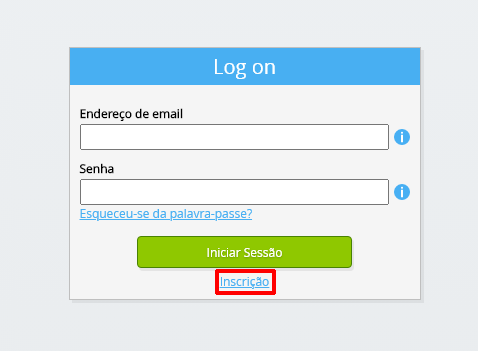
Selecione o botão «Iniciar sessão».
-
Selecione o botão «Inscrever-se».
-
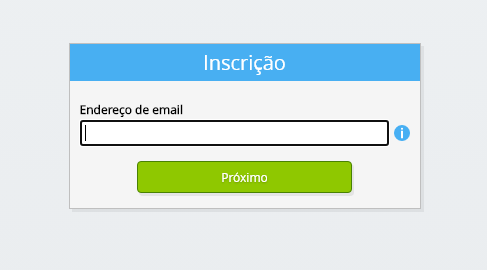
Introduza o seu endereço de e-mail profissional.
-
Selecione o botão «Seguinte».
-
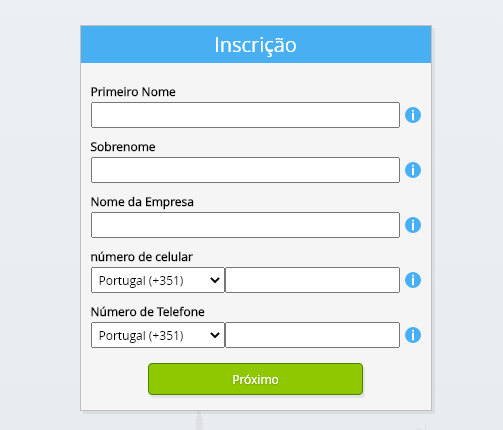
Introduza os seus dados pessoais.
-
Selecione o botão «Seguinte».
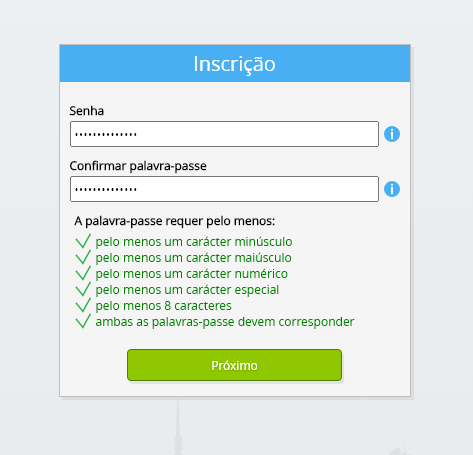
Introduza a sua palavra-passe e repita a palavra-passe indicada.
-
Selecione o botão «Seguinte».
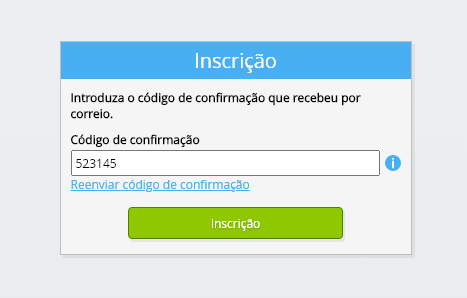
Receberá um código de verificação de seis dígitos por e-mail no prazo de 2 minutos.
-
Introduza o código de verificação de seis dígitos.
-
Selecione o botão «Inscrever-se».
-
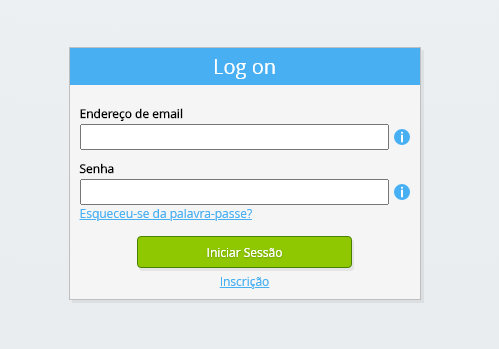
Inicie sessão agora.
-
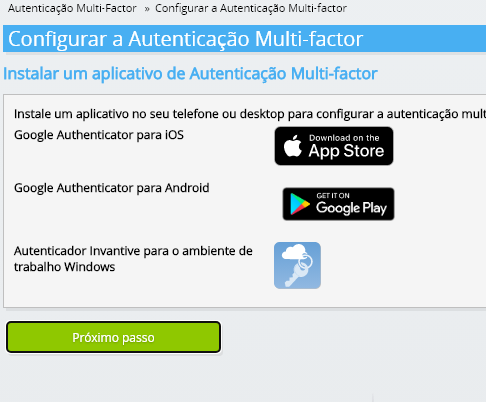
Certifica-te de que tens uma aplicação de autenticação instalada no teu telemóvel. Selecione o botão «Seguinte».
-
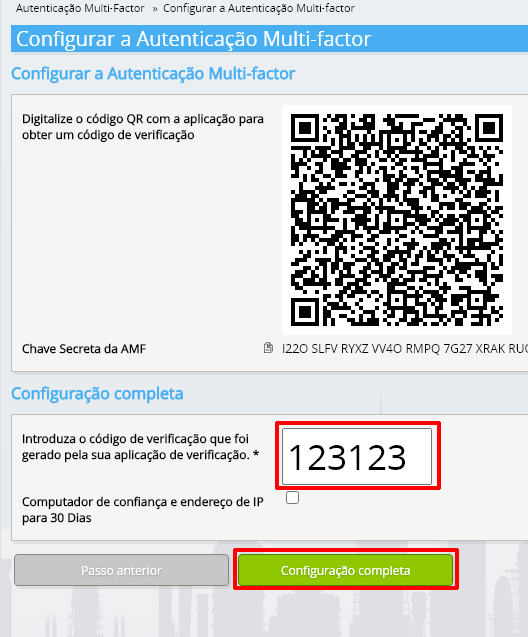
Adicione o código QR apresentado à aplicação de autenticação, introduza o código de verificação atual e selecione «Concluir».
-
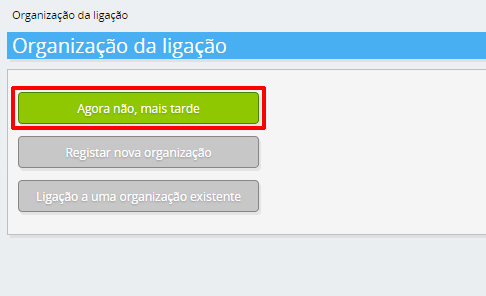
Ignorar o registo da organização.
-
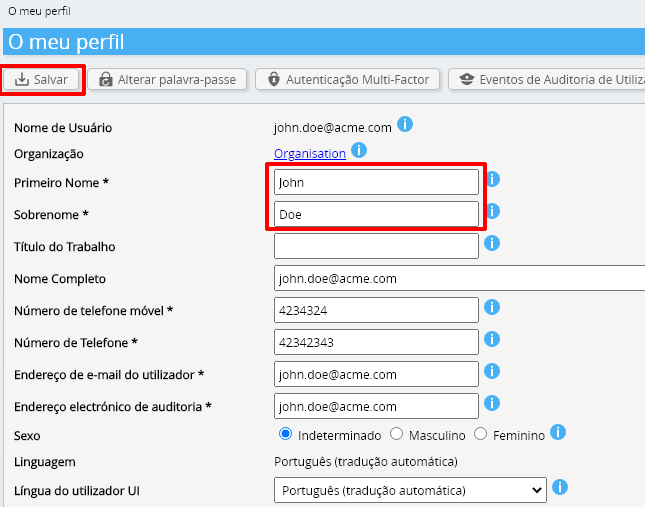
Preencha os seus dados pessoais e selecione «Guardar».
-
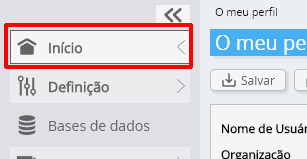
Aceda ao painel de controlo.
-
Será apresentado o painel de controlo do Invantive Cloud.
Já dispõe de um código de acesso na Invantive Cloud, com o qual pode configurar a ligação com Nmbrs e inúmeras outras plataformas. Utilizará o mesmo código de acesso e o mesmo fluxo de trabalho da Invantive para todas as outras plataformas.
Criar a base de dados Nmbrs
Nesta etapa, configuramos uma base de dados com dados provenientes de Nmbrs. A base de dados é «virtual» porque não se trata de uma base de dados tradicional, mas é alimentada em tempo real a partir de Nmbrs. O Invantive Cloud fornece ao Invantive Drive uma ligação em tempo real ao Nmbrs. A base de dados será utilizada para todos os seus relatórios do Nmbrs no Invantive Drive. Por isso, só precisa de realizar estes passos uma vez.
-
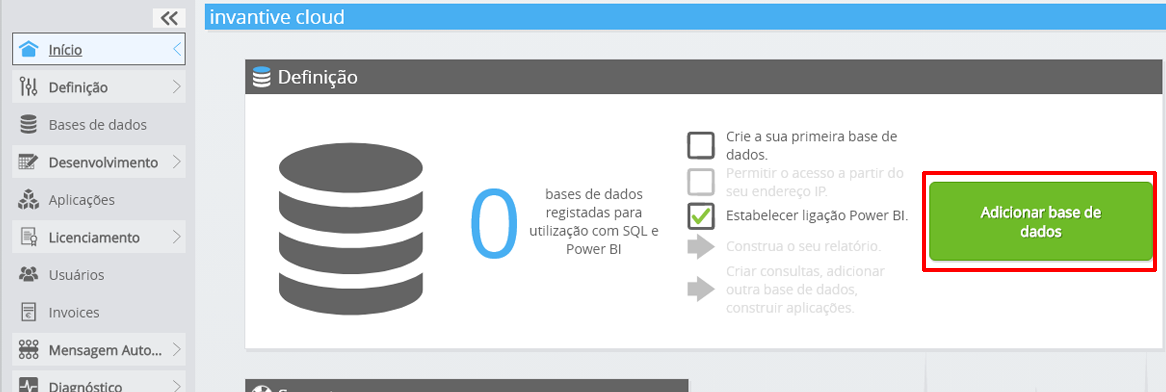
Clique no botão Adicionar base de dados.
-
Selecione Nmbrs da lista.
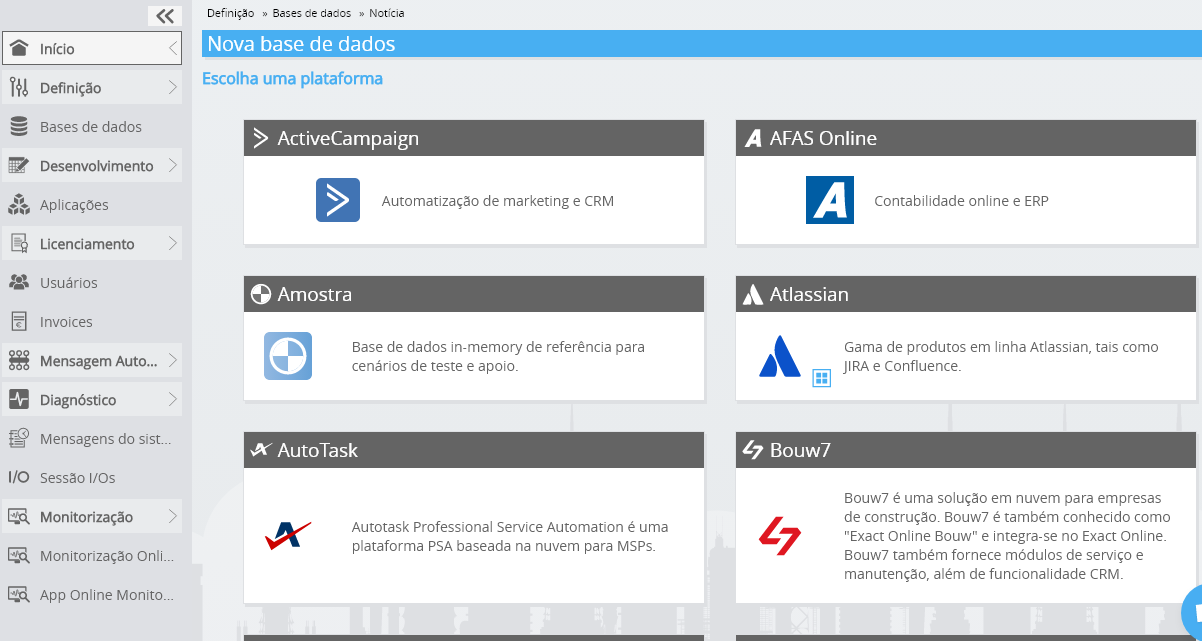
-
Por favor, preencha o formulário com os dados de início de sessão para Nmbrs.
Selecione o botão «OK».
Parabéns! Já pode processar dados do Nmbrs no site da Invantive Cloud. Pode fazê-lo, por exemplo, com o editor SQL interativo.
Install Invantive Drive on Windows
Invantive Drive is a small Windows program. It registers a folder named Invantive Drive in Windows Explorer and fetches a document from the platform the moment you open it, the way OneDrive and Google Drive work.
-
Download the installer of Invantive Drive and run it.
Follow the installer; no settings are needed.
After the installation, Windows Explorer shows a folder named Invantive Drive under This PC, and the Invantive Drive window opens.
Sign in to Invantive Drive and choose the Nmbrs database
Invantive Drive signs in with your Invantive Cloud account and lists the databases of that account. Pick the one you created in the previous step.
In the Invantive Drive window, choose Sign in and enter your Invantive Cloud user name and password, plus the code of your authenticator app when asked.
Choose Add database and select the Nmbrs database from the list.
A folder named after the Nmbrs database appears under Invantive Drive in Windows Explorer, with a subfolder per company and per kind of document.
Open your Nmbrs documents in Windows Explorer
Explorer lists the names, dates and sizes of the Nmbrs documents. A document is fetched the moment you open it.
- Online only: listed in Explorer, fetched when you open it, no disk space.
- Kept on this device: you opened it or marked it to keep, so it also works without internet.
Each app is a folder and each company a subfolder. A document is fetched the moment you open it.
Browse to a folder and double-click a document; it opens in the program Windows uses for that kind of file.
A cloud icon marks a document that is online only and takes no disk space; a green check mark one that is kept on this device. Right-click a document to keep it on this device or to free up space.
Right-click a document and choose Open in Nmbrs to jump to it on the platform, where the platform offers a web page for it.
The Nmbrs folders are read-only: Nmbrs does not accept files from outside, so nothing is changed or deleted by accident.
What Invantive Drive Can And Cannot Do
Invantive Drive shows documents; it does not copy or move them. A document is fetched only when you open it, and every fetch is an ordinary request to Nmbrs within the limits of your subscription. Only a platform that accepts uploads takes a changed file back; the folders of the other platforms are read-only.
Invantive Drive runs on Windows. On any other device the file browser in Invantive Cloud shows the same folders in your web browser.