


Jak mogę połączyć Invantive Drive z Tweede Kamer (NL) v5 w 5 minut?
Aby podłączyć Invantive Drive do Tweede Kamer (NL) v5, wykonaj poniższe czynności. Wystarczy znajomość Invantive Drive, własnej działalności oraz administracji Tweede Kamer (NL) v5.
Tweede Kamer (Holandia) udostępnia dane publiczne pochodzące z Tweede Kamer w Holandii, takie jak informacje o posłach oraz projektach ustaw, które mogą stać się prawem. Tweede Kamer to Izba Reprezentantów w dwuizbowym parlamencie Holandii. Liczy 150 posłów.
No technical knowledge is needed to show the documents of Tweede Kamer (NL) v5 in Windows Explorer with Invantive Drive. This step-by-step plan tells you exactly which steps to go through on Invantive Cloud and on your PC.
Oto kroki, które należy wykonać, aby podłączyć Invantive Drive do Tweede Kamer (NL) v5:
- Załóż konto w Invantive Cloud.
- Utwórz bazę danych Tweede Kamer (NL) v5.
- Install Invantive Drive on Windows.
- Sign in to Invantive Drive and choose the Tweede Kamer (NL) v5 database.
- Open your Tweede Kamer (NL) v5 documents in Windows Explorer.
Invantive Cloud offers a Tweede Kamer (NL) v5 connector for Invantive Drive, and 29 other platforms show their documents in the same folder of Windows Explorer.
Gdy masz pytania, sprawdź fora dla Tweede Kamer (NL) v5.
Załóż konto w Invantive Cloud
Pomiń ten krok, jeśli masz już konto w Invantive Cloud. W przeciwnym razie wykonaj poniższe czynności jednorazowo, aby zarejestrować konto w Invantive Cloud:
-
Przejdź do strony początkowej Invantive Cloud.
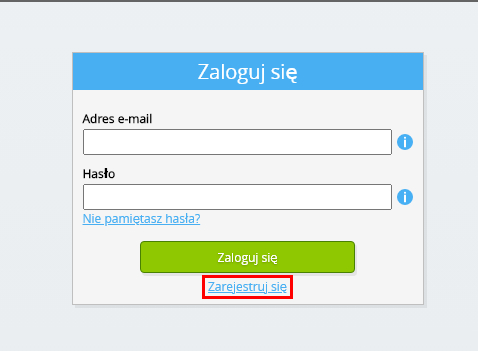
Kliknij przycisk „Zaloguj się”.
-
Kliknij przycisk „Zarejestruj się”.
-
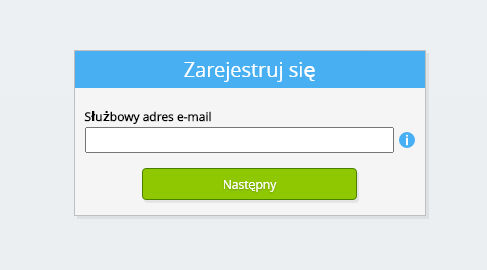
Wprowadź swój służbowy adres e-mail.
-
Kliknij przycisk „Dalej”.
-
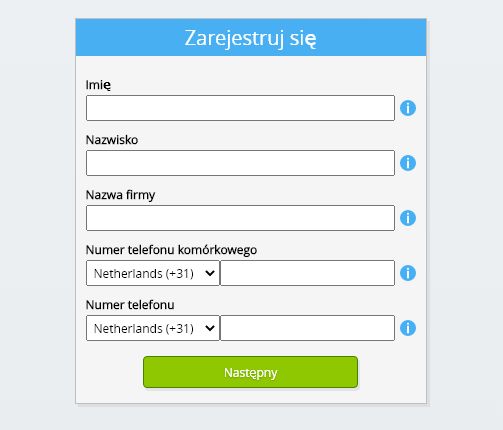
Wprowadź swoje dane osobowe.
-
Kliknij przycisk „Dalej”.
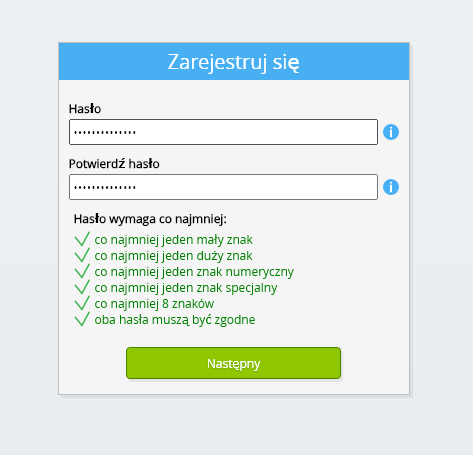
Wprowadź hasło i powtórz podane hasło.
-
Kliknij przycisk „Dalej”.
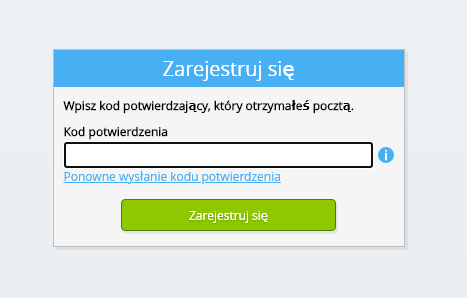
W ciągu 2 minut otrzymasz e-mailem sześciocyfrowy kod weryfikacyjny.
-
Wprowadź sześciocyfrowy kod weryfikacyjny.
-
Kliknij przycisk „Zarejestruj się”.
-
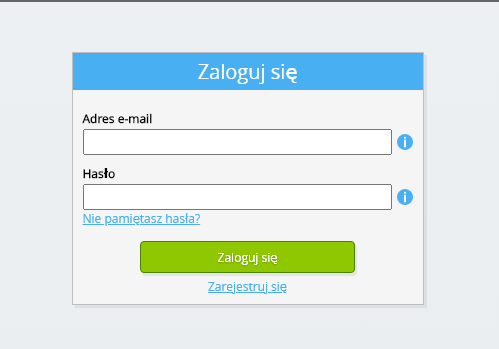
Zaloguj się teraz.
-
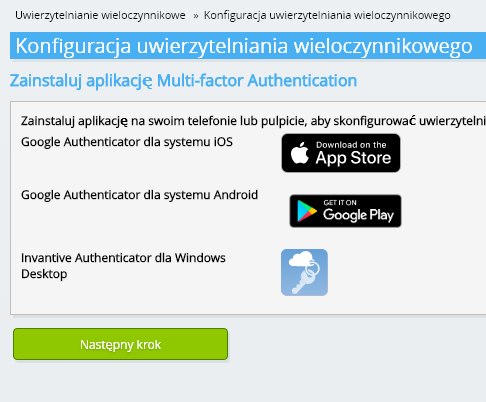
Upewnij się, że masz zainstalowaną w telefonie aplikację do uwierzytelniania. Kliknij przycisk „Dalej”.
-
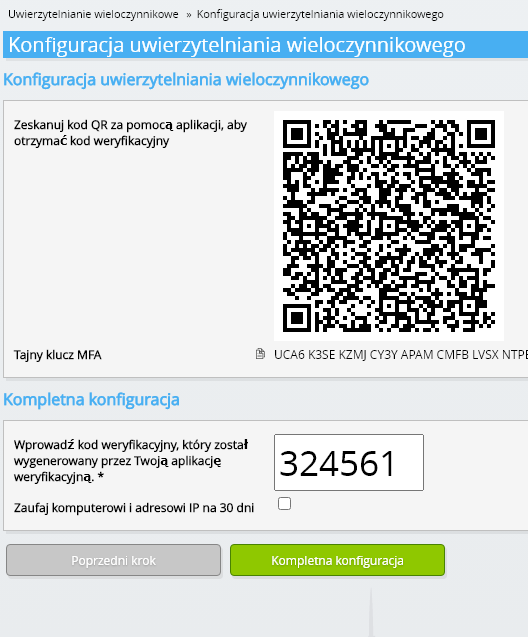
Dodaj wyświetlony kod QR do aplikacji uwierzytelniającej, wprowadź aktualny kod weryfikacyjny i wybierz opcję „Zakończ”.
-
Pomiń rejestrację organizacji.
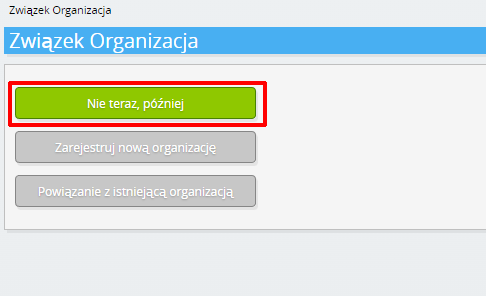
-
Wprowadź swoje dane osobowe i wybierz opcję „Zapisz”.
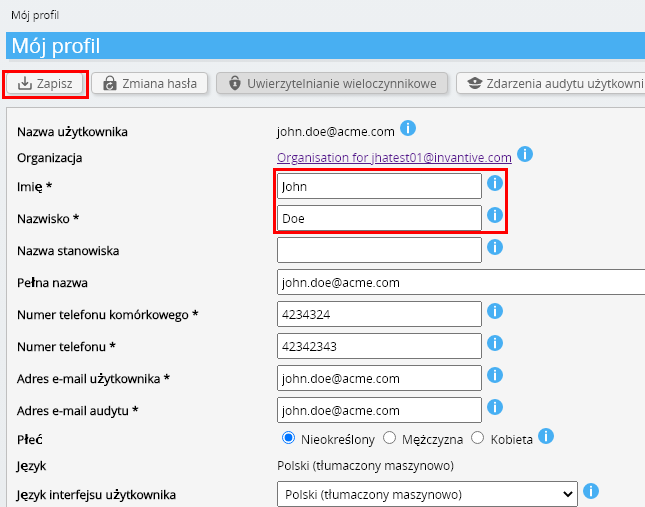
-
Przejdź do pulpitu nawigacyjnego.
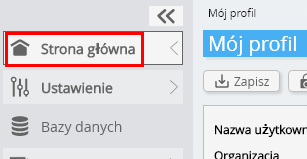
-
Zostanie wyświetlony panel sterowania Invantive Cloud.
Masz teraz kod logowania w Invantive Cloud, za pomocą którego możesz skonfigurować połączenie z Tweede Kamer (NL) v5 oraz wieloma innymi platformami. Ten sam kod logowania do Invantive oraz ten sam proces konfiguracji będziesz wykorzystywać dla wszystkich pozostałych platform.
Utwórz bazę danych Tweede Kamer (NL) v5
W tym kroku konfigurujemy bazę danych zawierającą dane z Tweede Kamer (NL) v5. Baza ta jest „wirtualna”, ponieważ nie jest to tradycyjna baza danych, lecz jest zasilana w czasie rzeczywistym z Tweede Kamer (NL) v5. Invantive Cloud zapewnia Invantive Drive połączenie w czasie rzeczywistym z Tweede Kamer (NL) v5. Baza danych będzie wykorzystywana do wszystkich raportów dotyczących Tweede Kamer (NL) v5 tworzonych w Invantive Drive. Wystarczy więc wykonać te czynności tylko raz.
-
Kliknij przycisk Dodaj bazę danych.
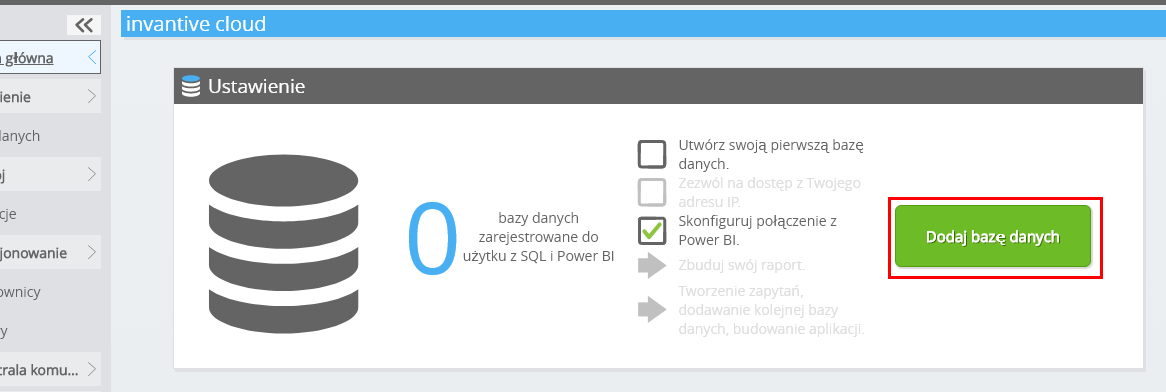
-
Wybierz Tweede Kamer (NL) v5 z listy.
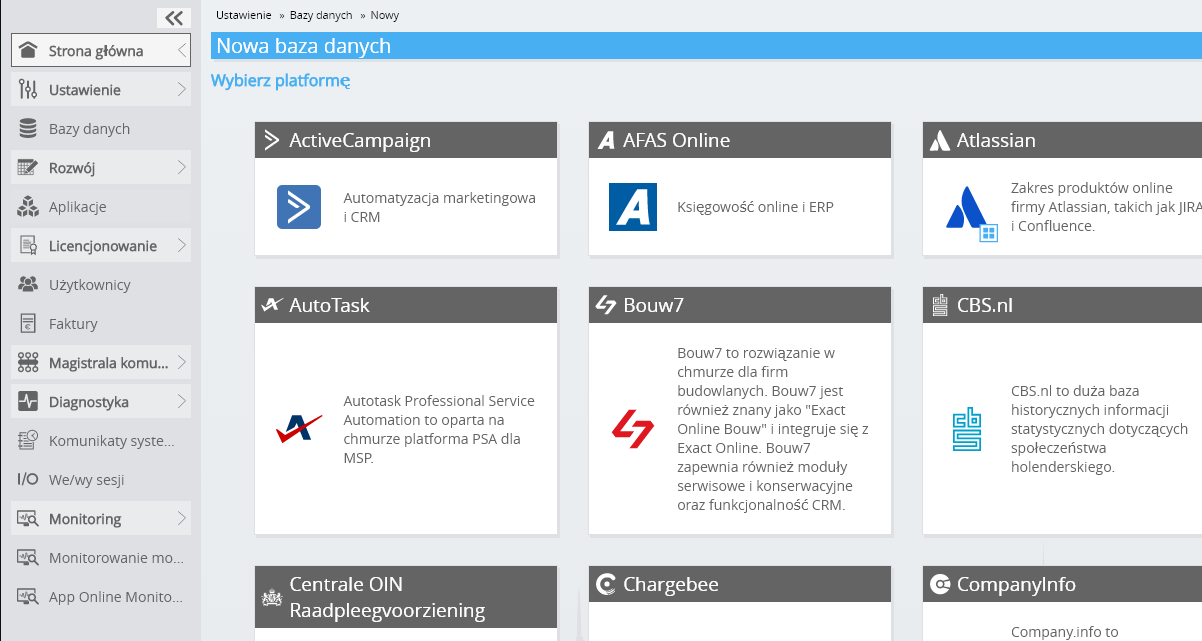
-
Proszę wypełnić formularz, podając dane logowania dla Tweede Kamer (NL) v5.
Kliknij przycisk „OK”.
Gratulacje! Teraz możesz przetwarzać dane z Tweede Kamer (NL) v5 na stronie internetowej Invantive Cloud. Możesz to zrobić na przykład za pomocą interaktywnego edytora SQL.
Install Invantive Drive on Windows
Invantive Drive is a small Windows program. It registers a folder named Invantive Drive in Windows Explorer and fetches a document from the platform the moment you open it, the way OneDrive and Google Drive work.
-
Download the installer of Invantive Drive and run it.
Follow the installer; no settings are needed.
After the installation, Windows Explorer shows a folder named Invantive Drive under This PC, and the Invantive Drive window opens.
Sign in to Invantive Drive and choose the Tweede Kamer (NL) v5 database
Invantive Drive signs in with your Invantive Cloud account and lists the databases of that account. Pick the one you created in the previous step.
In the Invantive Drive window, choose Sign in and enter your Invantive Cloud user name and password, plus the code of your authenticator app when asked.
Choose Add database and select the Tweede Kamer (NL) v5 database from the list.
A folder named after the Tweede Kamer (NL) v5 database appears under Invantive Drive in Windows Explorer, with a subfolder per company and per kind of document.
Open your Tweede Kamer (NL) v5 documents in Windows Explorer
Explorer lists the names, dates and sizes of the Tweede Kamer (NL) v5 documents. A document is fetched the moment you open it.
- Online only: listed in Explorer, fetched when you open it, no disk space.
- Kept on this device: you opened it or marked it to keep, so it also works without internet.
Each app is a folder and each company a subfolder. A document is fetched the moment you open it.
Browse to a folder and double-click a document; it opens in the program Windows uses for that kind of file.
A cloud icon marks a document that is online only and takes no disk space; a green check mark one that is kept on this device. Right-click a document to keep it on this device or to free up space.
Right-click a document and choose Open in Tweede Kamer (NL) v5 to jump to it on the platform, where the platform offers a web page for it.
The Tweede Kamer (NL) v5 folders are read-only: Tweede Kamer (NL) v5 does not accept files from outside, so nothing is changed or deleted by accident.
What Invantive Drive Can And Cannot Do
Invantive Drive shows documents; it does not copy or move them. A document is fetched only when you open it, and every fetch is an ordinary request to Tweede Kamer (NL) v5 within the limits of your subscription. Only a platform that accepts uploads takes a changed file back; the folders of the other platforms are read-only.
Invantive Drive runs on Windows. On any other device the file browser in Invantive Cloud shows the same folders in your web browser.