


Hoe verbind ik Invantive Drive met Odoo ERP binnen 5 minuten?
Voer de volgende stappen uit om Invantive Drive met Odoo ERP te verbinden. U heeft alleen kennis nodig van Invantive Drive, uw eigen bedrijf en de Odoo ERP administratie.
Odoo is online ERP- en CRM-software. Odoo wordt gebruikt door kleine en middelgrote bedrijven en door grote accountantskantoren.
No technical knowledge is needed to show the documents of Odoo ERP in Windows Explorer with Invantive Drive. This step-by-step plan tells you exactly which steps to go through on Invantive Cloud and on your PC.
De stappen om Invantive Drive te verbinden met Odoo ERP zijn:
- Registreer een Invantive Cloud-account.
- Maak een Odoo ERP-database.
- Install Invantive Drive on Windows.
- Sign in to Invantive Drive and choose the Odoo ERP database.
- Open your Odoo ERP documents in Windows Explorer.
Invantive Cloud offers a Odoo ERP connector for Invantive Drive, and 29 other platforms show their documents in the same folder of Windows Explorer.
Als u vragen heeft, kijk dan op de forums voor Odoo ERP
Registreer een Account op Invantive Cloud
Sla deze stap over als u al een account heeft op Invantive Cloud. Voer anders één keer de volgende stappen uit om een account op Invantive Cloud te registreren:
-
Ga naar Invantive Cloud startpagina.
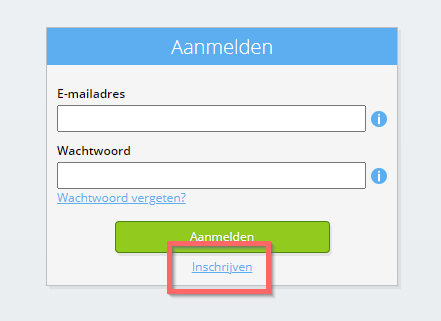
Selecteer de Aanmeldknop.
-
Selecteer de Inschrijven-knop.
-
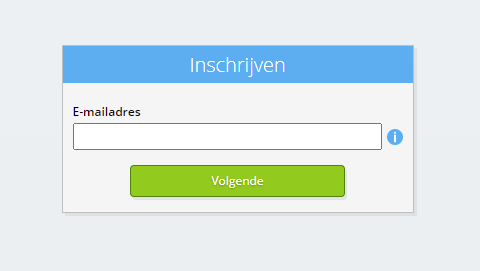
Voer uw zakelijke e-mailadres in.
-
Selecteer de Volgende-knop.
-
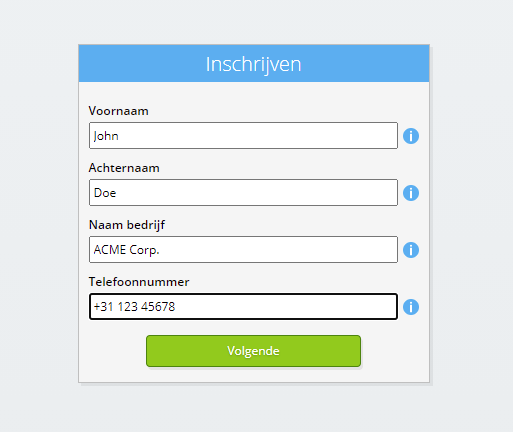
Vul uw persoonlijke gegevens in.
-
Selecteer de Volgende-knop.
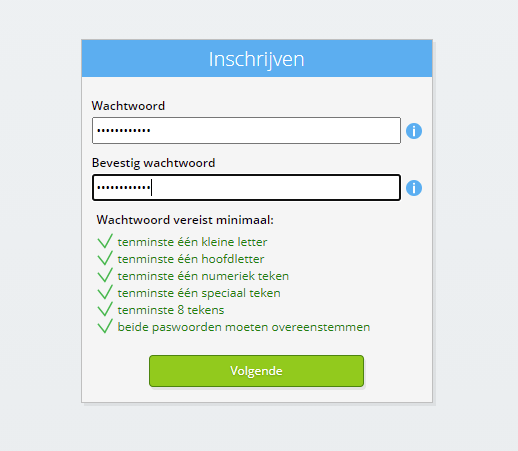
Voer uw wachtwoord in en herhaal het opgegeven wachtwoord.
-
Selecteer de Volgende-knop.
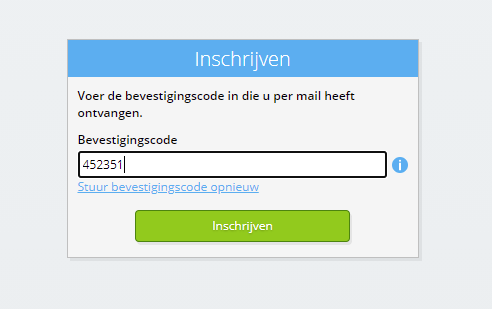
U ontvangt binnen 2 minuten een zescijferige verificatiecode per e-mail.
-
Voer de zescijferige verificatiecode in.
-
Selecteer de Inschrijven-knop.
-
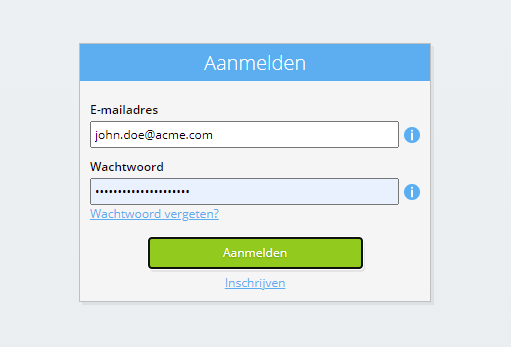
Meld u nu aan.
-
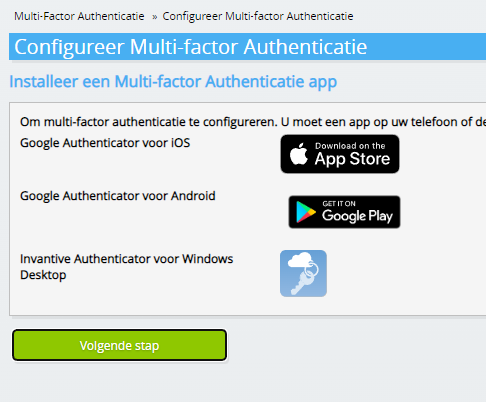
Zorg ervoor dat u een authenticatie-app op uw telefoon heeft geïnstalleerd. Selecteer de Volgende-knop.
-
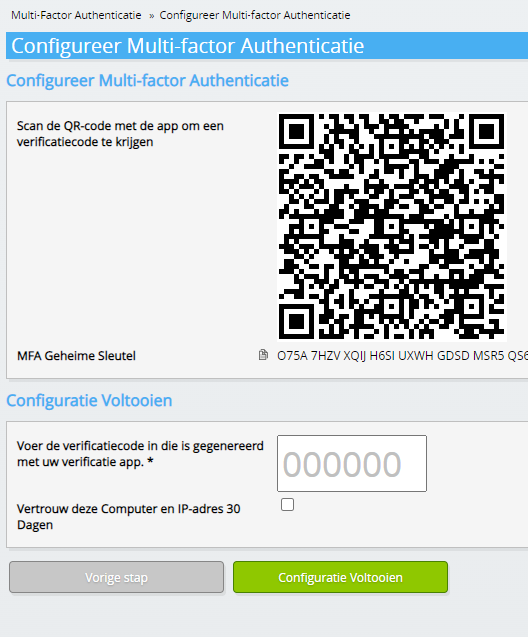
Voeg de weergegeven QR-code toe aan de authenticatie-app, voer de huidige verificatiecode in en kies "Voltooien".
-
Sla de registratie van de organisatie over.
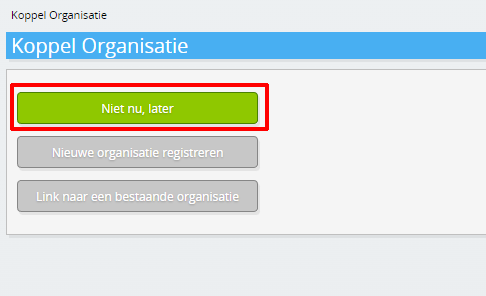
-
Vul uw persoonlijke gegevens in en kies 'Opslaan'.
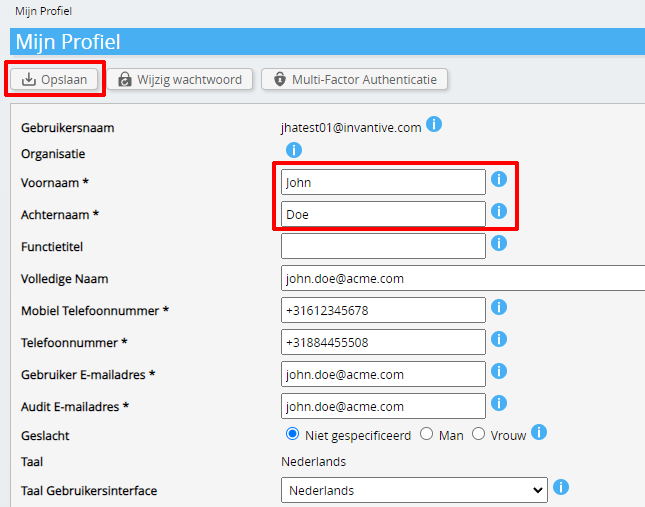
-
Ga naar het dashboard.
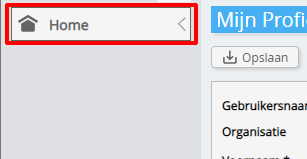
-
Het Invantive Cloud-dashboard wordt weergegeven.
U heeft nu een aanmeldcode op Invantive Cloud waarmee u de koppeling met Odoo ERP en tal van andere platformen kunt opzetten. Uw gebruikt dezelfde Invantive aanmeldcode en workflow voor alle andere platformen.
Maak Odoo ERP database
In deze stap zetten we een database op met gegevens uit Odoo ERP. De database is "virtueel" omdat het geen traditionele database is, maar realtime wordt gevoed vanuit Odoo ERP. Invantive Cloud biedt Invantive Drive een realtime koppeling naar Odoo ERP. De database wordt gebruikt voor al uw Odoo ERP rapportages met Invantive Drive. U hoeft deze stappen dus maar één keer uit te voeren.
-
Klik op de Knop Database toevoegen.
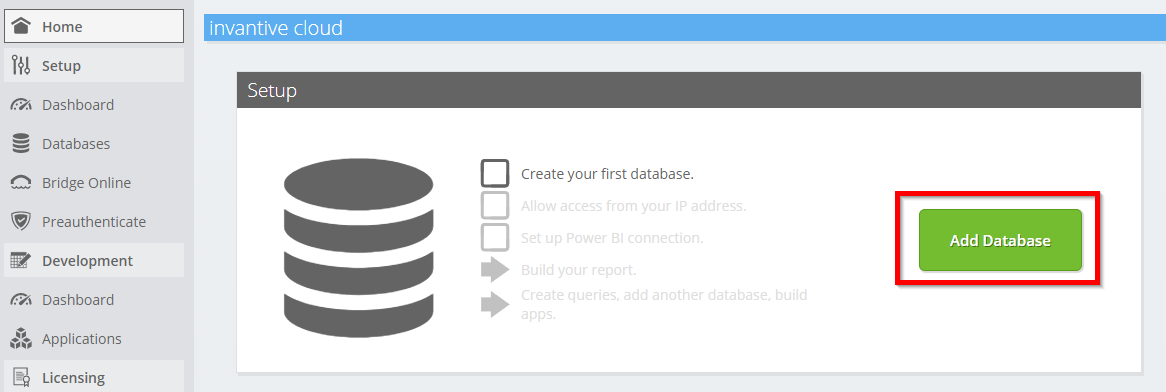
-
Selecteer Odoo ERP in de lijst.
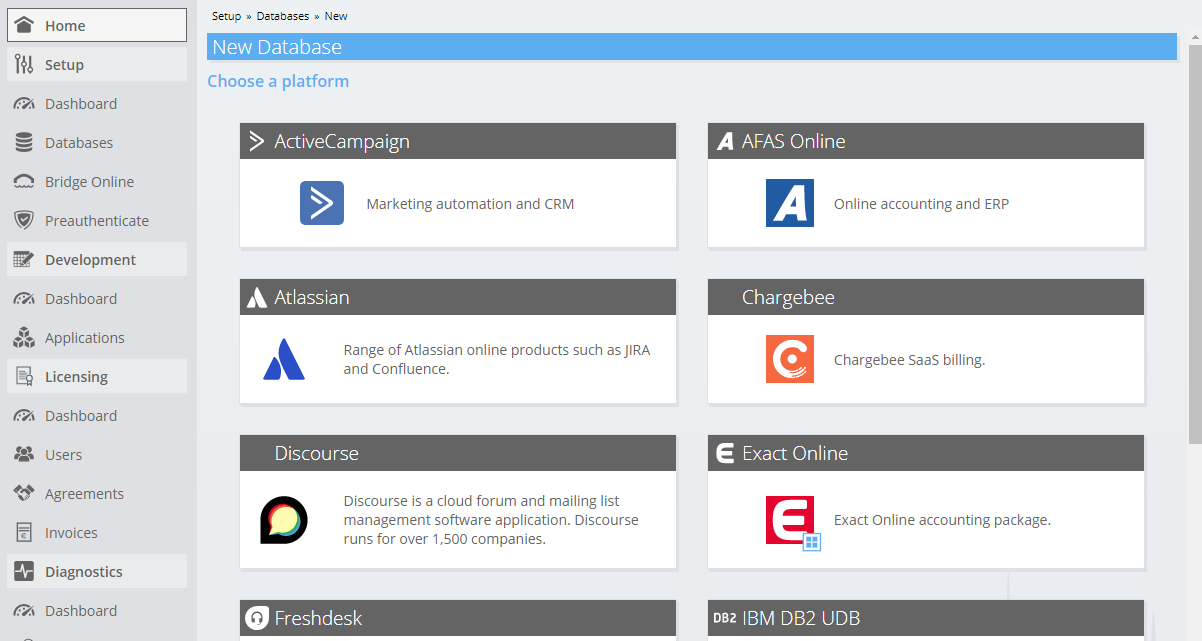
-
Vul het formulier in met aanmeldgegevens voor Odoo ERP.
Selecteer de OK-knop.
Gefeliciteerd! Je kunt nu gegevens van Odoo ERP verwerken binnen de Invantive Cloud-website. U kunt dit bijvoorbeeld doen met de interactieve SQL-editor.
Install Invantive Drive on Windows
Invantive Drive is a small Windows program. It registers a folder named Invantive Drive in Windows Explorer and fetches a document from the platform the moment you open it, the way OneDrive and Google Drive work.
-
Download the installer of Invantive Drive and run it.
Follow the installer; no settings are needed.
After the installation, Windows Explorer shows a folder named Invantive Drive under This PC, and the Invantive Drive window opens.
Sign in to Invantive Drive and choose the Odoo ERP database
Invantive Drive signs in with your Invantive Cloud account and lists the databases of that account. Pick the one you created in the previous step.
In the Invantive Drive window, choose Sign in and enter your Invantive Cloud user name and password, plus the code of your authenticator app when asked.
Choose Add database and select the Odoo ERP database from the list.
A folder named after the Odoo ERP database appears under Invantive Drive in Windows Explorer, with a subfolder per company and per kind of document.
Open your Odoo ERP documents in Windows Explorer
Explorer lists the names, dates and sizes of the Odoo ERP documents. A document is fetched the moment you open it.
- Online only: listed in Explorer, fetched when you open it, no disk space.
- Kept on this device: you opened it or marked it to keep, so it also works without internet.
Each app is a folder and each company a subfolder. A document is fetched the moment you open it.
Browse to a folder and double-click a document; it opens in the program Windows uses for that kind of file.
A cloud icon marks a document that is online only and takes no disk space; a green check mark one that is kept on this device. Right-click a document to keep it on this device or to free up space.
Right-click a document and choose Open in Odoo ERP to jump to it on the platform, where the platform offers a web page for it.
The Odoo ERP folders are read-only: Odoo ERP does not accept files from outside, so nothing is changed or deleted by accident.
What Invantive Drive Can And Cannot Do
Invantive Drive shows documents; it does not copy or move them. A document is fetched only when you open it, and every fetch is an ordinary request to Odoo ERP within the limits of your subscription. Only a platform that accepts uploads takes a changed file back; the folders of the other platforms are read-only.
Invantive Drive runs on Windows. On any other device the file browser in Invantive Cloud shows the same folders in your web browser.