


Hvordan kommer jeg meg fra Invantive Drive til Yuki på 5 minutter?
Utfør følgende trinn for å koble Invantive Drive til Yuki. Du trenger bare kunnskap om Invantive Drive, din egen virksomhet og Yuki-administrasjonen.
Yuki er et nettbasert regnskapsprogramvare fra Visma. Yuki spesialiserer seg på automatisert behandling av dokumenter i Nederland.
No technical knowledge is needed to show the documents of Yuki in Windows Explorer with Invantive Drive. This step-by-step plan tells you exactly which steps to go through on Invantive Cloud and on your PC.
Trinnene for å koble Invantive Drive til Yuki er:
- Registrer en Invantive Cloud-konto.
- Opprett en Yuki-database.
- Install Invantive Drive on Windows.
- Sign in to Invantive Drive and choose the Yuki database.
- Open your Yuki documents in Windows Explorer.
Invantive Cloud offers a Yuki connector for Invantive Drive, and 29 other platforms show their documents in the same folder of Windows Explorer.
Når du har spørsmål, vennligst sjekk forumene for Yuki.
Registrer konto på Invantive Cloud
Hopp over dette trinnet når du allerede har en konto på Invantive Cloud. Ellers kan du utføre følgende trinn én gang for å registrere en konto på Invantive Cloud:
-
Gå til Invantive Cloud startside.
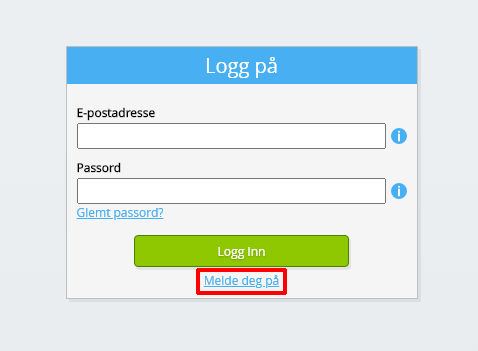
Velg Logg på-knappen.
-
Velg Registrer deg-knappen.
-
Skriv inn bedriftens e-postadresse.

-
Velg Neste-knappen.
-
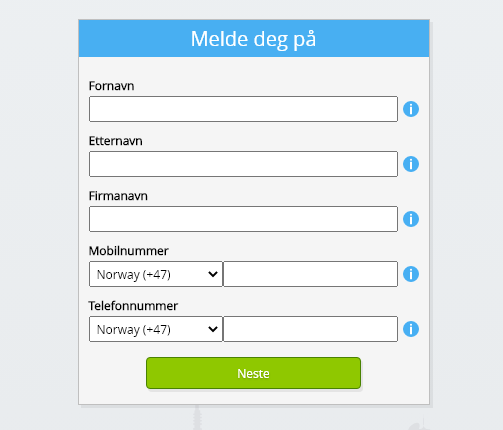
Skriv inn dine personlige data.
-
Velg Neste-knappen.
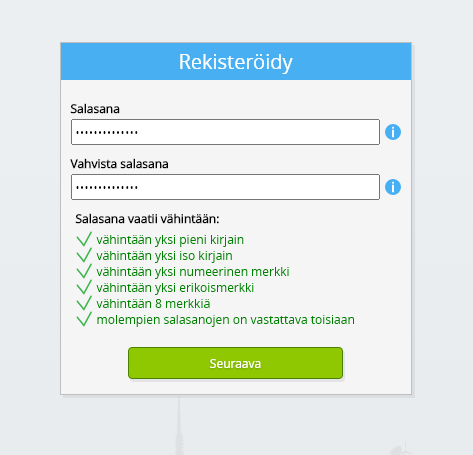
Skriv inn passordet ditt og gjenta det angitte passordet.
-
Velg Neste-knappen.
Du vil motta en sekssifret verifiseringskode via e-post innen 2 minutter.
-
Skriv inn den sekssifrede verifiseringskoden.

-
Velg Registrer deg-knappen.
-
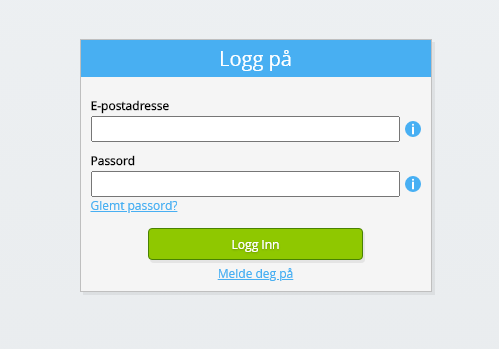
Logg på nå.
-
Sørg for at du har en autentiseringsapp installert på telefonen. Velg Neste-knappen.
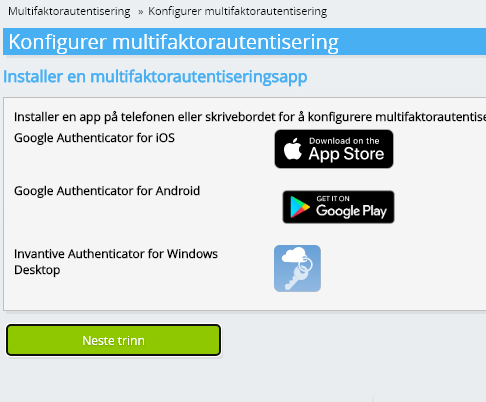
-
Legg til den viste QR-koden i autentiseringsappen, skriv inn gjeldende bekreftelseskode og velg «Fullfør».
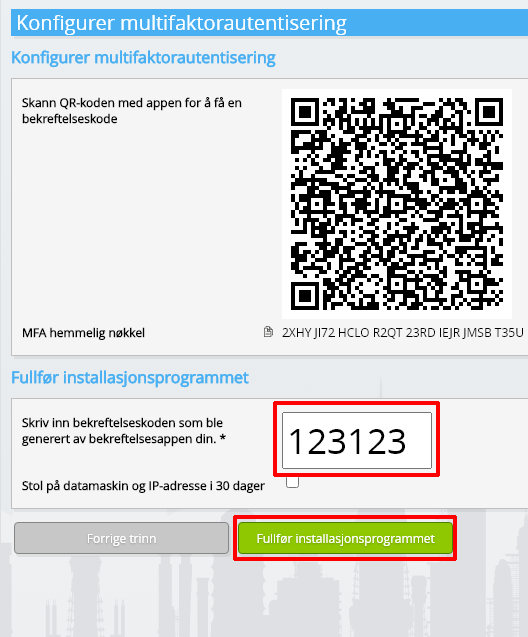
-
Hopp over registrering av organisasjonen.
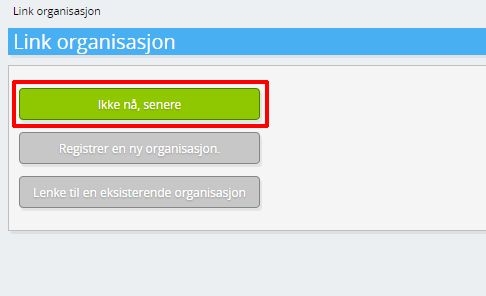
-
Fyll ut dine personlige data og velg 'Lagre'.
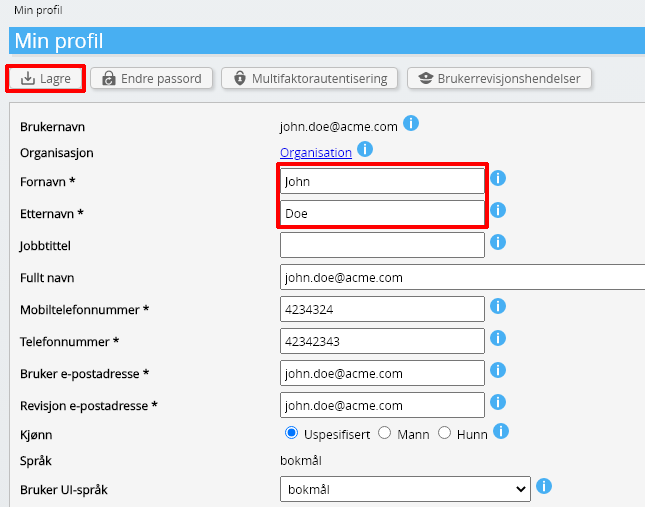
-
Gå til instrumentbord
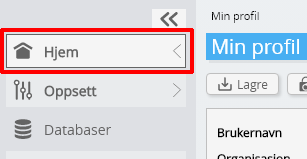
-
Invantive Cloud- dashbordet vises.
Du har nå en påloggingskode på Invantive Cloud som du kan sette opp tilkoblingen med Yuki og mange andre plattformer. Du vil bruke samme Invantive påloggingskode og arbeidsflyt for alle andre plattformer.
Opprett en Yuki-database.
I dette trinnet setter vi opp en database med data fra Yuki. Databasen er «virtuell» fordi den ikke er en tradisjonell database, men mates sanntid fra Yuki. Invantive Cloud gir Invantive Drive en sanntidskobling til Yuki. Databasen vil bli brukt for alle dine Yuki rapportering med Invantive Drive. Så du trenger bare å utføre disse trinnene en gang.
-
Klikk på Legg til database-knappen.
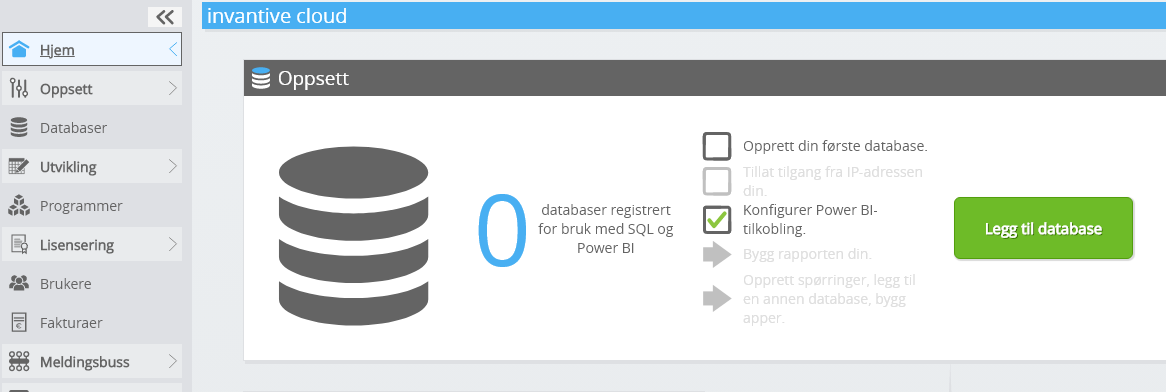
-
Velg Yuki fra listen.
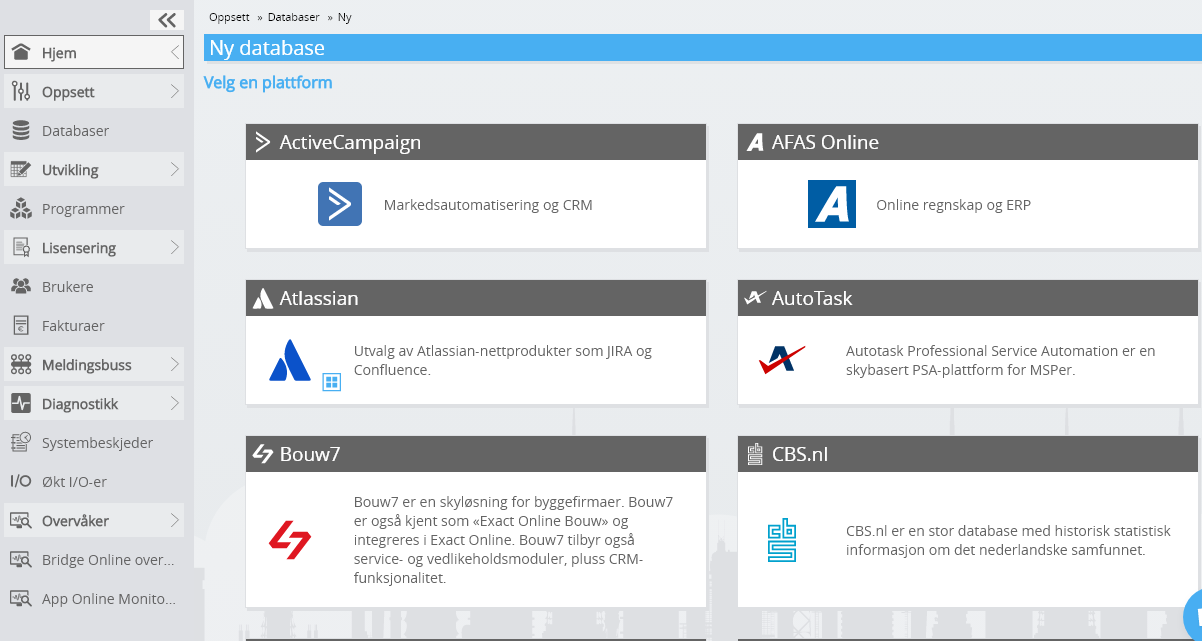
-
Fyll ut skjemaet med påloggingsinformasjon for Yuki.
Velg OK-knappen.
Gratulerer! Du kan nå behandle data fra Yuki på Invantive Cloud-nettstedet. Du kan for eksempel gjøre dette med det interaktive SQL-redigeringsprogrammet.
Install Invantive Drive on Windows
Invantive Drive is a small Windows program. It registers a folder named Invantive Drive in Windows Explorer and fetches a document from the platform the moment you open it, the way OneDrive and Google Drive work.
-
Download the installer of Invantive Drive and run it.
Follow the installer; no settings are needed.
After the installation, Windows Explorer shows a folder named Invantive Drive under This PC, and the Invantive Drive window opens.
Sign in to Invantive Drive and choose the Yuki database
Invantive Drive signs in with your Invantive Cloud account and lists the databases of that account. Pick the one you created in the previous step.
In the Invantive Drive window, choose Sign in and enter your Invantive Cloud user name and password, plus the code of your authenticator app when asked.
Choose Add database and select the Yuki database from the list.
A folder named after the Yuki database appears under Invantive Drive in Windows Explorer, with a subfolder per company and per kind of document.
Open your Yuki documents in Windows Explorer
Explorer lists the names, dates and sizes of the Yuki documents. A document is fetched the moment you open it.
- Online only: listed in Explorer, fetched when you open it, no disk space.
- Kept on this device: you opened it or marked it to keep, so it also works without internet.
Each app is a folder and each company a subfolder. A document is fetched the moment you open it.
Browse to a folder and double-click a document; it opens in the program Windows uses for that kind of file.
A cloud icon marks a document that is online only and takes no disk space; a green check mark one that is kept on this device. Right-click a document to keep it on this device or to free up space.
Right-click a document and choose Open in Yuki to jump to it on the platform, where the platform offers a web page for it.
The Yuki folders are read-only: Yuki does not accept files from outside, so nothing is changed or deleted by accident.
What Invantive Drive Can And Cannot Do
Invantive Drive shows documents; it does not copy or move them. A document is fetched only when you open it, and every fetch is an ordinary request to Yuki within the limits of your subscription. Only a platform that accepts uploads takes a changed file back; the folders of the other platforms are read-only.
Invantive Drive runs on Windows. On any other device the file browser in Invantive Cloud shows the same folders in your web browser.