


Invantive Drive을 Yuki까지 5분 만에 어떻게 연결할 수 있나요?
Invantive Drive을 Yuki에 연결하려면 다음 단계를 수행하십시오. Invantive Drive에 대한 지식과 본인의 사업, 그리고 Yuki 행정 업무에 대한 이해만 있으면 됩니다.
Yuki는 Visma에서 제공하는 온라인 회계 소프트웨어입니다. Yuki는 네덜란드에서 문서 자동 처리에 특화되어 있습니다.
No technical knowledge is needed to show the documents of Yuki in Windows Explorer with Invantive Drive. This step-by-step plan tells you exactly which steps to go through on Invantive Cloud and on your PC.
Invantive Drive을 Yuki에 연결하는 단계는 다음과 같습니다:
- Invantive Cloud 계정을 등록하세요.
- Yuki 데이터베이스를 생성하십시오.
- Install Invantive Drive on Windows.
- Sign in to Invantive Drive and choose the Yuki database.
- Open your Yuki documents in Windows Explorer.
Invantive Cloud offers a Yuki connector for Invantive Drive, and 29 other platforms show their documents in the same folder of Windows Explorer.
질문이 있으시면 포럼에서 Yuki을 확인해 주세요.
Invantive Cloud에 계정 등록하기
이미 Invantive Cloud에 계정이 있는 경우 이 단계를 건너뛰십시오. 그렇지 않은 경우, Invantive Cloud에 계정을 등록하기 위해 다음 단계를 한 번만 수행하십시오:
-
Invantive Cloud 시작 페이지로 이동하세요.
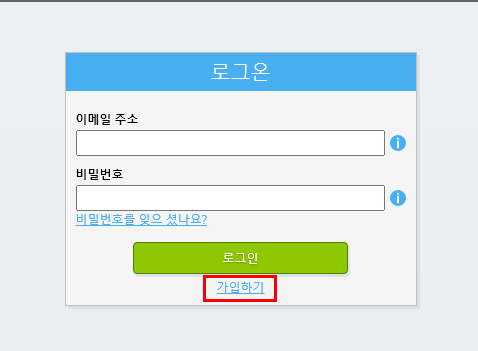
'로그온' 버튼을 선택하세요.
-
‘가입’ 버튼을 선택하세요.
-
업무용 이메일 주소를 입력해 주세요.

-
'다음' 버튼을 선택하십시오.
-
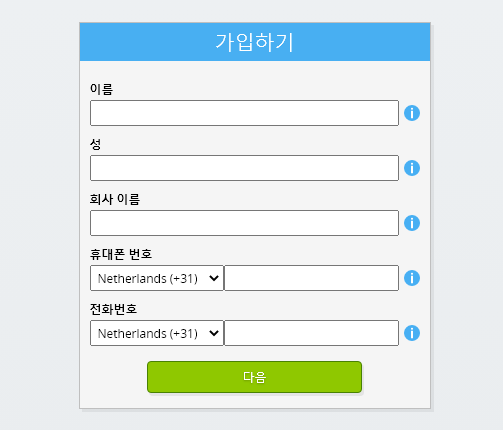
개인 정보를 입력해 주세요.
-
'다음' 버튼을 선택하십시오.
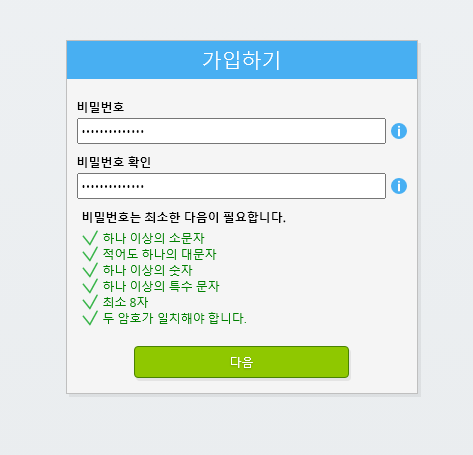
비밀번호를 입력하고, 입력한 비밀번호를 다시 한 번 입력하세요.
-
'다음' 버튼을 선택하십시오.
2분 이내에 이메일로 6자리 인증 코드가 발송됩니다.
-
6자리 인증 코드를 입력하세요.

-
‘가입’ 버튼을 선택하세요.
-
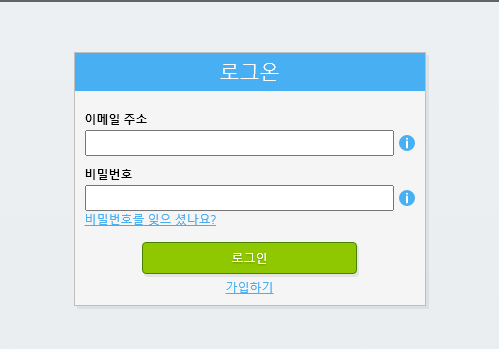
지금 로그인하세요.
-
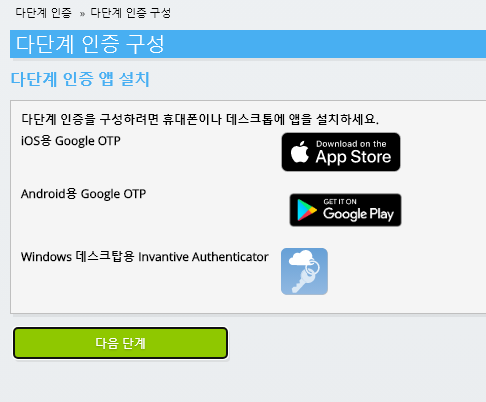
휴대폰에 인증 앱이 설치되어 있는지 확인하세요. '다음' 버튼을 선택하십시오.
-
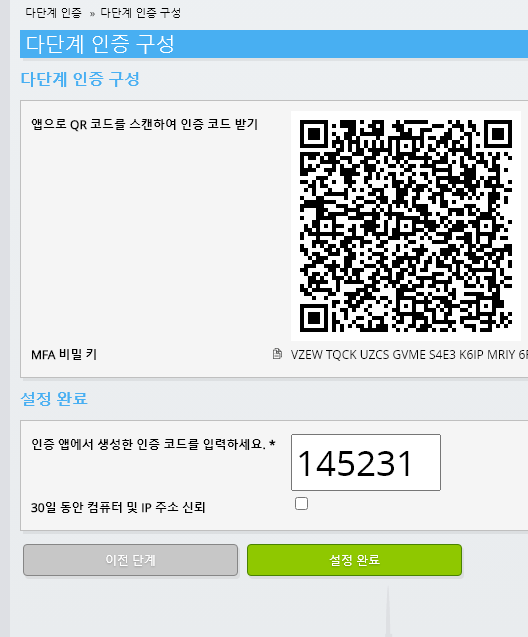
표시된 QR 코드를 인증 앱에 추가하고, 현재 인증 코드를 입력한 다음 “완료”를 선택하세요.
-
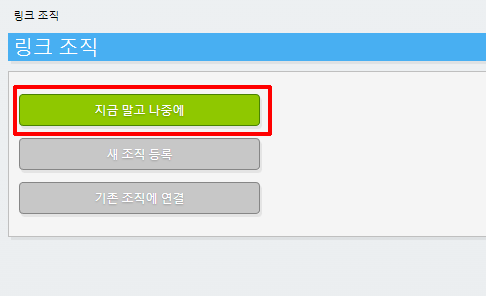
조직 등록을 건너뛰기.
-
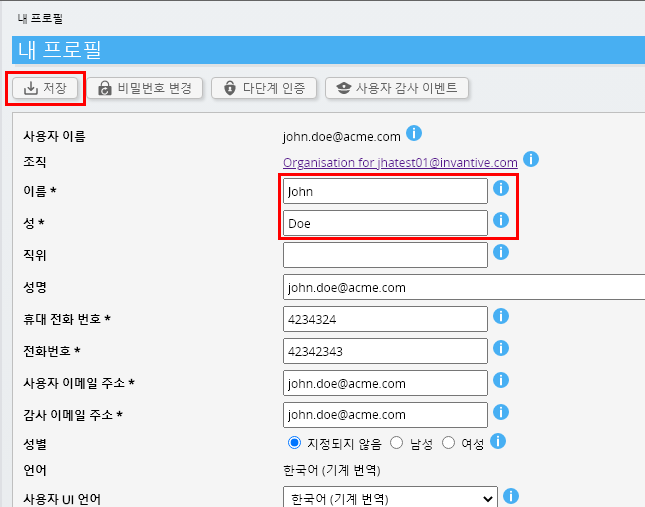
개인 정보를 입력한 후 ‘저장’을 선택하세요.
-
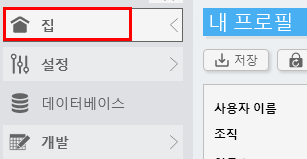
대시보드로 이동하세요.
-
Invantive Cloud 대시보드가 표시됩니다.
이제 Invantive Cloud에 로그인 코드가 생성되었으며, 이를 통해 Yuki 및 기타 다양한 플랫폼과의 연결을 설정할 수 있습니다. 다른 모든 플랫폼에서도 동일한 Invantive 로그인 코드와 워크플로를 사용하게 됩니다.
Yuki 데이터베이스 생성
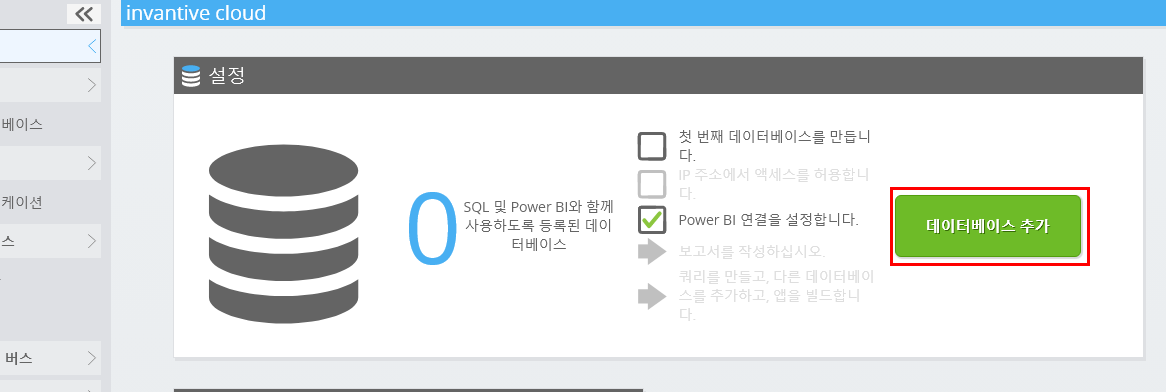
이 단계에서는 Yuki의 데이터를 기반으로 데이터베이스를 설정합니다. 이 데이터베이스는 기존의 데이터베이스가 아니라 Yuki에서 실시간으로 데이터를 받아오기 때문에 “가상” 데이터베이스라고 합니다. Invantive Cloud는 Invantive Drive에 Yuki과의 실시간 연동 기능을 제공합니다. 이 데이터베이스는 Invantive Drive을 통해 Yuki에 대한 모든 보고서에 사용될 것입니다. 따라서 이 단계는 한 번만 수행하면 됩니다.
-
데이터베이스 추가 버튼을 클릭하세요.
-
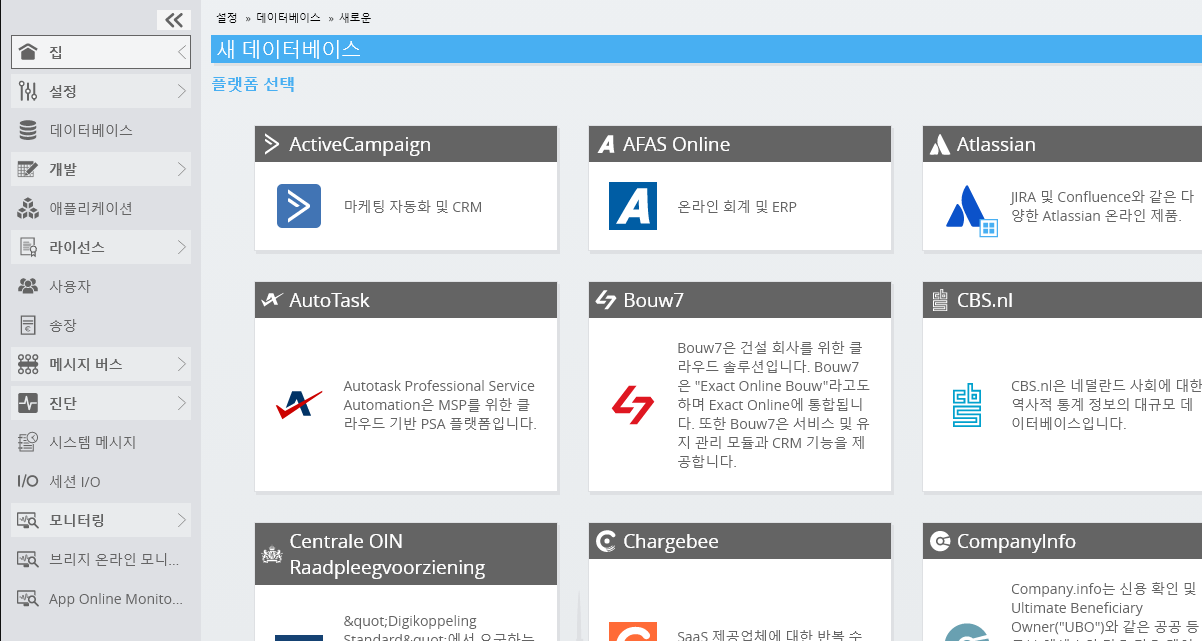
목록에서 Yuki을 선택하십시오.
-
Yuki의 로그인 정보를 양식에 기입해 주세요.
‘확인’ 버튼을 선택하십시오.
축하합니다! 이제 Invantive Cloud 웹사이트에서 Yuki의 데이터를 처리할 수 있습니다. 예를 들어, 대화형 SQL 편집기를 사용하여 이 작업을 수행할 수 있습니다.
Install Invantive Drive on Windows
Invantive Drive is a small Windows program. It registers a folder named Invantive Drive in Windows Explorer and fetches a document from the platform the moment you open it, the way OneDrive and Google Drive work.
-
Download the installer of Invantive Drive and run it.
Follow the installer; no settings are needed.
After the installation, Windows Explorer shows a folder named Invantive Drive under This PC, and the Invantive Drive window opens.
Sign in to Invantive Drive and choose the Yuki database
Invantive Drive signs in with your Invantive Cloud account and lists the databases of that account. Pick the one you created in the previous step.
In the Invantive Drive window, choose Sign in and enter your Invantive Cloud user name and password, plus the code of your authenticator app when asked.
Choose Add database and select the Yuki database from the list.
A folder named after the Yuki database appears under Invantive Drive in Windows Explorer, with a subfolder per company and per kind of document.
Open your Yuki documents in Windows Explorer
Explorer lists the names, dates and sizes of the Yuki documents. A document is fetched the moment you open it.
- Online only: listed in Explorer, fetched when you open it, no disk space.
- Kept on this device: you opened it or marked it to keep, so it also works without internet.
Each app is a folder and each company a subfolder. A document is fetched the moment you open it.
Browse to a folder and double-click a document; it opens in the program Windows uses for that kind of file.
A cloud icon marks a document that is online only and takes no disk space; a green check mark one that is kept on this device. Right-click a document to keep it on this device or to free up space.
Right-click a document and choose Open in Yuki to jump to it on the platform, where the platform offers a web page for it.
The Yuki folders are read-only: Yuki does not accept files from outside, so nothing is changed or deleted by accident.
What Invantive Drive Can And Cannot Do
Invantive Drive shows documents; it does not copy or move them. A document is fetched only when you open it, and every fetch is an ordinary request to Yuki within the limits of your subscription. Only a platform that accepts uploads takes a changed file back; the folders of the other platforms are read-only.
Invantive Drive runs on Windows. On any other device the file browser in Invantive Cloud shows the same folders in your web browser.