


Invantive DriveからSalesforceまで、5分でどのように移動すればよいですか?
Invantive DriveをSalesforceに接続するには、以下の手順を実行してください。 必要なのは、Invantive Driveに関する知識、ご自身のビジネス、そしてSalesforceの管理に関する知識だけです。
Salesforceはオンライン・エコシステムです。SalesforceはもともとCRMソリューションとして誕生しましたが、Salesforceのパートナー企業によって、より幅広い種類のオンラインアプリケーションに対応するように拡張されました。
No technical knowledge is needed to show the documents of Salesforce in Windows Explorer with Invantive Drive. This step-by-step plan tells you exactly which steps to go through on Invantive Cloud and on your PC.
Invantive Drive を Salesforce に接続する手順は次のとおりです:
- Invantive Cloudのアカウントを登録してください。
- Salesforce データベースを作成します。
- Install Invantive Drive on Windows.
- Sign in to Invantive Drive and choose the Salesforce database.
- Open your Salesforce documents in Windows Explorer.
Invantive Cloud offers a Salesforce connector for Invantive Drive, and 29 other platforms show their documents in the same folder of Windows Explorer.
ご質問がある場合は、のフォーラムでSalesforceをご確認ください。
Invantive Cloudでアカウントを登録する
すでにInvantive Cloudのアカウントをお持ちの場合は、この手順をスキップしてください。そうでない場合は、Invantive Cloudにアカウントを登録するために、以下の手順を1回実行してください:
-
Invantive Cloudのスタートページにアクセスしてください。
「ログイン」ボタンを選択してください。
-
「サインアップ」ボタンを選択してください。
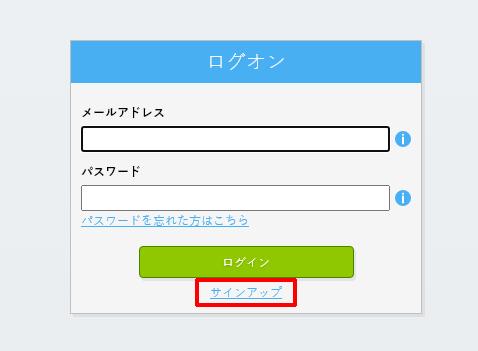
-
会社のメールアドレスを入力してください。
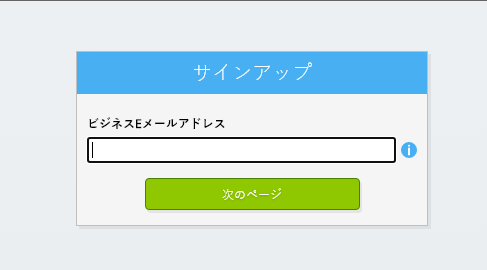
-
「次へ」ボタンを選択してください。
-
個人情報を入力してください。
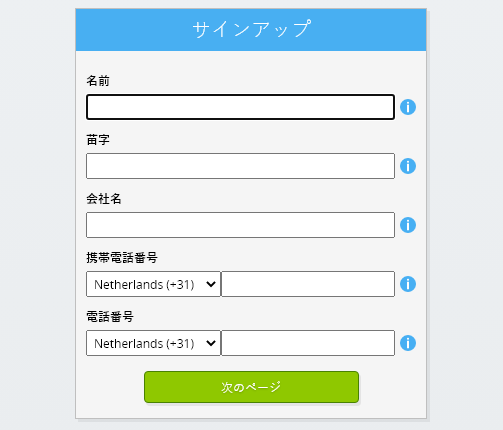
-
「次へ」ボタンを選択してください。
パスワードを入力し、表示されたパスワードを再入力してください。
-
「次へ」ボタンを選択してください。
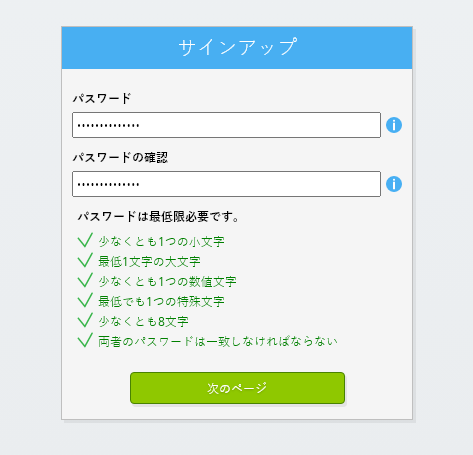
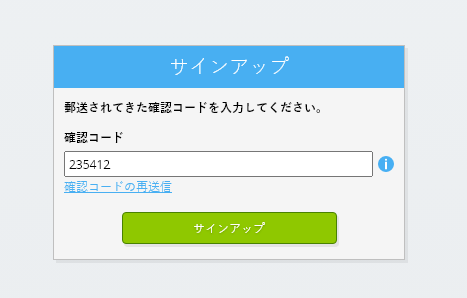
2分以内に、6桁の認証コードがメールで送信されます。
-
6桁の認証コードを入力してください。
-
「サインアップ」ボタンを選択してください。
-
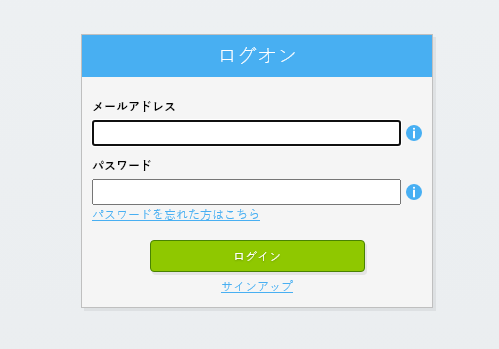
今すぐログインしてください。
-
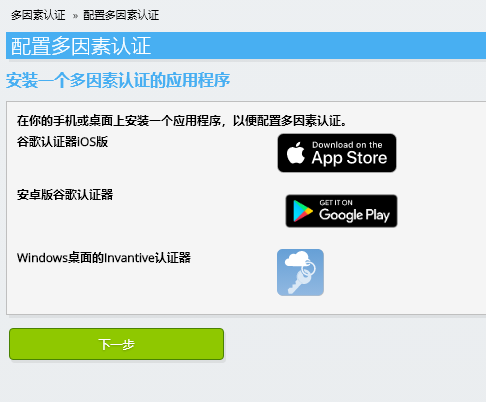
スマートフォンに認証アプリがインストールされていることを確認してください。 「次へ」ボタンを選択してください。
-
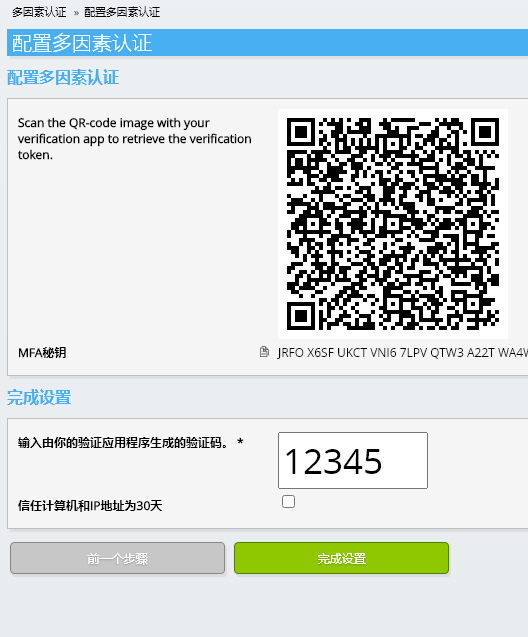
表示されたQRコードを認証アプリに読み取り、現在の認証コードを入力して、「完了」を選択してください。
-
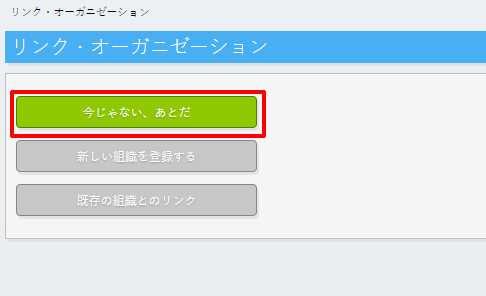
組織の登録をスキップする。
-
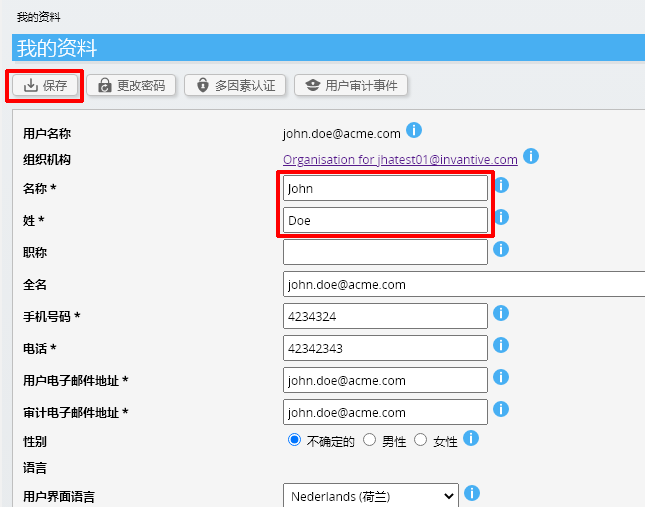
個人情報を入力し、「保存」を選択してください。
-
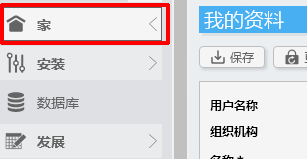
ダッシュボードに移動してください。
-
Invantive Cloud の ダッシュボード が表示されます。
これで、Invantive Cloud にログインコードが発行されました。このコードを使用すると、Salesforce やその他多数のプラットフォームとの接続を設定できます。他のすべてのプラットフォームについても、同じ Invantive のログインコードとワークフローを使用します。
Salesforce データベースを作成する
この手順では、Salesforce のデータを含むデータベースを設定します。このデータベースは、従来のデータベースではなく、Salesforce からリアルタイムでデータが供給されるため、「仮想」データベースとなります。 Invantive Cloudは、Invantive DriveとSalesforceをリアルタイムで連携させます。このデータベースは、Invantive Driveを使用したSalesforceに関するすべてのレポート作成に使用されます。したがって、これらの手順は一度実行するだけで済みます。
-
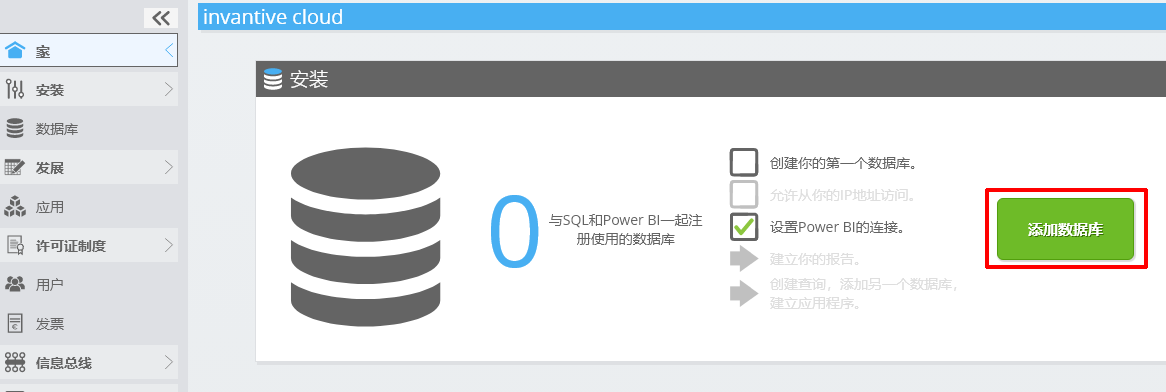
「データベースを追加」ボタンをクリックしてください。
-
リストからSalesforceを選択してください。
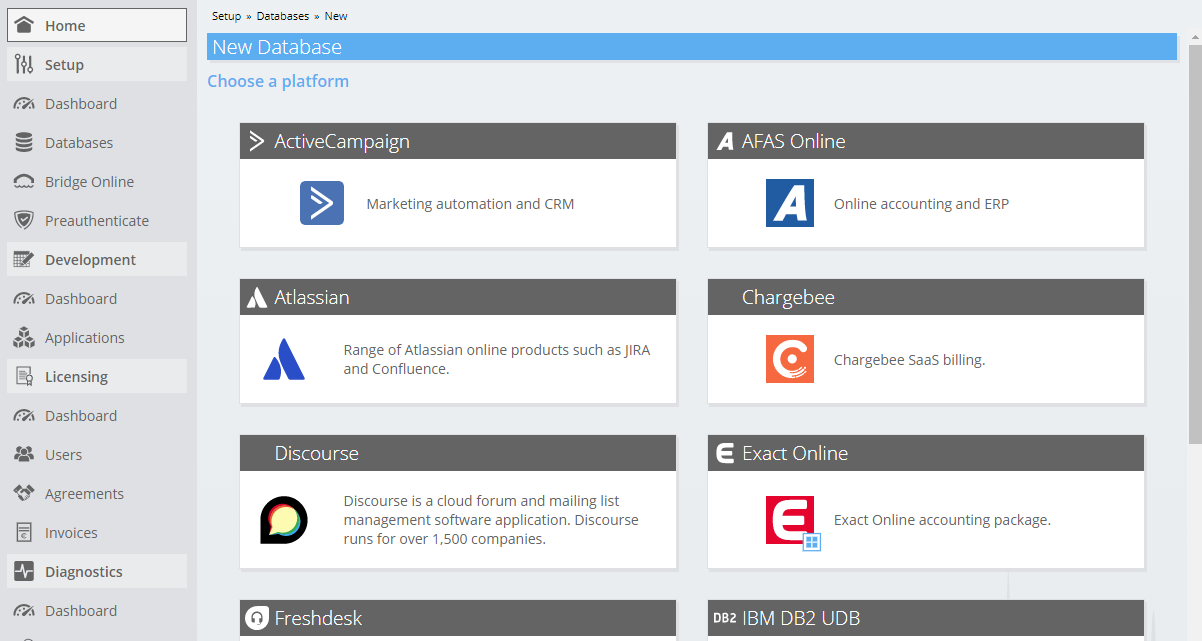
-
Salesforce のログイン情報をフォームに入力してください。
「OK」ボタンを選択してください。
おめでとうございます!これで、Invantive Cloudのウェブサイト上でSalesforceのデータを処理できるようになりました。たとえば、対話型SQLエディタを使用して処理を行うことができます。
Install Invantive Drive on Windows
Invantive Drive is a small Windows program. It registers a folder named Invantive Drive in Windows Explorer and fetches a document from the platform the moment you open it, the way OneDrive and Google Drive work.
-
Download the installer of Invantive Drive and run it.
Follow the installer; no settings are needed.
After the installation, Windows Explorer shows a folder named Invantive Drive under This PC, and the Invantive Drive window opens.
Sign in to Invantive Drive and choose the Salesforce database
Invantive Drive signs in with your Invantive Cloud account and lists the databases of that account. Pick the one you created in the previous step.
In the Invantive Drive window, choose Sign in and enter your Invantive Cloud user name and password, plus the code of your authenticator app when asked.
Choose Add database and select the Salesforce database from the list.
A folder named after the Salesforce database appears under Invantive Drive in Windows Explorer, with a subfolder per company and per kind of document.
Open your Salesforce documents in Windows Explorer
Explorer lists the names, dates and sizes of the Salesforce documents. A document is fetched the moment you open it.
- Online only: listed in Explorer, fetched when you open it, no disk space.
- Kept on this device: you opened it or marked it to keep, so it also works without internet.
Each app is a folder and each company a subfolder. A document is fetched the moment you open it.
Browse to a folder and double-click a document; it opens in the program Windows uses for that kind of file.
A cloud icon marks a document that is online only and takes no disk space; a green check mark one that is kept on this device. Right-click a document to keep it on this device or to free up space.
Right-click a document and choose Open in Salesforce to jump to it on the platform, where the platform offers a web page for it.
The Salesforce folders are read-only: Salesforce does not accept files from outside, so nothing is changed or deleted by accident.
What Invantive Drive Can And Cannot Do
Invantive Drive shows documents; it does not copy or move them. A document is fetched only when you open it, and every fetch is an ordinary request to Salesforce within the limits of your subscription. Only a platform that accepts uploads takes a changed file back; the folders of the other platforms are read-only.
Invantive Drive runs on Windows. On any other device the file browser in Invantive Cloud shows the same folders in your web browser.