


Come posso connettermi Invantive Drive Nmbrs in 5 minuti?
Esegui i seguenti passaggi per connettere Invantive Drive a Nmbrs. È sufficiente conoscere Invantive Drive, la propria attività e l'amministrazione di Nmbrs.
Nmbrs è un software per le paghe nel cloud. Nmbrs offre sia funzionalità di payroll che di HR. È disponibile sia per la legislazione olandese che per quella svedese. Nmbrs è utilizzato da imprenditori e studi contabili.
No technical knowledge is needed to show the documents of Nmbrs in Windows Explorer with Invantive Drive. This step-by-step plan tells you exactly which steps to go through on Invantive Cloud and on your PC.
I passaggi per connettere Invantive Drive a Nmbrs sono:
- Registrare un account Invantive Cloud.
- Crea un database Nmbrs.
- Install Invantive Drive on Windows.
- Sign in to Invantive Drive and choose the Nmbrs database.
- Open your Nmbrs documents in Windows Explorer.
Invantive Cloud offers a Nmbrs connector for Invantive Drive, and 29 other platforms show their documents in the same folder of Windows Explorer.
In caso di domande, si prega di controllare il forum per Nmbrs.
Registrare un account su Invantive Cloud
Salta questo passaggio quando hai già un account su Invantive Cloud. Altrimenti, esegui i seguenti passaggi una volta per registrare un account su Invantive Cloud:
-
Vai alla pagina iniziale di Invantive Cloud.
Seleziona il pulsante Accedi.
-
Seleziona il pulsante Registrati.
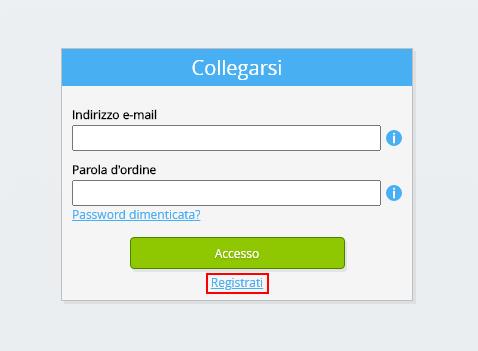
-
Inserisci il tuo indirizzo email aziendale.
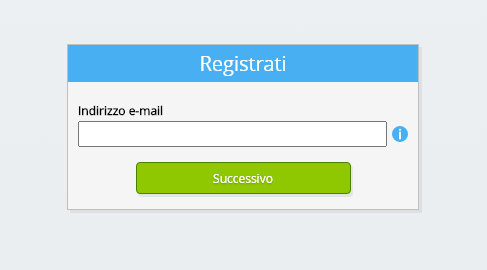
-
Seleziona il pulsante Avanti.
-
Inserisci i tuoi dati personali.
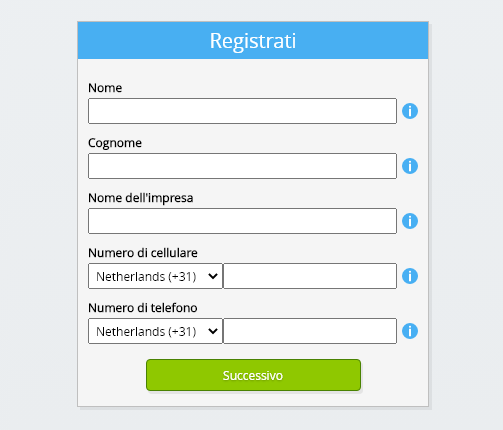
-
Seleziona il pulsante Avanti.
Inserisci la tua password e ripeti la password fornita.
-
Seleziona il pulsante Avanti.
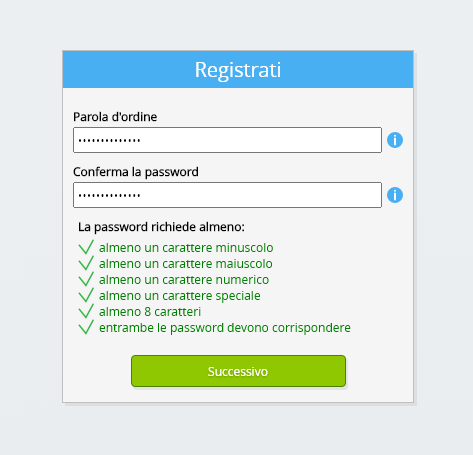
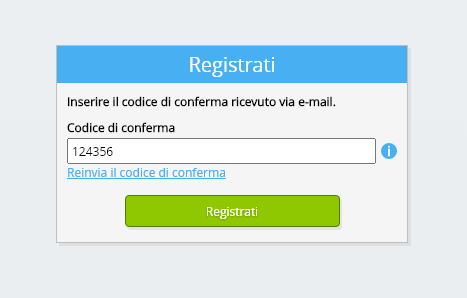
Riceverai un codice di verifica a sei cifre via e-mail entro 2 minuti.
-
Inserisci il codice di verifica a sei cifre.
-
Seleziona il pulsante Registrati.
-
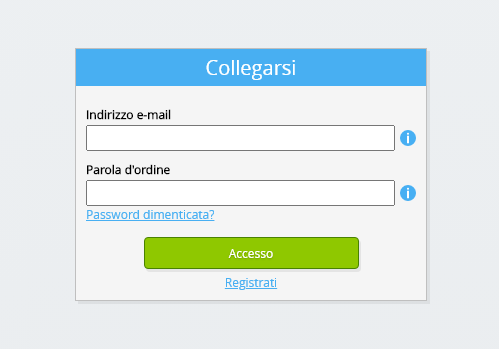
Effettua il login ora.
-
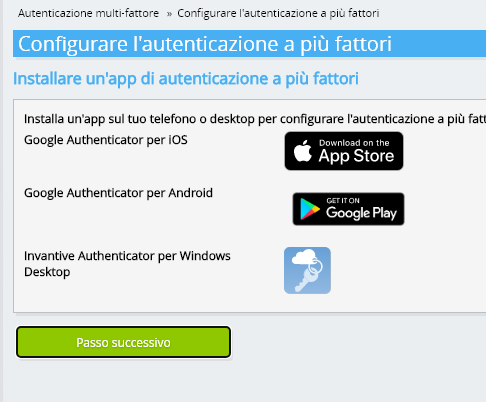
Assicurati di avere un'app di autenticazione installata sul tuo telefono. Seleziona il pulsante Avanti.
-
Aggiungi il codice QR visualizzato all'app di autenticazione, inserisci il codice di verifica corrente e scegli «Fine».

-
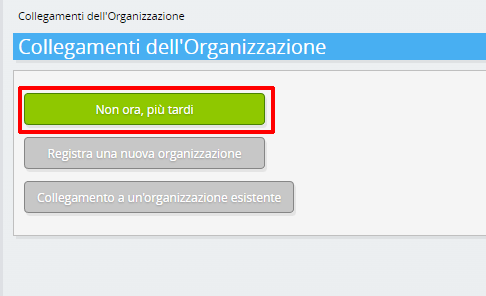
Saltare la registrazione dell'organizzazione.
-
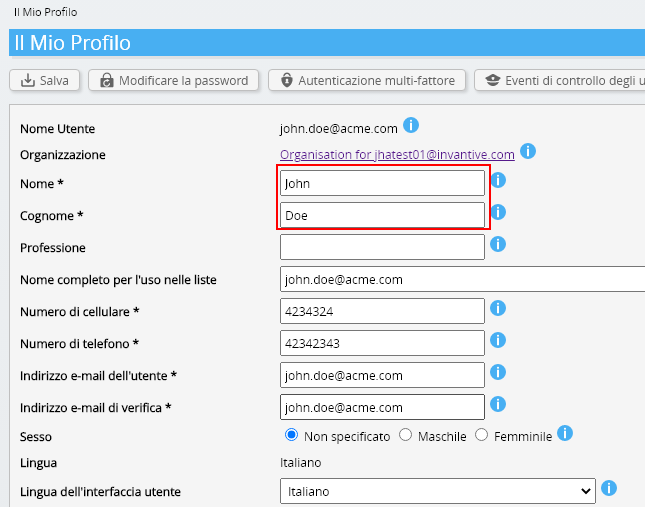
Completa i tuoi dati personali e scegli «Salva».
-
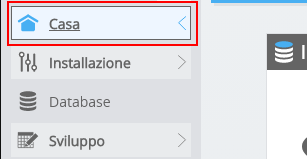
Vai alla dashboard.
-
Verrà visualizzata la dashboard di Invantive Cloud.
Ora hai un codice di accesso su Invantive Cloud con il quale puoi impostare la connessione con Nmbrs e numerose altre piattaforme. Utilizzerai lo stesso codice di accesso e flusso di lavoro innovativi per tutte le altre piattaforme.
Creare il database Nmbrs
In questo passo, impostiamo un database con i dati di Nmbrs. Il database è «virtuale» perché non è un database tradizionale, ma viene alimentato in tempo reale da Nmbrs. Invantive Cloud fornisce a Invantive Drive un collegamento in tempo reale a Nmbrs. Il database verrà utilizzato per tutti i tuoi Nmbrs rapporti con Invantive Drive. Quindi devi eseguire questi passaggi solo una volta.
-
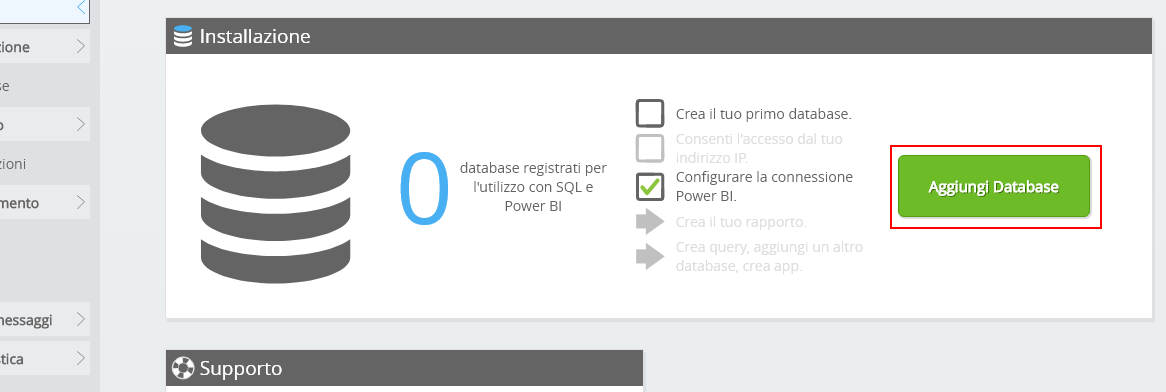
Fai clic sul pulsante Aggiungi database .
-
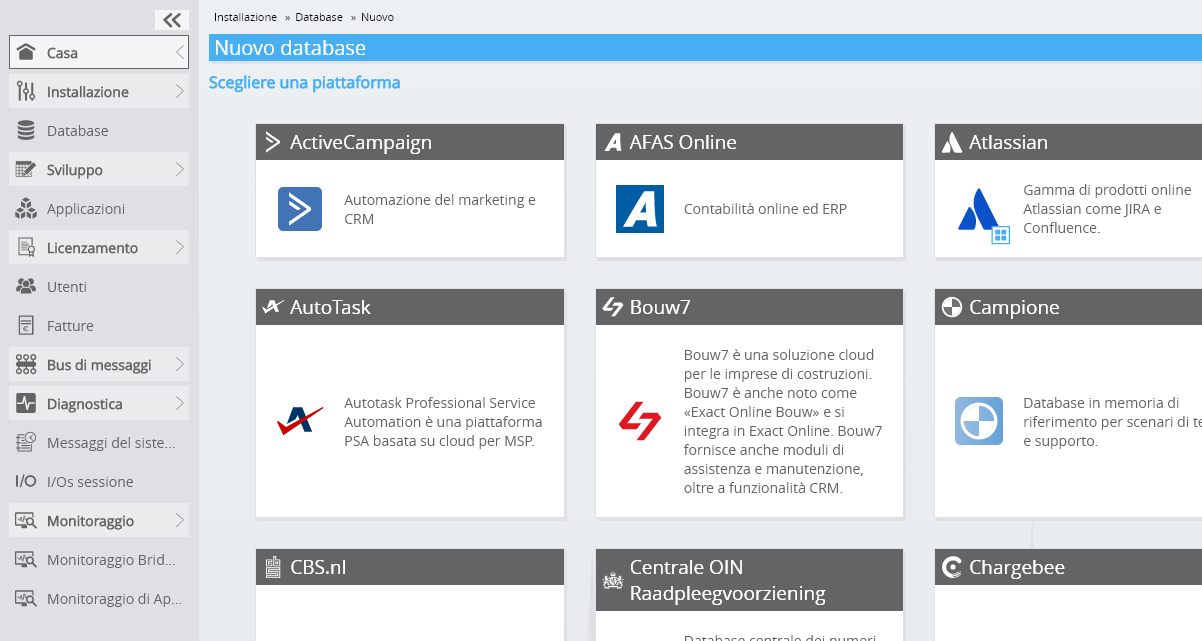
Seleziona Nmbrs dall'elenco.
-
Si prega di compilare il modulo con le informazioni di accesso per Nmbrs.
Seleziona il pulsante OK.
Congratulazioni! Ora è possibile elaborare i dati da Nmbrs all'interno del sito web di Invantive Cloud. È possibile farlo, ad esempio, con l'editor SQL interattivo.
Install Invantive Drive on Windows
Invantive Drive is a small Windows program. It registers a folder named Invantive Drive in Windows Explorer and fetches a document from the platform the moment you open it, the way OneDrive and Google Drive work.
-
Download the installer of Invantive Drive and run it.
Follow the installer; no settings are needed.
After the installation, Windows Explorer shows a folder named Invantive Drive under This PC, and the Invantive Drive window opens.
Sign in to Invantive Drive and choose the Nmbrs database
Invantive Drive signs in with your Invantive Cloud account and lists the databases of that account. Pick the one you created in the previous step.
In the Invantive Drive window, choose Sign in and enter your Invantive Cloud user name and password, plus the code of your authenticator app when asked.
Choose Add database and select the Nmbrs database from the list.
A folder named after the Nmbrs database appears under Invantive Drive in Windows Explorer, with a subfolder per company and per kind of document.
Open your Nmbrs documents in Windows Explorer
Explorer lists the names, dates and sizes of the Nmbrs documents. A document is fetched the moment you open it.
- Online only: listed in Explorer, fetched when you open it, no disk space.
- Kept on this device: you opened it or marked it to keep, so it also works without internet.
Each app is a folder and each company a subfolder. A document is fetched the moment you open it.
Browse to a folder and double-click a document; it opens in the program Windows uses for that kind of file.
A cloud icon marks a document that is online only and takes no disk space; a green check mark one that is kept on this device. Right-click a document to keep it on this device or to free up space.
Right-click a document and choose Open in Nmbrs to jump to it on the platform, where the platform offers a web page for it.
The Nmbrs folders are read-only: Nmbrs does not accept files from outside, so nothing is changed or deleted by accident.
What Invantive Drive Can And Cannot Do
Invantive Drive shows documents; it does not copy or move them. A document is fetched only when you open it, and every fetch is an ordinary request to Nmbrs within the limits of your subscription. Only a platform that accepts uploads takes a changed file back; the folders of the other platforms are read-only.
Invantive Drive runs on Windows. On any other device the file browser in Invantive Cloud shows the same folders in your web browser.