


Comment puis-je relier Invantive Drive à Simplicate en 5 minutes ?
Exécutez les étapes suivantes pour connecter Invantive Drive à Simplicate. Il vous suffit de connaître Invantive Drive, votre propre entreprise et l'administration de Simplicate.
Simplicate est un logiciel cloud pour la gestion de projet, le contrôle de projet et la facturation. Le logiciel d'entreprise en ligne Simplicate gère les ventes, le CRM, les heures, les projets et les factures. Simplicate est généralement utilisé par les entrepreneurs aux Pays-Bas dans leurs processus commerciaux de services, impliquant un grand nombre de projets.
No technical knowledge is needed to show the documents of Simplicate in Windows Explorer with Invantive Drive. This step-by-step plan tells you exactly which steps to go through on Invantive Cloud and on your PC.
Les étapes pour connecter Invantive Drive à Simplicate sont les suivantes :
- Enregistrez un compte Invantive Cloud.
- Créer une base de données Simplicate
- Install Invantive Drive on Windows.
- Sign in to Invantive Drive and choose the Simplicate database.
- Open your Simplicate documents in Windows Explorer.
Invantive Cloud offers a Simplicate connector for Invantive Drive, and 29 other platforms show their documents in the same folder of Windows Explorer.
Si vous avez des questions, consultez les forums pour Simplicate.
Enregistrer un compte sur Invantive Cloud
Ignorez cette étape si vous avez déjà un compte sur Invantive Cloud. Sinon, exécutez les étapes suivantes une fois pour créer un compte sur Invantive Cloud :
-
Accédez à la page d'accueil d'Invantive Cloud.
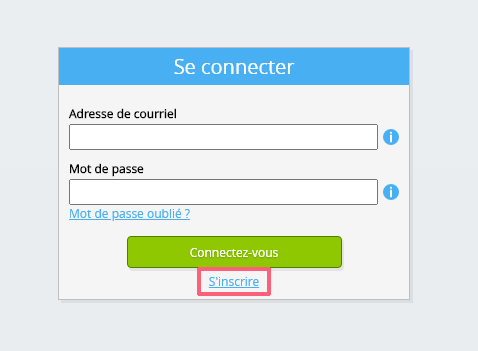
Sélectionnez le bouton Se connecter.
-
Sélectionnez le bouton S’inscrire.
-
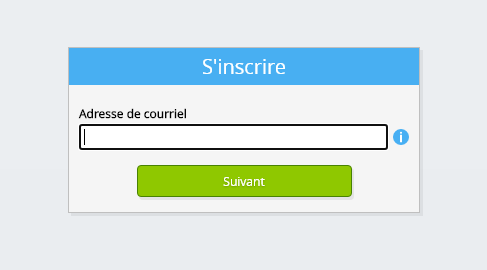
Saisissez votre adresse e-mail professionnelle.
-
Cliquez sur le bouton Suivant.
-
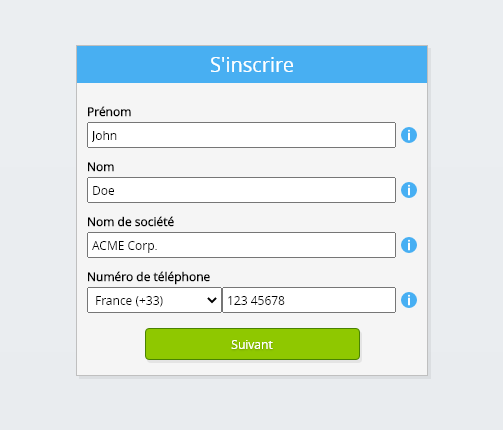
Saisissez vos données personnelles.
-
Cliquez sur le bouton Suivant.
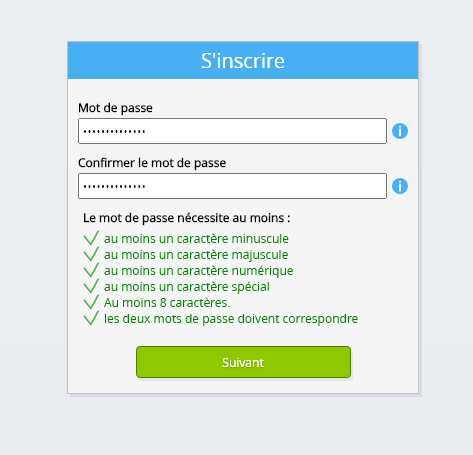
Saisissez votre mot de passe et répétez le mot de passe fourni.
-
Cliquez sur le bouton Suivant.
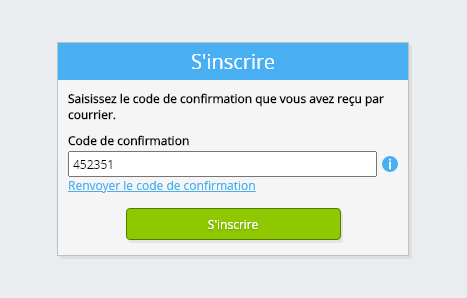
Vous recevrez un code de vérification à six chiffres par e-mail dans les 2 minutes.
-
Saisissez le code de vérification à six chiffres.
-
Sélectionnez le bouton S’inscrire.
-
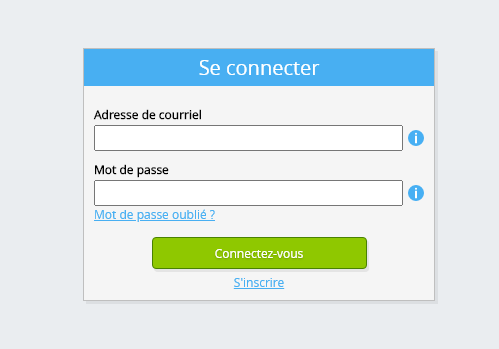
Connectez-vous maintenant.
-
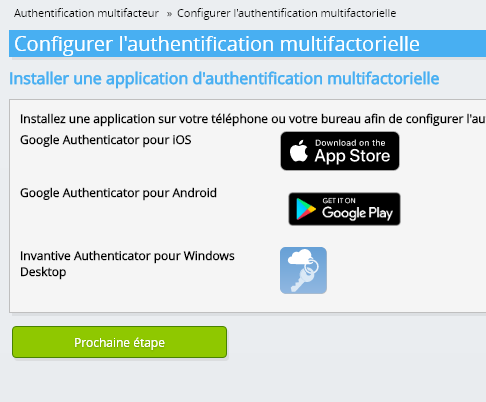
Assurez-vous qu'une application d'authentification est installée sur votre téléphone. Cliquez sur le bouton Suivant.
-
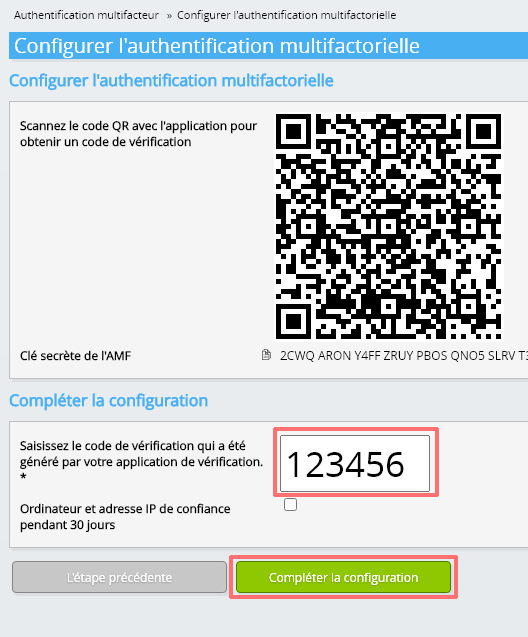
Ajoutez le code QR affiché à l'application d'authentification, saisissez le code de vérification actuel et choisissez « Terminer ».
-
Sauter l'enregistrement de l'organisation.
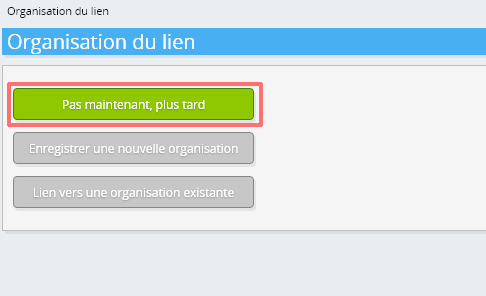
-
Complétez vos données personnelles et choisissez « Enregistrer ».
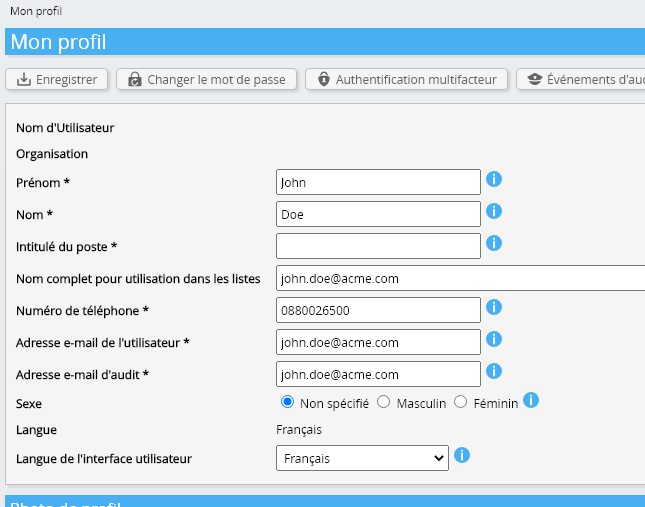
-
Accédez au tableau de bord.
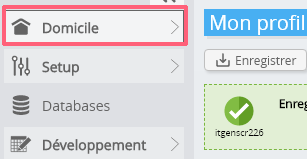
-
L'Invantive Cloud tableau de bord s'affichera.
Vous disposez désormais d'un code de connexion sur Invantive Cloud avec lequel vous pouvez configurer la connexion avec Simplicate et de nombreuses autres plateformes. Vous utiliserez le même code de connexion Invantive et le même flux de travail pour toutes les autres plateformes.
Créer une base de données Simplicate
Au cours de cette étape, nous avons créé une base de données contenant les données de Simplicate. La base de données est « virtuelle » car il ne s'agit pas d'une base de données traditionnelle, mais est alimentée en temps réel à partir de Simplicate. Invantive Cloud fournit à Invantive Drive un lien en temps réel vers Simplicate. La base de données sera utilisée pour tous vos rapports Simplicate avec Invantive Drive. Vous n'avez donc besoin d'effectuer ces étapes qu'une seule fois.
-
Cliquez sur le bouton Ajouter une base de données.
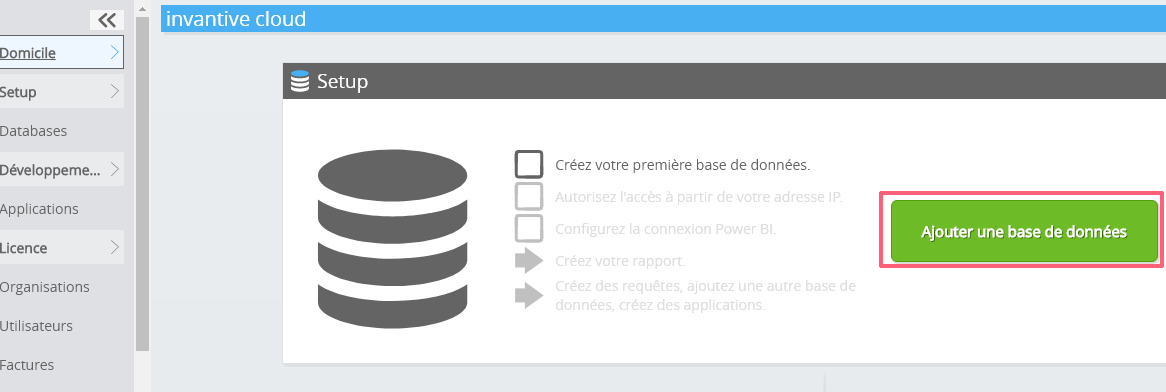
-
Sélectionnez Simplicate dans la liste.
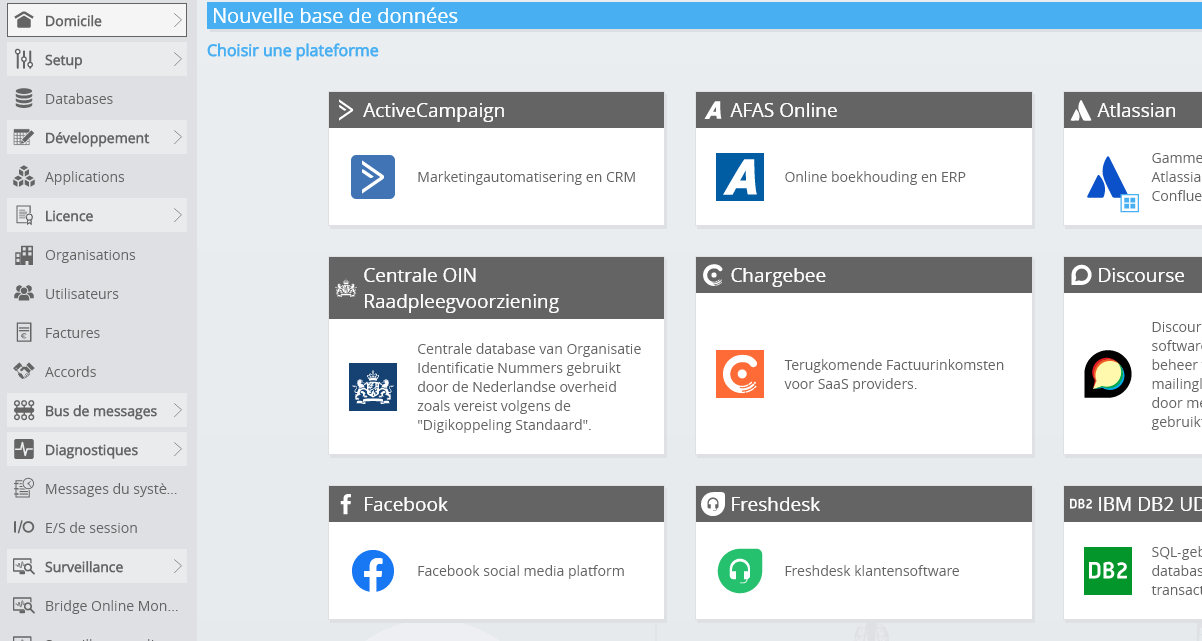
-
Veuillez remplir le formulaire avec les informations de connexion pour Simplicate.
Sélectionnez le bouton OK.
Félicitations ! Vous pouvez désormais traiter les données de Simplicate sur le site Web Invantive Cloud. Vous pouvez le faire par exemple à l'aide de l'éditeur SQL interactif.
Install Invantive Drive on Windows
Invantive Drive is a small Windows program. It registers a folder named Invantive Drive in Windows Explorer and fetches a document from the platform the moment you open it, the way OneDrive and Google Drive work.
-
Download the installer of Invantive Drive and run it.
Follow the installer; no settings are needed.
After the installation, Windows Explorer shows a folder named Invantive Drive under This PC, and the Invantive Drive window opens.
Sign in to Invantive Drive and choose the Simplicate database
Invantive Drive signs in with your Invantive Cloud account and lists the databases of that account. Pick the one you created in the previous step.
In the Invantive Drive window, choose Sign in and enter your Invantive Cloud user name and password, plus the code of your authenticator app when asked.
Choose Add database and select the Simplicate database from the list.
A folder named after the Simplicate database appears under Invantive Drive in Windows Explorer, with a subfolder per company and per kind of document.
Open your Simplicate documents in Windows Explorer
Explorer lists the names, dates and sizes of the Simplicate documents. A document is fetched the moment you open it.
- Online only: listed in Explorer, fetched when you open it, no disk space.
- Kept on this device: you opened it or marked it to keep, so it also works without internet.
Each app is a folder and each company a subfolder. A document is fetched the moment you open it.
Browse to a folder and double-click a document; it opens in the program Windows uses for that kind of file.
A cloud icon marks a document that is online only and takes no disk space; a green check mark one that is kept on this device. Right-click a document to keep it on this device or to free up space.
Right-click a document and choose Open in Simplicate to jump to it on the platform, where the platform offers a web page for it.
The Simplicate folders are read-only: Simplicate does not accept files from outside, so nothing is changed or deleted by accident.
What Invantive Drive Can And Cannot Do
Invantive Drive shows documents; it does not copy or move them. A document is fetched only when you open it, and every fetch is an ordinary request to Simplicate within the limits of your subscription. Only a platform that accepts uploads takes a changed file back; the folders of the other platforms are read-only.
Invantive Drive runs on Windows. On any other device the file browser in Invantive Cloud shows the same folders in your web browser.