


Kuinka pääsen Invantive Drive:sta Salesforce:een 5 minuutissa?
Suorita seuraavat vaiheet liittääksesi Invantive Drive laitteeseen Salesforce. Tarvitset vain tietoa Invantive Drive:sta, omasta liiketoiminnastasi ja Salesforce:n hallinnosta.
Salesforce on verkkopohjainen ekosysteemi. Salesforce sai alkunsa CRM-ratkaisuna, mutta Salesforcen kumppanit ovat laajentaneet sitä kattamaan monia muita verkkosovellustyyppejä.
No technical knowledge is needed to show the documents of Salesforce in Windows Explorer with Invantive Drive. This step-by-step plan tells you exactly which steps to go through on Invantive Cloud and on your PC.
Invantive Drive:n liittäminen Salesforce:een tapahtuu seuraavasti:
- Luo Invantive Cloud -tili.
- Luo Salesforce-tietokanta.
- Install Invantive Drive on Windows.
- Sign in to Invantive Drive and choose the Salesforce database.
- Open your Salesforce documents in Windows Explorer.
Invantive Cloud offers a Salesforce connector for Invantive Drive, and 29 other platforms show their documents in the same folder of Windows Explorer.
Jos sinulla on kysyttävää, tutustu -foorumeihin aiheesta Salesforce.
Luo tili Invantive Cloudissa
Ohita tämä vaihe, jos sinulla on jo tili Invantive Cloudissa. Muussa tapauksessa suorita seuraavat vaiheet kerran rekisteröidäksesi tilin Invantive Cloudissa:
-
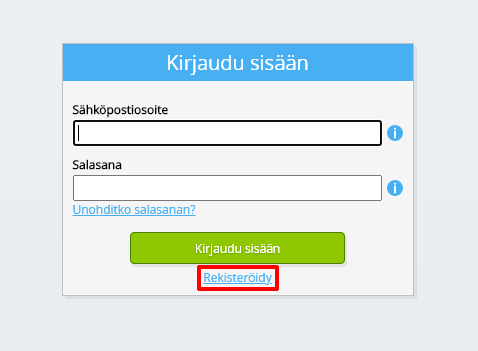
Siirry osoitteeseen Invantive Cloudin aloitussivu.
Valitse ”Kirjaudu sisään” -painike.
-
Napsauta ”Rekisteröidy”-painiketta.
-
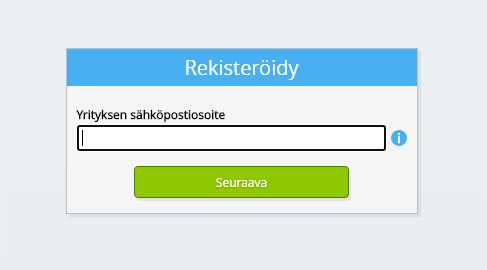
Syötä yrityksesi sähköpostiosoite.
-
Napsauta Seuraava-painiketta.
-
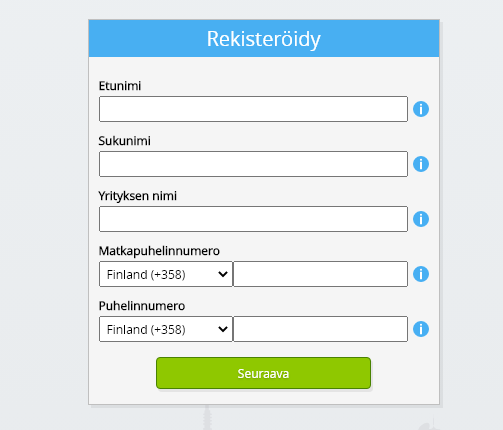
Syötä henkilötietosi.
-
Napsauta Seuraava-painiketta.
Kirjoita salasanasi ja toista annettu salasana.
-
Napsauta Seuraava-painiketta.
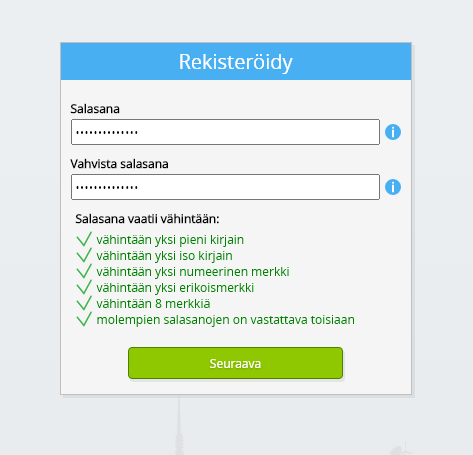
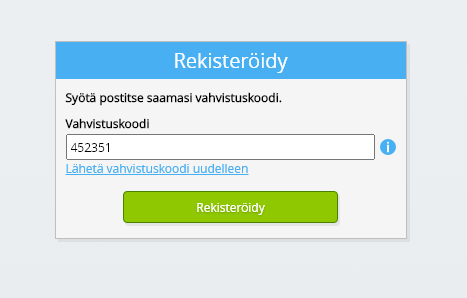
Saat kuusimerkkisen vahvistuskoodin sähköpostitse kahden minuutin kuluessa.
-
Syötä kuusimerkkinen vahvistuskoodi.
-
Napsauta ”Rekisteröidy”-painiketta.
-
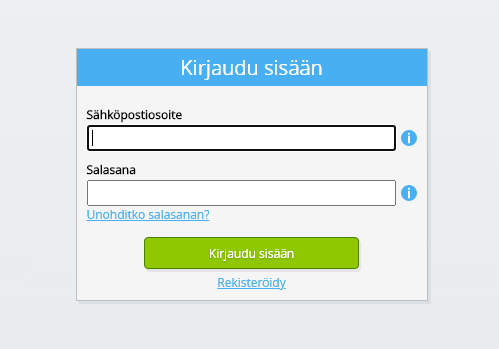
Kirjaudu sisään nyt.
-
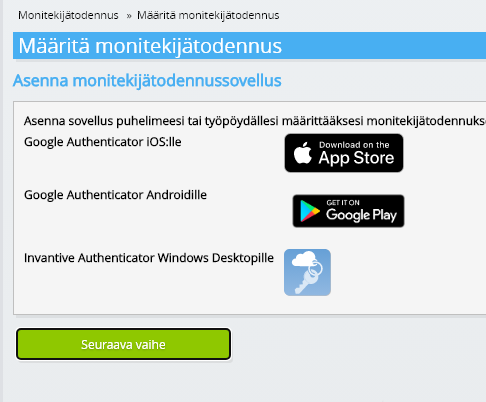
Varmista, että puhelimeesi on asennettu tunnistautumissovellus. Napsauta Seuraava-painiketta.
-
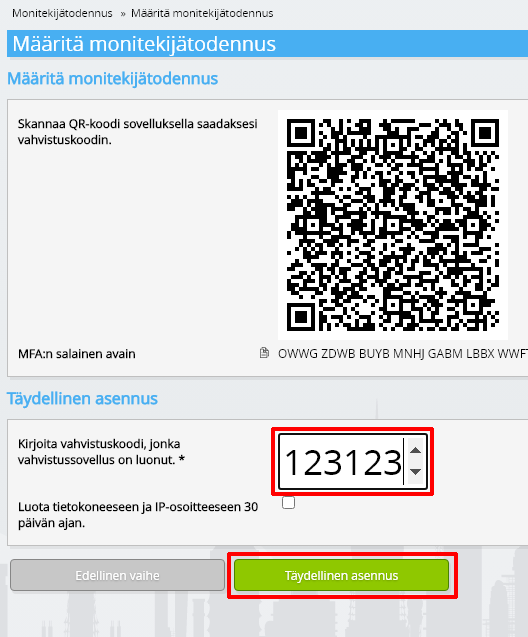
Lisää näytöllä näkyvä QR-koodi todennus sovellukseen, syötä nykyinen vahvistuskoodi ja valitse ”Valmis”.
-
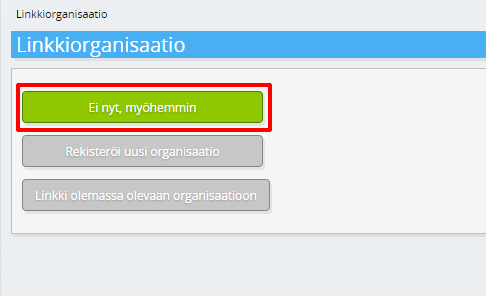
Ohita organisaation rekisteröinti.
-
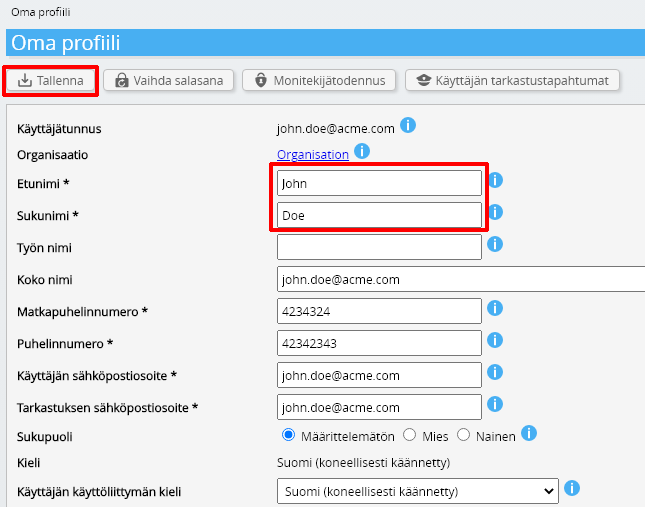
Täytä henkilötietosi ja valitse ”Tallenna”.
-
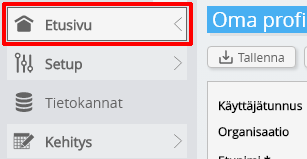
Siirry hallintapaneeliin.
-
Invantive Cloudin hallintapaneeli avautuu.
Sinulla on nyt Invantive Cloudissa kirjautumiskoodi, jolla voit määrittää yhteyden Salesforce:aan ja lukuisiin muihin alustoihin. Käytät samaa Invantive-kirjautumiskoodia ja -työnkulkua kaikilla muillakin alustoilla.
Luo Salesforce-tietokanta
Tässä vaiheessa luomme tietokannan, joka sisältää tietoja lähteestä Salesforce. Tietokanta on ”virtuaalinen”, koska se ei ole perinteinen tietokanta, vaan se saa tietoja reaaliaikaisesti lähteestä Salesforce. Invantive Cloud tarjoaa Invantive Drive:lle reaaliaikaisen yhteyden Salesforce:een. Tietokantaa käytetään kaikessa Salesforce:n raportointiin Invantive Drive:n avulla. Näin ollen sinun tarvitsee suorittaa nämä vaiheet vain kerran.
-
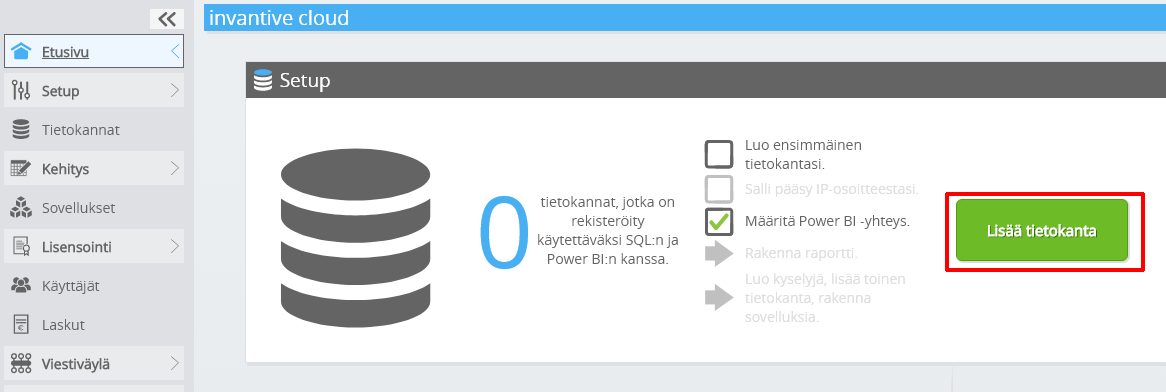
Napsauta Lisää tietokanta -painiketta.
-
Valitse Salesforce luettelosta.
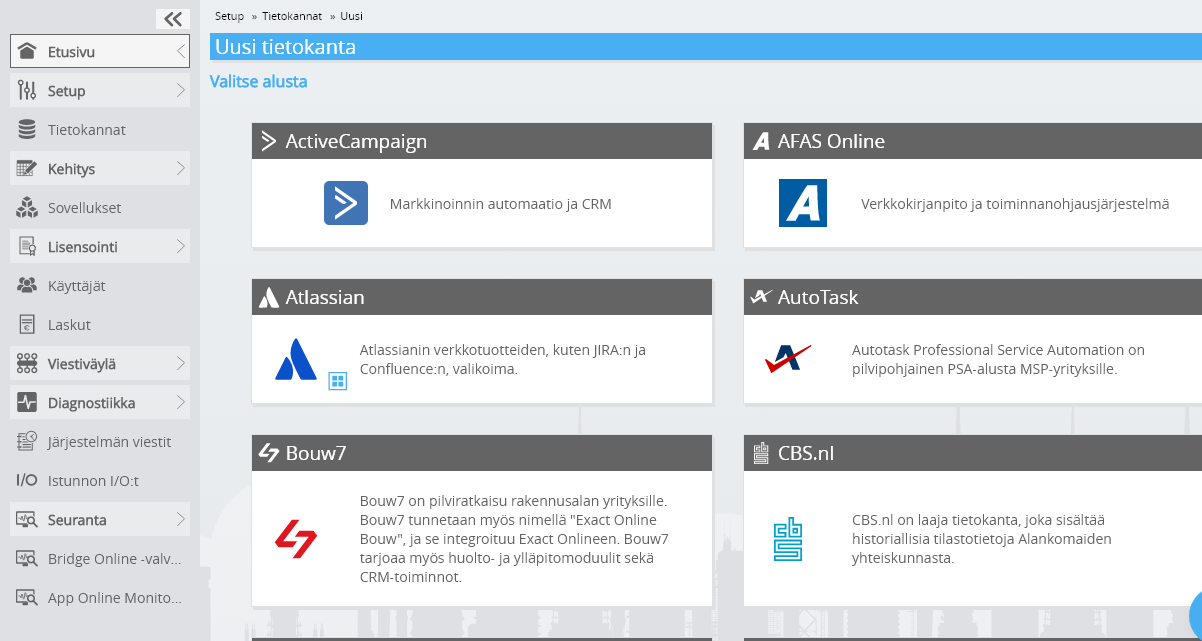
-
Täytäthän lomakkeen Salesforce:n kirjautumistiedoilla.
Napsauta OK-painiketta.
Onnittelut! Voit nyt käsitellä Salesforce:sta peräisin olevia tietoja Invantive Cloud -verkkosivustolla. Voit tehdä tämän esimerkiksi interaktiivisen SQL-editorin avulla.
Install Invantive Drive on Windows
Invantive Drive is a small Windows program. It registers a folder named Invantive Drive in Windows Explorer and fetches a document from the platform the moment you open it, the way OneDrive and Google Drive work.
-
Download the installer of Invantive Drive and run it.
Follow the installer; no settings are needed.
After the installation, Windows Explorer shows a folder named Invantive Drive under This PC, and the Invantive Drive window opens.
Sign in to Invantive Drive and choose the Salesforce database
Invantive Drive signs in with your Invantive Cloud account and lists the databases of that account. Pick the one you created in the previous step.
In the Invantive Drive window, choose Sign in and enter your Invantive Cloud user name and password, plus the code of your authenticator app when asked.
Choose Add database and select the Salesforce database from the list.
A folder named after the Salesforce database appears under Invantive Drive in Windows Explorer, with a subfolder per company and per kind of document.
Open your Salesforce documents in Windows Explorer
Explorer lists the names, dates and sizes of the Salesforce documents. A document is fetched the moment you open it.
- Online only: listed in Explorer, fetched when you open it, no disk space.
- Kept on this device: you opened it or marked it to keep, so it also works without internet.
Each app is a folder and each company a subfolder. A document is fetched the moment you open it.
Browse to a folder and double-click a document; it opens in the program Windows uses for that kind of file.
A cloud icon marks a document that is online only and takes no disk space; a green check mark one that is kept on this device. Right-click a document to keep it on this device or to free up space.
Right-click a document and choose Open in Salesforce to jump to it on the platform, where the platform offers a web page for it.
The Salesforce folders are read-only: Salesforce does not accept files from outside, so nothing is changed or deleted by accident.
What Invantive Drive Can And Cannot Do
Invantive Drive shows documents; it does not copy or move them. A document is fetched only when you open it, and every fetch is an ordinary request to Salesforce within the limits of your subscription. Only a platform that accepts uploads takes a changed file back; the folders of the other platforms are read-only.
Invantive Drive runs on Windows. On any other device the file browser in Invantive Cloud shows the same folders in your web browser.