


¿Cómo me conecto Invantive Drive FTP en 5 minutos?
Ejecute los siguientes pasos para conectar Invantive Drive a FTP. Sólo necesitas conocimientos de Invantive Drive y de tu propio negocio.
El FTP (Protocolo de transferencia de archivos) es un protocolo de red estándar que se utiliza para transferir archivos entre un cliente y un servidor a través de Internet o de una red local, y que permite tanto la carga como la descarga de archivos.
No technical knowledge is needed to show the documents of FTP in Windows Explorer with Invantive Drive. This step-by-step plan tells you exactly which steps to go through on Invantive Cloud and on your PC.
Los pasos para conectar Invantive Drive con FTP son:
- Registrar una cuenta de Invantive Cloud.
- Crear una base de datos FTP.
- Install Invantive Drive on Windows.
- Sign in to Invantive Drive and choose the FTP database.
- Open your FTP documents in Windows Explorer.
Invantive Cloud offers a FTP connector for Invantive Drive, and 29 other platforms show their documents in the same folder of Windows Explorer.
Cuando tengas dudas, por favor consulta los foros de FTP.
Registrar Cuenta en Invantive Cloud
Omita este paso si ya tiene una cuenta en Invantive Cloud. De lo contrario, ejecute los siguientes pasos una vez para registrar una cuenta en Invantive Cloud:
-
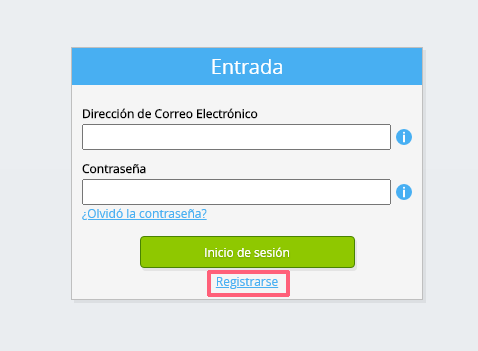
Ve a la página de inicio de Invantive Cloud.
Seleccione el botón Iniciar Sesión.
-
Selecciona el botón Registrarse.
-
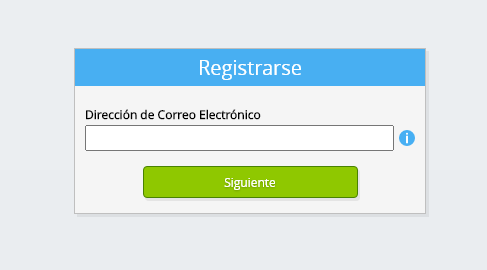
Introduzca la dirección de correo electrónico de su empresa.
-
Seleccione el botón Siguiente.
-
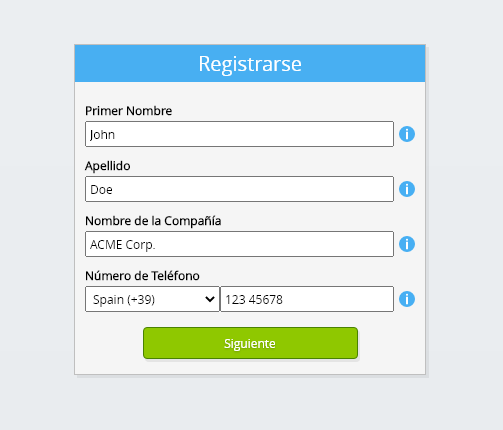
Introduzca sus datos personales.
-
Seleccione el botón Siguiente.
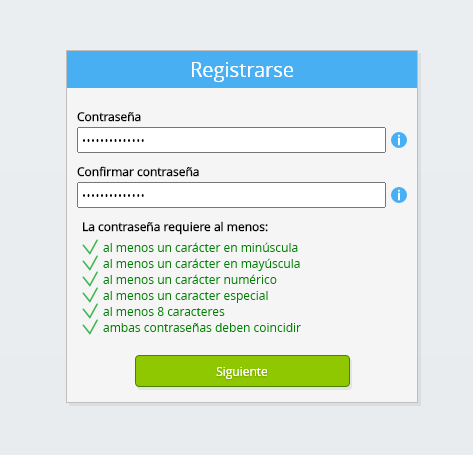
Introduzca su contraseña y repita la contraseña proporcionada.
-
Seleccione el botón Siguiente.
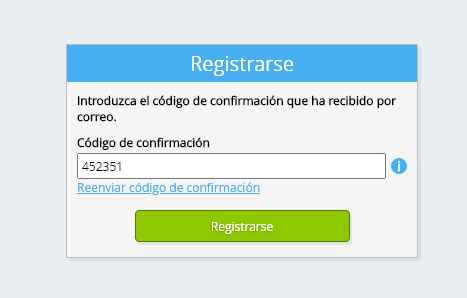
Recibirás un código de verificación de seis dígitos por correo electrónico en 2 minutos.
-
Introduzca el código de verificación de seis dígitos.
-
Selecciona el botón Registrarse.
-
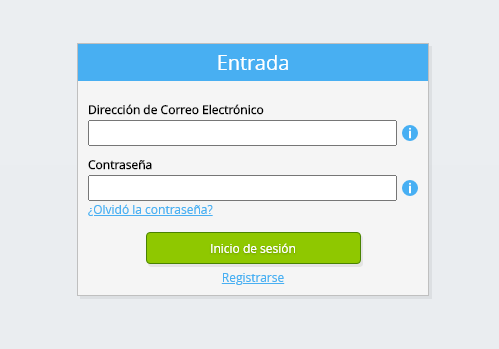
Inicie sesión ahora.
-
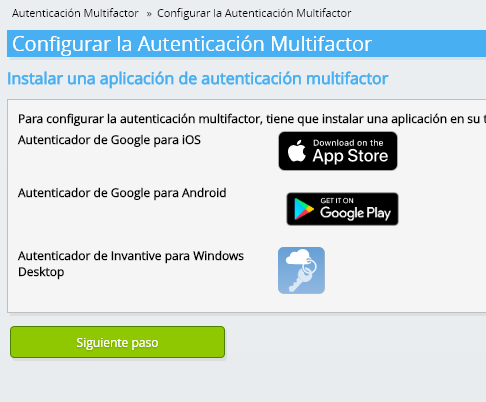
Asegúrese de tener una aplicación de autenticación instalada en su teléfono. Seleccione el botón Siguiente.
-
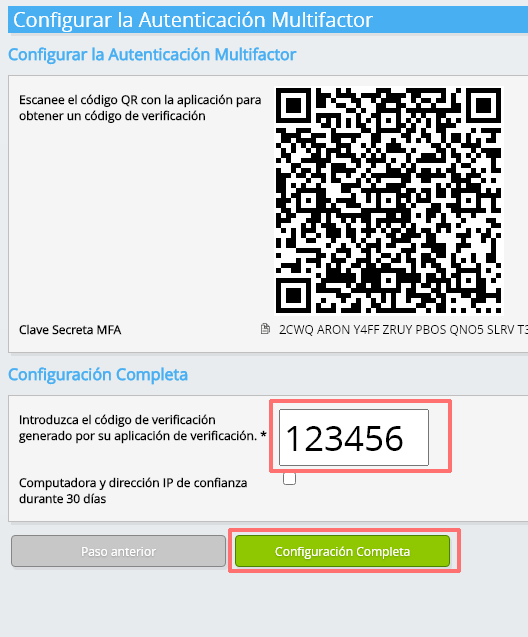
Añada el código QR mostrado a la aplicación de autenticación, introduzca el código de verificación actual y seleccione "Finalizar".
-
Omitir el registro de la organización.
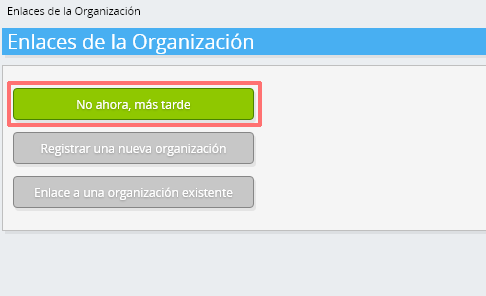
-
Complete sus datos personales y elija 'Guardar'.

-
Ir al panel de control.
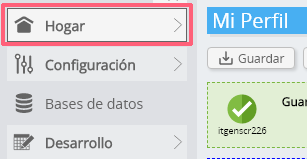
-
Se mostrará el panel de control de Invantive Cloud.
Ahora tiene un código de inicio de sesión en Invantive Cloud con el que puede establecer la conexión con FTP y otras numerosas plataformas. Utilizará el mismo código de inicio de sesión de Invantive y el mismo flujo de trabajo para todas las demás plataformas.
Crear una base de datos FTP
En este paso, configuramos una base de datos con datos de FTP. La base de datos es "virtual" porque no es una base de datos tradicional, sino que se alimenta en tiempo real desde FTP. Invantive Cloud proporciona Invantive Drive con un enlace en tiempo real a FTP. La base de datos se utilizará para todos los informes de FTP con Invantive Drive. Por lo tanto, solo necesita realizar estos pasos una vez.
-
Haga clic en el botón Agregar base de Datos.
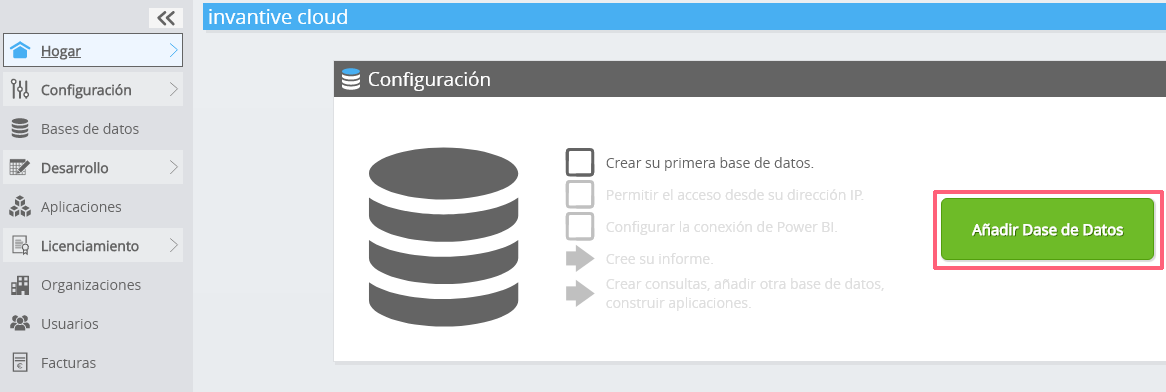
-
Seleccione FTP de la lista.
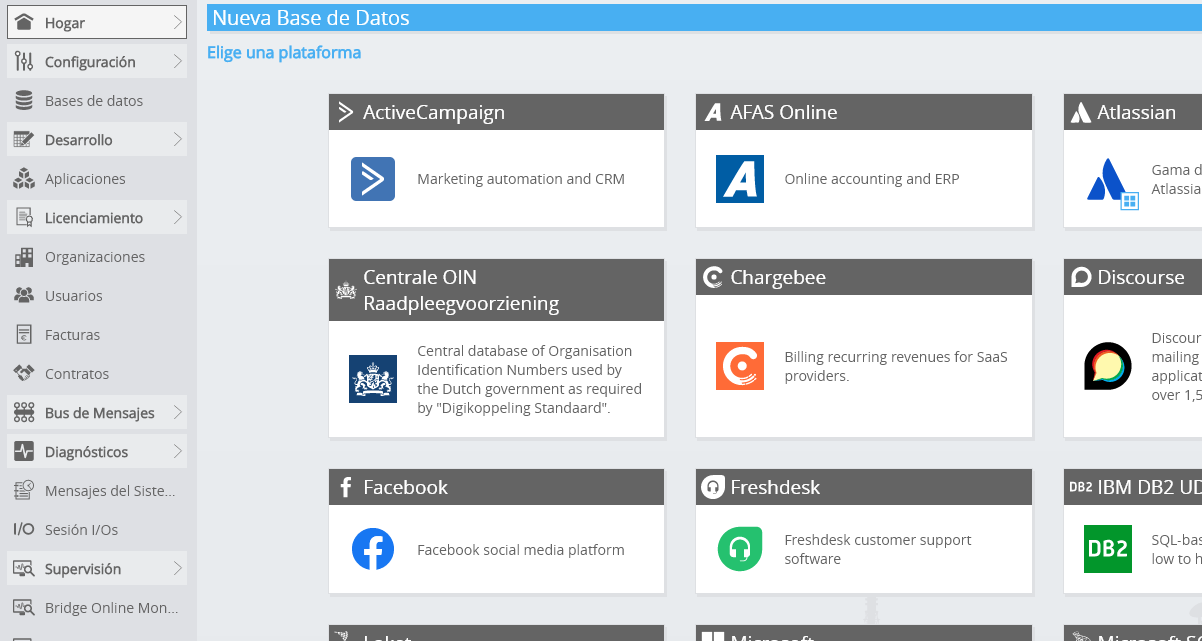
-
Por favor rellene el formulario con la información de acceso para FTP.
Seleccione el botón OK.
¡Felicidades! Ahora puedes procesar datos de FTP en el sitio web de Invantive Cloud. Puede hacerlo, por ejemplo, con el editor SQL interactivo.
Install Invantive Drive on Windows
Invantive Drive is a small Windows program. It registers a folder named Invantive Drive in Windows Explorer and fetches a document from the platform the moment you open it, the way OneDrive and Google Drive work.
-
Download the installer of Invantive Drive and run it.
Follow the installer; no settings are needed.
After the installation, Windows Explorer shows a folder named Invantive Drive under This PC, and the Invantive Drive window opens.
Sign in to Invantive Drive and choose the FTP database
Invantive Drive signs in with your Invantive Cloud account and lists the databases of that account. Pick the one you created in the previous step.
In the Invantive Drive window, choose Sign in and enter your Invantive Cloud user name and password, plus the code of your authenticator app when asked.
Choose Add database and select the FTP database from the list.
A folder named after the FTP database appears under Invantive Drive in Windows Explorer, with a subfolder per company and per kind of document.
Open your FTP documents in Windows Explorer
Explorer lists the names, dates and sizes of the FTP documents. A document is fetched the moment you open it.
- Online only: listed in Explorer, fetched when you open it, no disk space.
- Kept on this device: you opened it or marked it to keep, so it also works without internet.
Each app is a folder and each company a subfolder. A document is fetched the moment you open it.
Browse to a folder and double-click a document; it opens in the program Windows uses for that kind of file.
A cloud icon marks a document that is online only and takes no disk space; a green check mark one that is kept on this device. Right-click a document to keep it on this device or to free up space.
Right-click a document and choose Open in FTP to jump to it on the platform, where the platform offers a web page for it.
Save a changed file, or drop a new one into the folder, and it is sent to FTP.
What Invantive Drive Can And Cannot Do
Invantive Drive shows documents; it does not copy or move them. A document is fetched only when you open it, and every fetch is an ordinary request to FTP within the limits of your subscription. Only a platform that accepts uploads takes a changed file back; the folders of the other platforms are read-only.
Invantive Drive runs on Windows. On any other device the file browser in Invantive Cloud shows the same folders in your web browser.