


How do I connect Invantive Drive to GitHub in 5 minutes?
Execute the following steps to connect Invantive Drive to GitHub. You only need knowledge of Invantive Drive and your own business.
GitHub is online software management software. GitHub includes GIT for version management, issue tracking and automated builds.
No technical knowledge is needed to show the documents of GitHub in Windows Explorer with Invantive Drive. This step-by-step plan tells you exactly which steps to go through on Invantive Cloud and on your PC.
The steps to connect Invantive Drive to GitHub are:
- Register an Invantive Cloud account.
- Create a GitHub database.
- Install Invantive Drive on Windows.
- Sign in to Invantive Drive and choose the GitHub database.
- Open your GitHub documents in Windows Explorer.
Invantive Cloud offers a GitHub connector for Invantive Drive, and 29 other platforms show their documents in the same folder of Windows Explorer.
When you are having questions, please check the forums for GitHub.
Register Account on Invantive Cloud
Skip this step when you already have an account on Invantive Cloud. Otherwise execute the following steps one time to register an account on Invantive Cloud:
-
Go to Invantive Cloud start page.
Select the Log on-button.
-
Select the Sign Up-button.
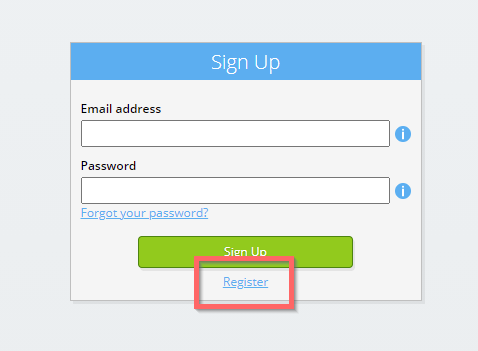
-
Enter your business email address.

-
Select the Next-button.
-
Enter your personal data.
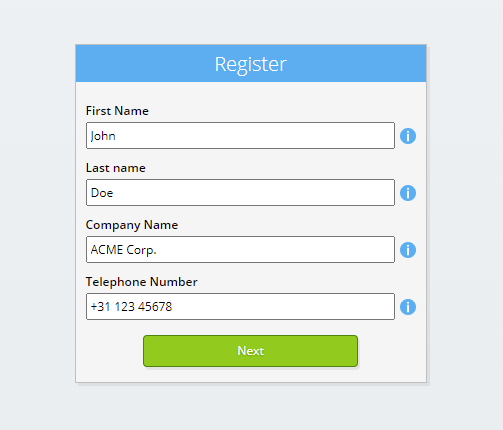
-
Select the Next-button.
Enter your password and repeat the provided password.
-
Select the Next-button.
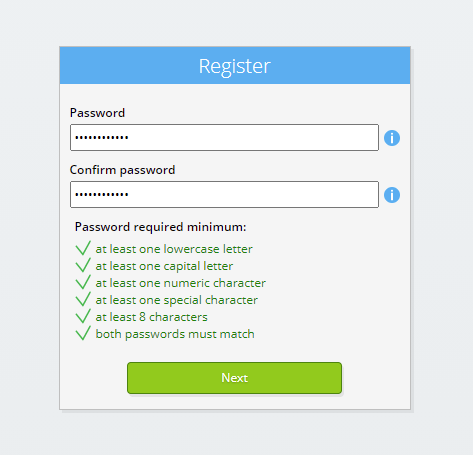
You will receive a six-digit verification code by email within 2 minutes.
-
Enter the six-digit verification code.
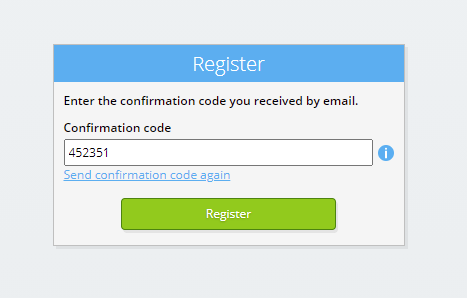
-
Select the Sign Up-button.
-
Log on now.
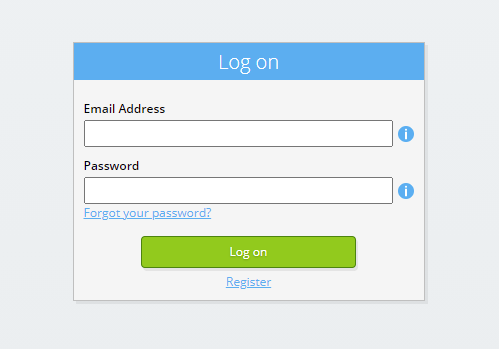
-
Make sure you have an authentication app installed on your phone. Select the Next-button.
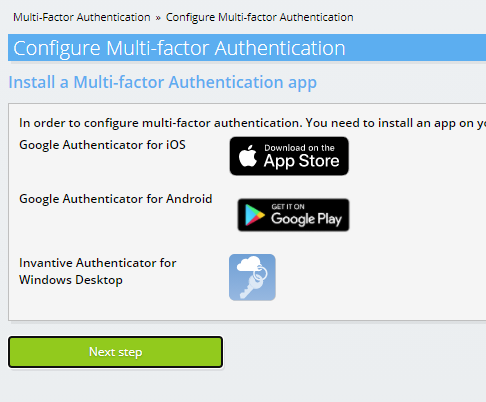
-
Add the displayed QR code to the authentication app, enter the current verification code, and choose "Finish".
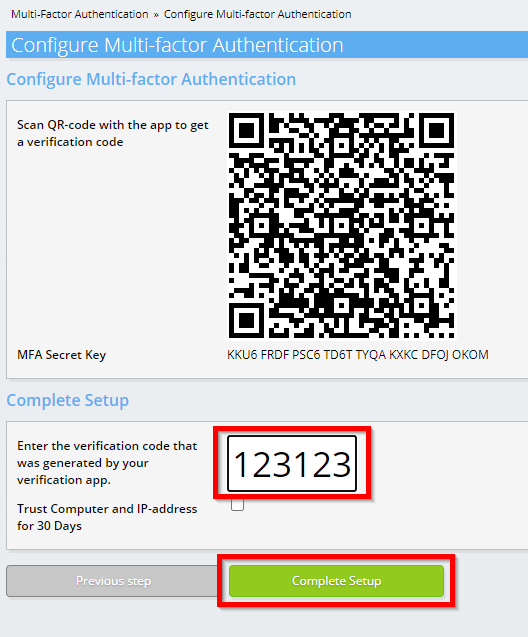
-
Skip registration of the organisation.
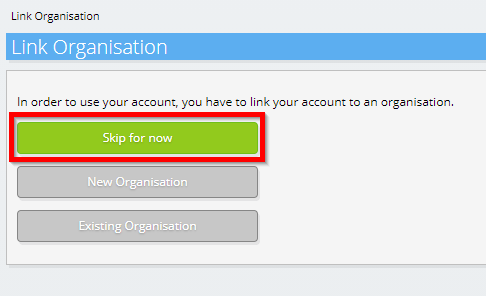
-
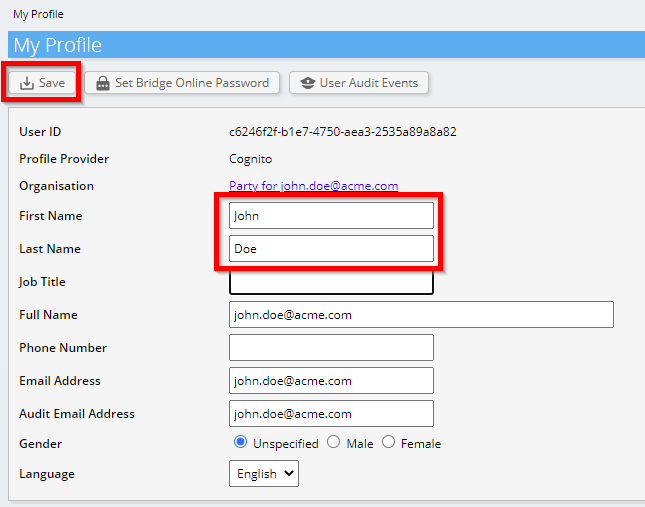
Complete your personal data and choose 'Save'.
-
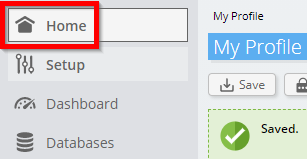
Go to the dashboard.
-
The Invantive Cloud dashboard will be shown.
You now have a login code on Invantive Cloud with which you can set up the connection with GitHub and numerous other platforms. You will use the same Invantive login code and workflow for all other platforms.
Create GitHub database
In this step, we set up a database with data from GitHub. The database is "virtual" because it is not a traditional database, but is fed real-time from GitHub. Invantive Cloud provides Invantive Drive with a real-time link to GitHub. The database will be used for all your GitHub reporting with Invantive Drive. So you only need to perform these steps once.
-
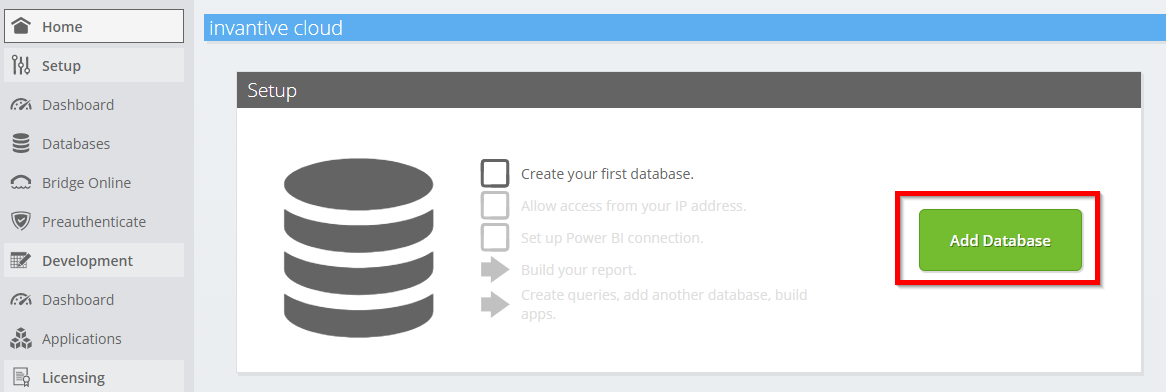
Click the Add Database button.
-
Select GitHub from the list.

-
Please fill out the form with login information for GitHub.
Select the OK-button.
Congratulations! You can now process data from GitHub within the Invantive Cloud website. You can do this for example with the interactive SQL editor.
Install Invantive Drive on Windows
Invantive Drive is a small Windows program. It registers a folder named Invantive Drive in Windows Explorer and fetches a document from the platform the moment you open it, the way OneDrive and Google Drive work.
-
Download the installer of Invantive Drive and run it.
Follow the installer; no settings are needed.
After the installation, Windows Explorer shows a folder named Invantive Drive under This PC, and the Invantive Drive window opens.
Sign in to Invantive Drive and choose the GitHub database
Invantive Drive signs in with your Invantive Cloud account and lists the databases of that account. Pick the one you created in the previous step.
In the Invantive Drive window, choose Sign in and enter your Invantive Cloud user name and password, plus the code of your authenticator app when asked.
Choose Add database and select the GitHub database from the list.
A folder named after the GitHub database appears under Invantive Drive in Windows Explorer, with a subfolder per company and per kind of document.
Open your GitHub documents in Windows Explorer
Explorer lists the names, dates and sizes of the GitHub documents. A document is fetched the moment you open it.
- Online only: listed in Explorer, fetched when you open it, no disk space.
- Kept on this device: you opened it or marked it to keep, so it also works without internet.
Each app is a folder and each company a subfolder. A document is fetched the moment you open it.
Browse to a folder and double-click a document; it opens in the program Windows uses for that kind of file.
A cloud icon marks a document that is online only and takes no disk space; a green check mark one that is kept on this device. Right-click a document to keep it on this device or to free up space.
Right-click a document and choose Open in GitHub to jump to it on the platform, where the platform offers a web page for it.
The GitHub folders are read-only: GitHub does not accept files from outside, so nothing is changed or deleted by accident.
What Invantive Drive Can And Cannot Do
Invantive Drive shows documents; it does not copy or move them. A document is fetched only when you open it, and every fetch is an ordinary request to GitHub within the limits of your subscription. Only a platform that accepts uploads takes a changed file back; the folders of the other platforms are read-only.
Invantive Drive runs on Windows. On any other device the file browser in Invantive Cloud shows the same folders in your web browser.