


How do I connect Claude to Exact Online in 5 minutes?
Execute the following steps to connect Claude to Exact Online. You only need knowledge of Claude, your own business and the Exact Online administration.
Exact Online is cloud software for accounting and ERP. In the Netherlands, Exact Online also includes online payrolling software. It is used for approximately 400.000 companies.
No technical knowledge is needed nor knowledge on the Exact Online APIs to connect Exact Online to Claude. This step-by-step plan will tell you exactly which steps you need to go through on Invantive Cloud to create your own Azure data warehouse with data from Exact Online.
The steps to connect Claude to Exact Online are:
- Register an Invantive Cloud account.
- Create a Exact Online database.
- Grant connection from Claude access to Exact Online
- Connect Claude to Exact Online through the connector.
- Ask Claude a question about Exact Online
Invantive Cloud offers a Exact Online connector to download data from Exact Online into Claude, but there are over 110 other connectors available also for SQL, Power BI, Power Query, Qlik, Tableau i Azure Data Factory.
With the Exact Online connector for Claude you will by default fetch the data from all connected Exact Online companies in your dashboard. You can limit the number of Exact Online companies that are retrieved in Claude through the Database settings. For example, you can also limit the connector for Claude to the data from exactly one Exact Online company. Of course, you can also filter the data by a specific Exact Online company using a filter step in Claude. The Exact Online connector for Claude has advanced optimizations for great real-time performance with both a single Exact Online company as well as with hundreds of Exact Online companies.
When you are having questions, please check the forums for Exact Online.
Register Account on Invantive Cloud
Skip this step when you already have an account on Invantive Cloud. Otherwise execute the following steps one time to register an account on Invantive Cloud:
-
Go to Invantive Cloud start page.
Select the Log on-button.
-
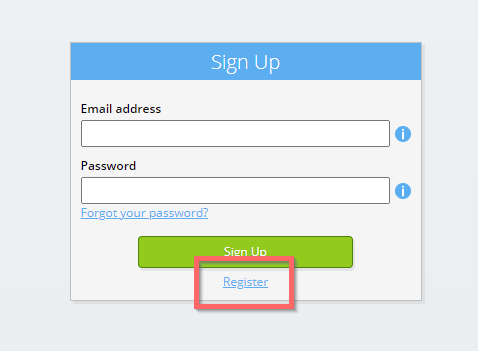
Select the Sign Up-button.
-
Enter your business email address.

-
Select the Next-button.
-
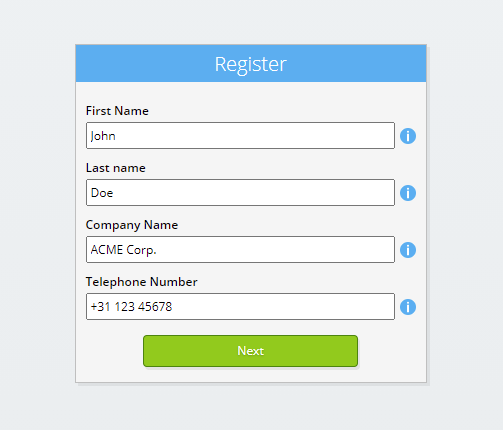
Enter your personal data.
-
Select the Next-button.
Enter your password and repeat the provided password.
-
Select the Next-button.
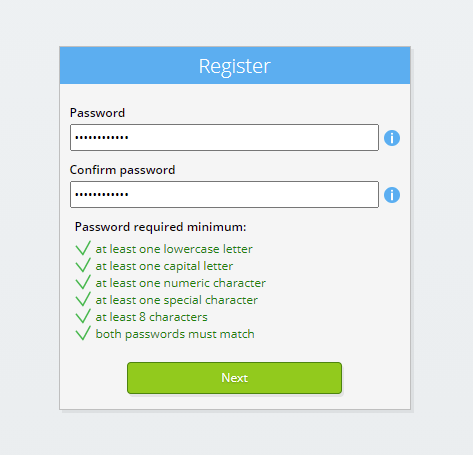
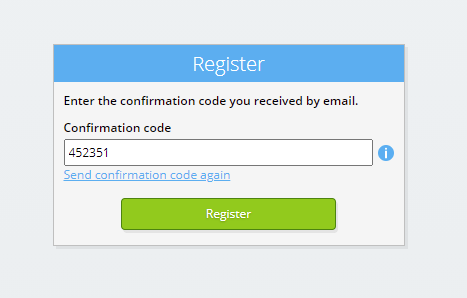
You will receive a six-digit verification code by email within 2 minutes.
-
Enter the six-digit verification code.
-
Select the Sign Up-button.
-
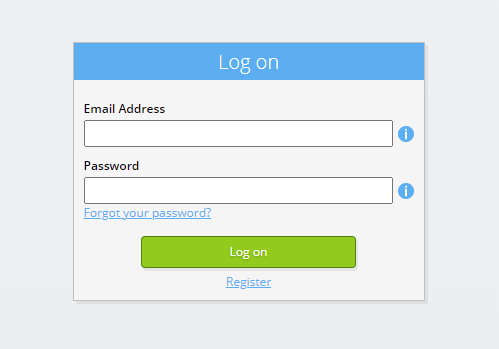
Log on now.
-
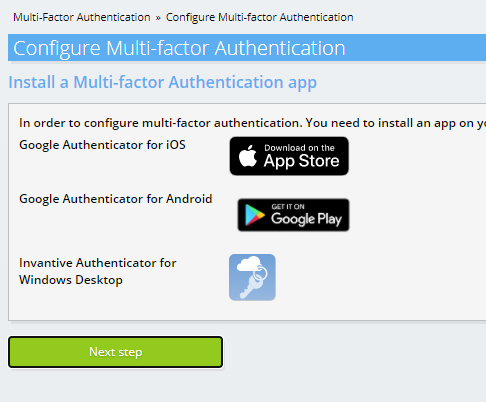
Make sure you have an authentication app installed on your phone. Select the Next-button.
-
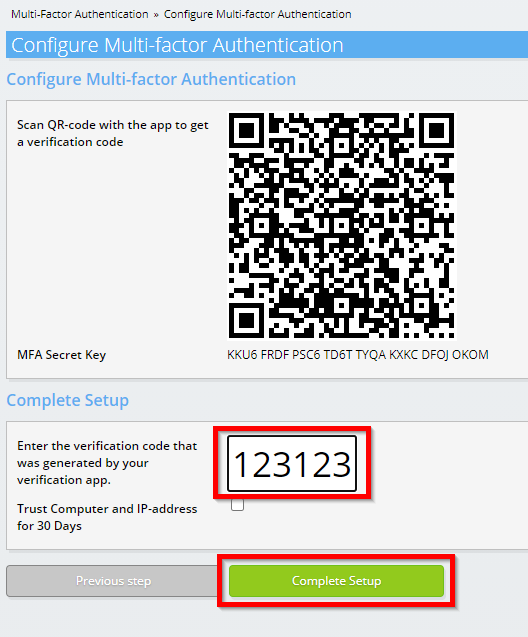
Add the displayed QR code to the authentication app, enter the current verification code, and choose "Finish".
-
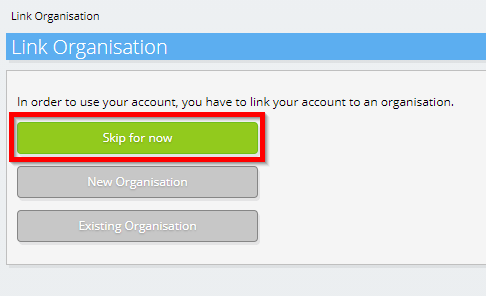
Skip registration of the organisation.
-
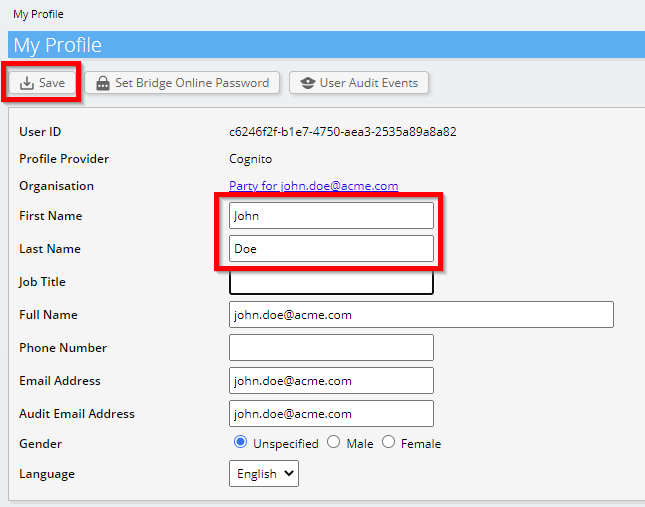
Complete your personal data and choose 'Save'.
-
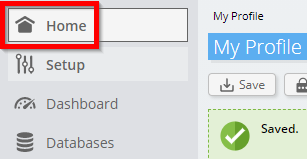
Go to the dashboard.
-
The Invantive Cloud dashboard will be shown.
You now have a login code on Invantive Cloud with which you can set up the connection with Exact Online and numerous other platforms. You will use the same Invantive login code and workflow for all other platforms.
Create Exact Online database
In this step, we set up a database with data from Exact Online. The database is "virtual" because it is not a traditional database, but is fed real-time from Exact Online. Invantive Cloud provides Claude with a real-time link to Exact Online. The database will be used for all your Exact Online reporting with Claude. So you only need to perform these steps once.
-
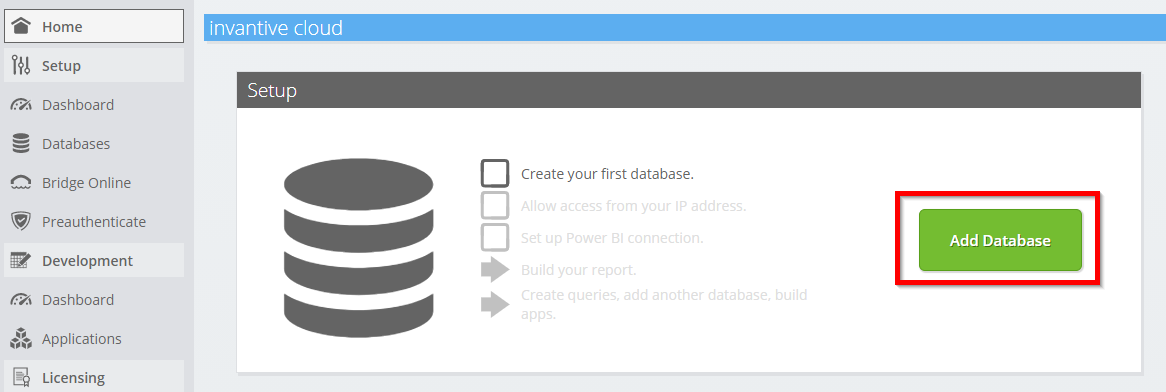
Click the Add Database button.
-
Select Exact Online from the list.

-
Please fill out the form with login information for Exact Online.
Select the OK-button.
Congratulations! You can now process data from Exact Online within the Invantive Cloud website. You can do this for example with the interactive SQL editor.
Grant connection from Claude access to Exact Online
To retrieve the data from Claude we create a link via Invantive Bridge Online. This creates a "bridge" between the cloud of Invantive and the standard OData connector that is available in every version of Claude. You do not need to install anything locally: no connector, no ado.NET provider and no Claude add-on neither.
Execute the following steps to safely use the data from Exact Online outside of Invantive Cloud:
Next to the database you will find an orange text requesting you to allow access from your current location (IP address). Select the nearby orange button.
You can completely disable IP address checking by entering an asterisk ("*").
You are now ready to import the Exact Online data into Claude.
Configure the MCP connector in Claude for Exact Online
In Claude the address of the MCP server is added once as a custom connector, after which the data of Exact Online is available in every conversation.
-
In Claude: open Settings and then Connectors, and choose to add a custom connector.

-
Paste the URL address of the MCP server copied in the previous step and confirm.

-
Log on with your Invantive Cloud account and approve the request.

-
Ask a question only your own Exact Online data can answer. The connector first reads the data model and then the records the question needs.

What Claude Can and Cannot Do
The connector offers tools such as to describe the data model and read records. There is no tool that writes, posts, deletes or executes SQL, so no instruction in a conversation can change anything in Exact Online.
Reading is bounded by the database: platforms not in it and Exact Online companies not selected are not reachable.