How do I connect Tableau to DeepL in 5 minutes?
Execute the following steps to connect Tableau to DeepL. You only need knowledge of Tableau and your own business.
Translate texts, lists of texts and documents with DeepL using SQL, and manage its glossaries, style rules, translation memories and usage as tables.
No technical knowledge is needed nor knowledge on the DeepL APIs to connect DeepL to Tableau. This step-by-step plan will tell you exactly which steps you need to go through on Invantive Cloud to create your own Azure data warehouse with data from DeepL.
The steps to connect Tableau to DeepL are:
- Register an Invantive Cloud account.
- Create a DeepL database.
- Make the DeepL database available through the Tableau OData connector.
- Connect Tableau to DeepL through the connector.
- Load data from DeepL into Tableau.
Invantive Cloud offers a DeepL connector to download data from DeepL into Tableau, but there are over 110 other connectors available also for SQL, Power BI, Power Query, Qlik, Tableau i Azure Data Factory.
Do you have a large environment? For effective downloads, you can of course also filter the data.
When you are having questions, please check the forums for DeepL.
Register Account on Invantive Cloud
Skip this step when you already have an account on Invantive Cloud. Otherwise execute the following steps one time to register an account on Invantive Cloud:
-
Go to Invantive Cloud start page.
Select the Log on-button.
-
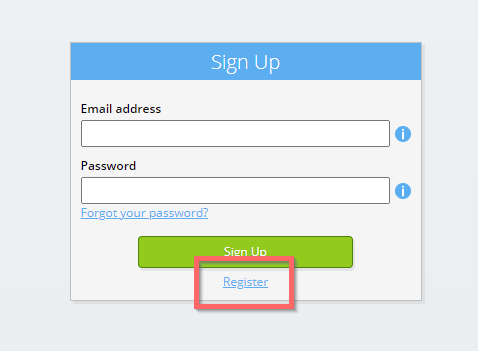
Select the Sign Up-button.
-
Enter your business email address.

-
Select the Next-button.
-
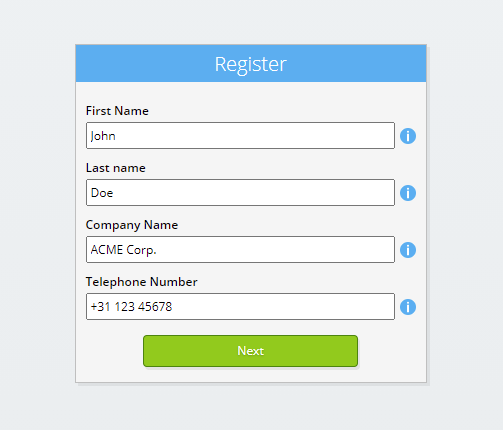
Enter your personal data.
-
Select the Next-button.
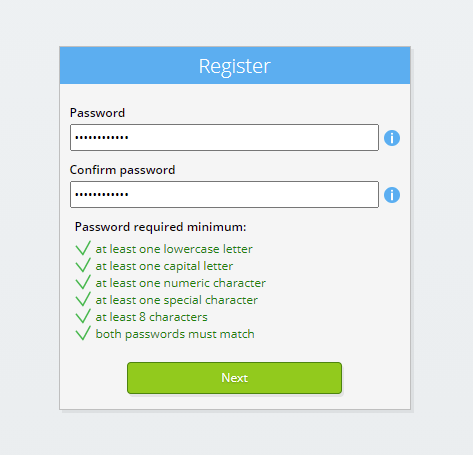
Enter your password and repeat the provided password.
-
Select the Next-button.
You will receive a six-digit verification code by email within 2 minutes.
-
Enter the six-digit verification code.
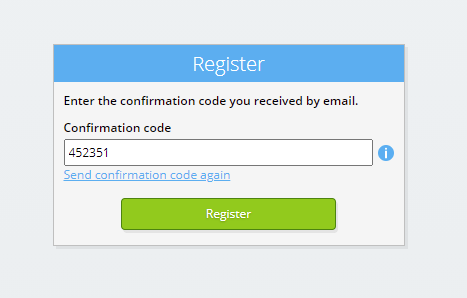
-
Select the Sign Up-button.
-
Log on now.
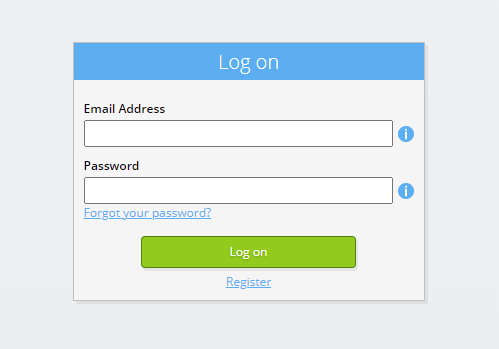
-
Make sure you have an authentication app installed on your phone. Select the Next-button.
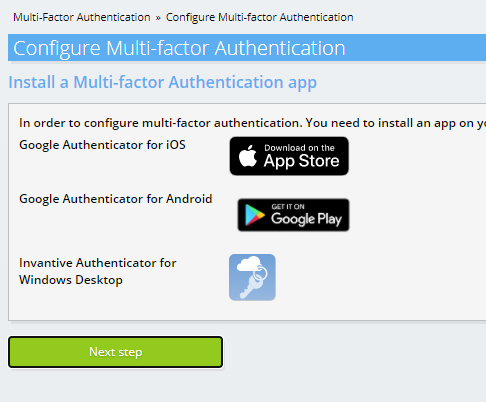
-
Add the displayed QR code to the authentication app, enter the current verification code, and choose "Finish".
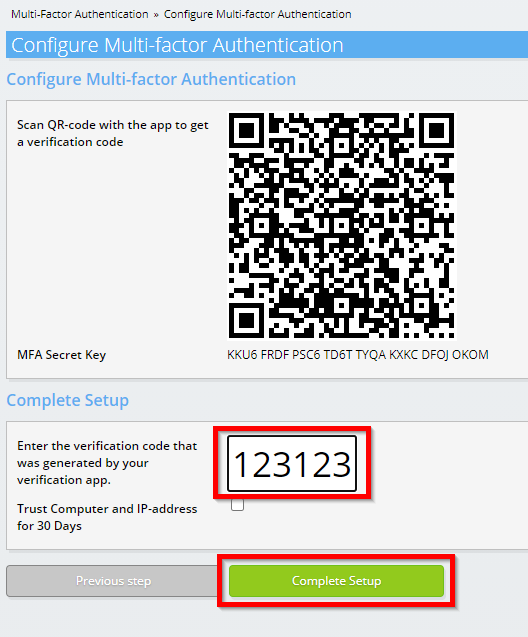
-
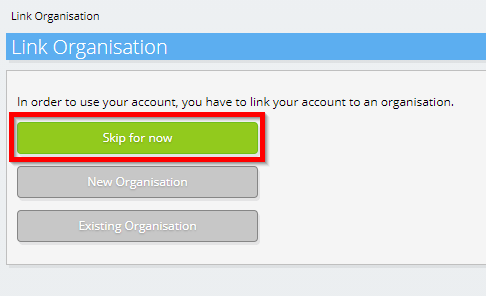
Skip registration of the organisation.
-
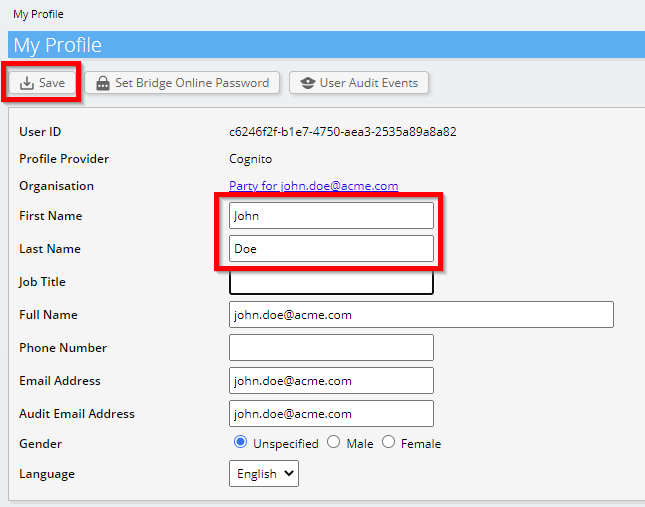
Complete your personal data and choose 'Save'.
-
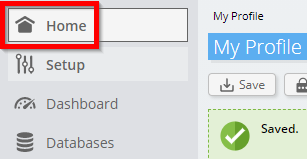
Go to the dashboard.
-
The Invantive Cloud dashboard will be shown.
You now have a login code on Invantive Cloud with which you can set up the connection with DeepL and numerous other platforms. You will use the same Invantive login code and workflow for all other platforms.
Create DeepL database
In this step, we set up a database with data from DeepL. The database is "virtual" because it is not a traditional database, but is fed real-time from DeepL. Invantive Cloud provides Tableau with a real-time link to DeepL. The database will be used for all your DeepL reporting with Tableau. So you only need to perform these steps once.
-
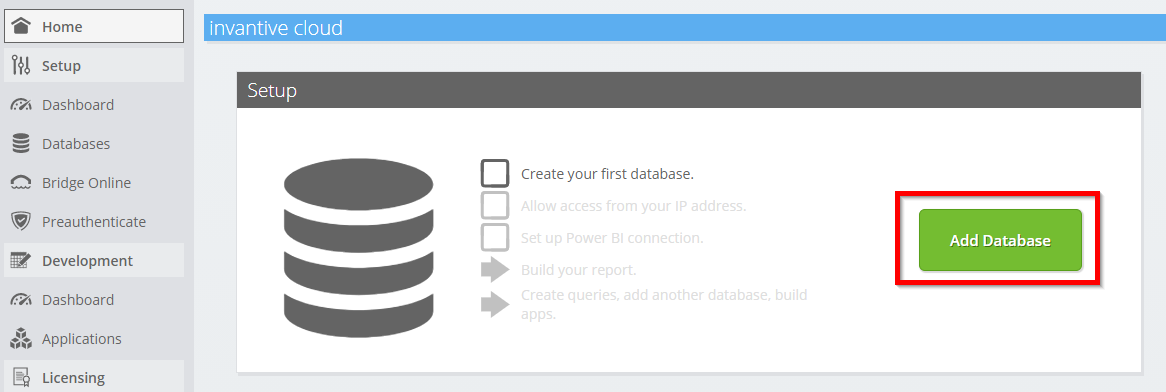
Click the Add Database button.
-
Select DeepL from the list.

-
Please fill out the form with login information for DeepL.
Select the OK-button.
Congratulations! You can now process data from DeepL within the Invantive Cloud website. You can do this for example with the interactive SQL editor.
Grant connection from Tableau access to DeepL
To retrieve the data from Tableau we create a link via Invantive Bridge Online. This creates a "bridge" between the cloud of Invantive and the standard OData connector that is available in every version of Tableau. You do not need to install anything locally: no connector, no ado.NET provider and no Tableau add-on neither.
Execute the following steps to safely use the data from DeepL outside of Invantive Cloud:
Next to the database you will find an orange text requesting you to allow access from your current location (IP address). Select the nearby orange button.
You can completely disable IP address checking by entering an asterisk ("*").
You are now ready to import the DeepL data into Tableau.
Configure Tableau connector for DeepL
You will now pull in Tableau data from DeepL through the established link.
Please note again that Invantive Cloud under the hood handles all complexity such as setting up credentials such as a refresh token, acquiring an access token, optimizing and parallelizing access, accessing an API within the rate limits, scopes and security restrictions. There is absolutely no need for knowledge on complex technical topics such as OAuth access tokens or API.
Execute the following steps:
-
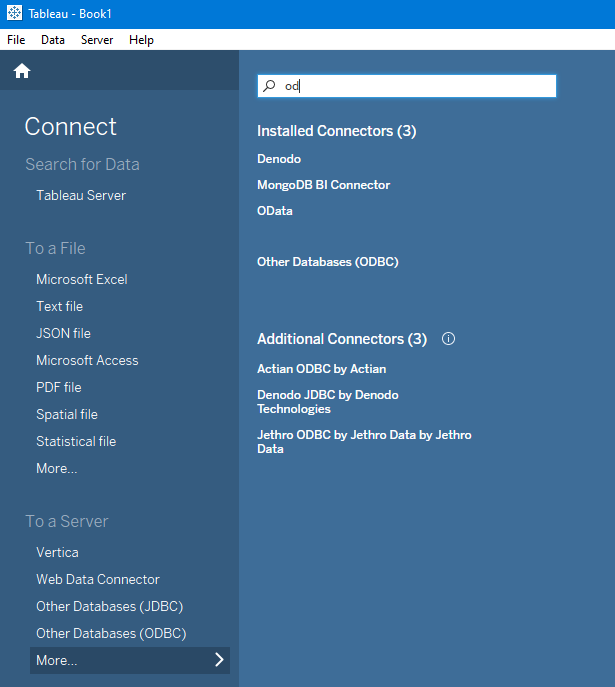
Start Tableau and choose "More..." from the "To a Server" menu on the left menu "Connect".
-
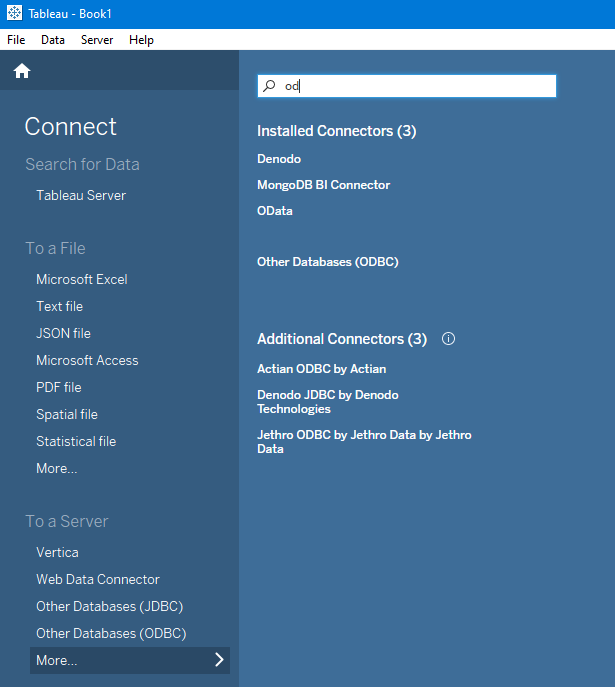
Search and select the OData connector.'
-
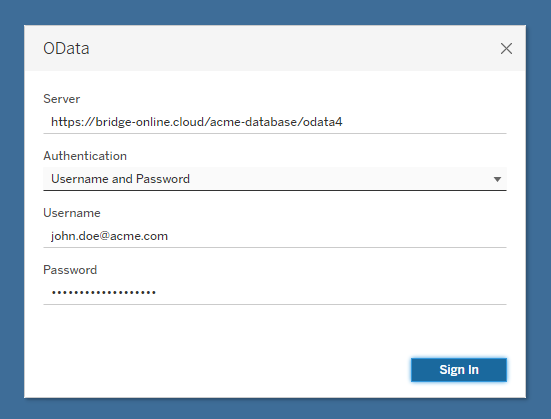
Enter in the window the Bridge Online URL of the Tableau database. This URL containing the data can be found in the Database-form of Invantive Cloud. Choose authentication type "Username and Password". Enter the Invantive Cloud user name and password.
-
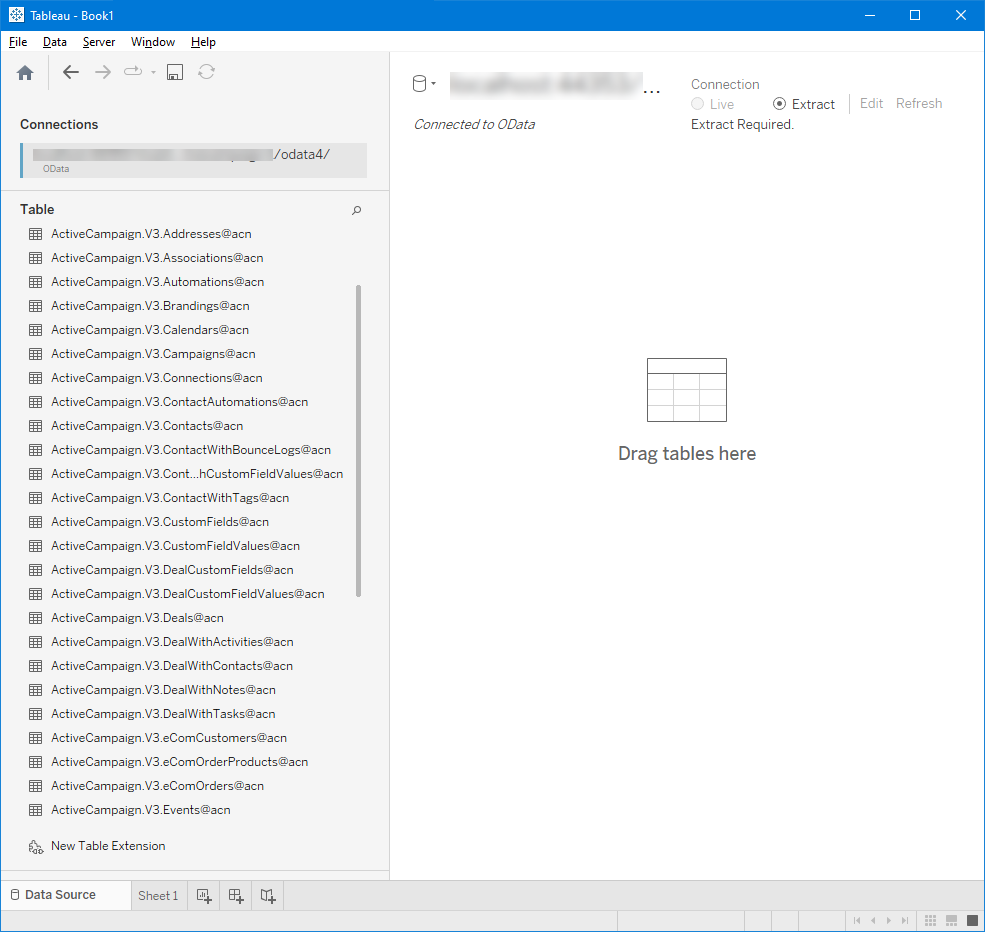
The list of available DeepL tables appears. Select the desired tables and construct your Tableau dashboard.