


Hvordan forbinder jeg Invantive Drive med Salesforce på 5 minutter?
Udfør følgende trin for at forbinde Invantive Drive med Salesforce. Du skal kun have kendskab til Invantive Drive, din egen virksomhed og Salesforce administrationen.
Salesforce er et online økosystem. Salesforce blev oprindeligt udviklet som en CRM-løsning, men blev udvidet til at omfatte mange flere typer onlineapplikationer af Salesforce-partnere.
No technical knowledge is needed to show the documents of Salesforce in Windows Explorer with Invantive Drive. This step-by-step plan tells you exactly which steps to go through on Invantive Cloud and on your PC.
Trinene til at forbinde Invantive Drive med Salesforce er:
- Registrer en Invantive Cloud-konto.
- Opret en Salesforce-database.
- Install Invantive Drive on Windows.
- Sign in to Invantive Drive and choose the Salesforce database.
- Open your Salesforce documents in Windows Explorer.
Invantive Cloud offers a Salesforce connector for Invantive Drive, and 29 other platforms show their documents in the same folder of Windows Explorer.
Når du har spørgsmål, skal du tjekke forummerne for Salesforce.
Registrer konto på Invantive Cloud
Spring dette trin over, hvis du allerede har en konto på Invantive Cloud. Ellers skal du udføre følgende trin én gang for at registrere en konto på Invantive Cloud:
-
Gå til Invantive Cloud-startsiden .
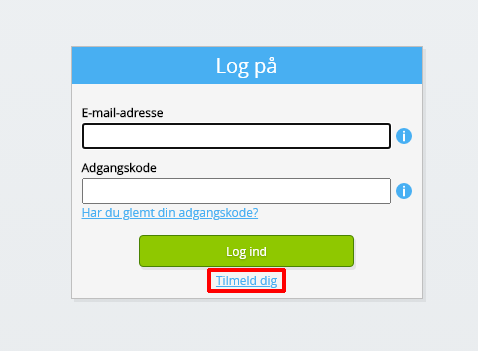
Vælg Log på-knappen.
-
Tryk på Tilmeld-knappen.
-
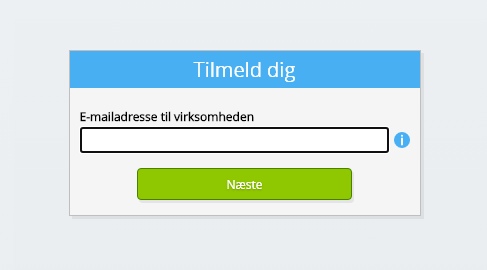
Indtast din virksomheds e-mailadresse.
-
Vælg Næste-knappen.
-
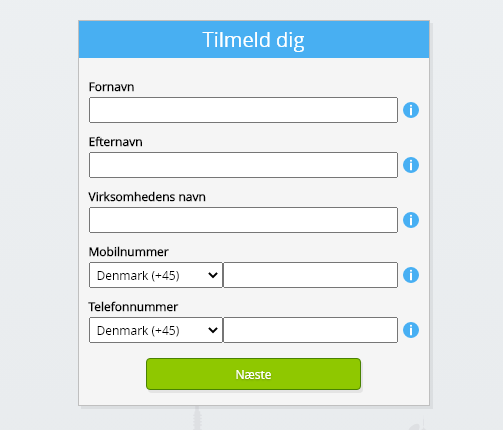
Indtast dine personlige data.
-
Vælg Næste-knappen.
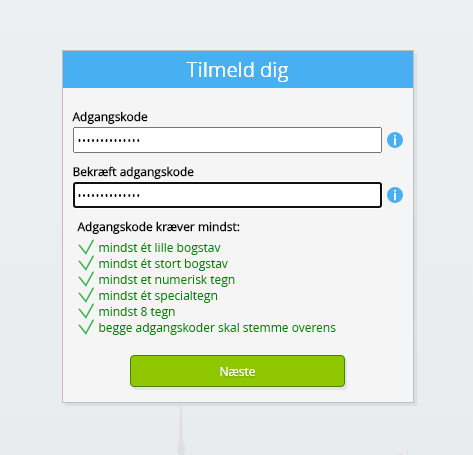
Indtast din adgangskode og gentag den angivne adgangskode.
-
Vælg Næste-knappen.
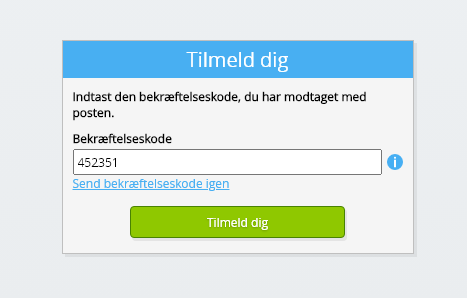
Du vil modtage en sekscifret bekræftelseskode via e-mail inden for 2 minutter.
-
Indtast den sekscifrede bekræftelseskode.
-
Tryk på Tilmeld-knappen.
-
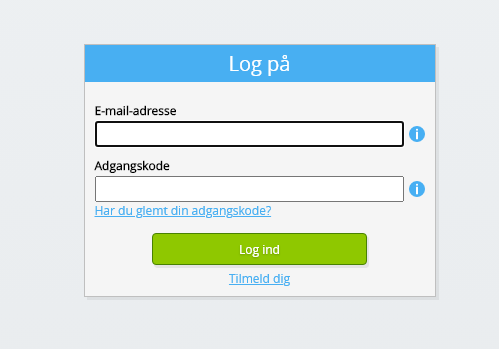
Log på nu.
-
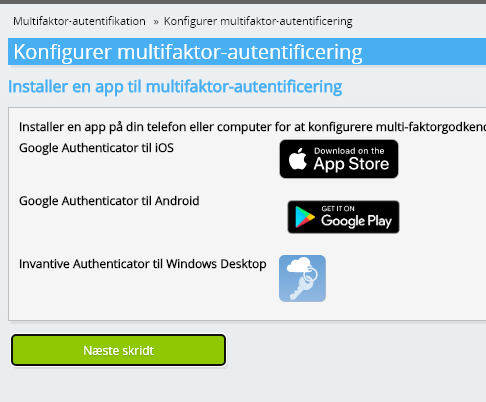
Sørg for, at du har en godkendelsesapp installeret på din telefon. Vælg Næste-knappen.
-
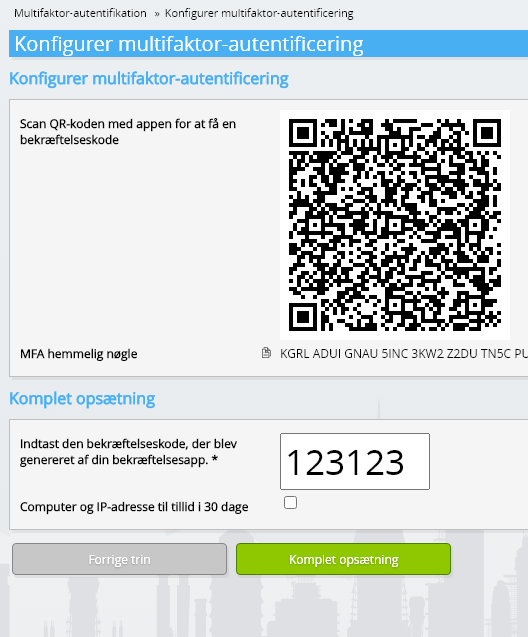
Tilføj den viste QR-kode til godkendelsesappen, indtast den aktuelle bekræftelseskode, og vælg "Afslut".
-
Spring registrering af organisationen over.
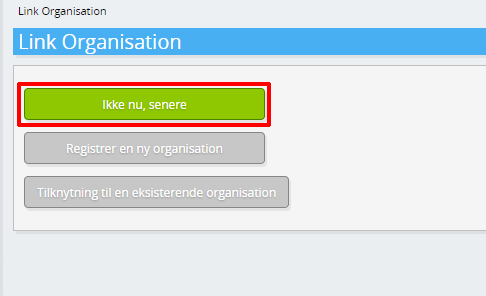
-
Udfyld dine personlige oplysninger, og vælg "Gem".
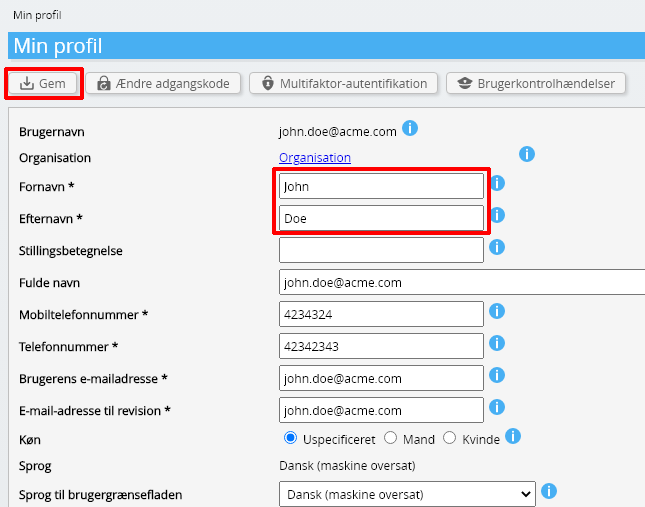
-
Gå til dashboardet.
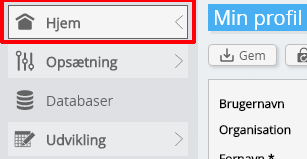
-
Invantive Cloud -dashboardet vil blive vist.
Du har nu en login-kode på Invantive Cloud, som du kan bruge til at oprette forbindelse til Salesforce og mange andre platforme. Du bruger den samme Invantive-login-kode og arbejdsgang til alle andre platforme.
Opret Salesforce-database
I dette trin opretter vi en database med data fra Salesforce. Databasen er "virtuel", fordi den ikke er en traditionel database, men får realtidsinformation fra Salesforce. Invantive Cloud forsyner Invantive Drive med et realtidslink til Salesforce. Databasen vil blive brugt til al din Salesforce-rapportering med Invantive Drive. Så du behøver kun at udføre disse trin én gang.
-
Klik på knappen Tilføj database.
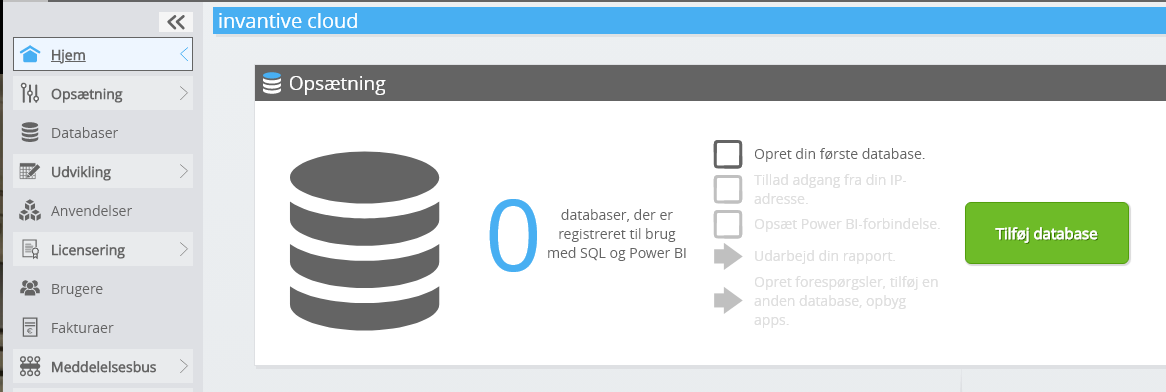
-
Vælg Salesforce på listen.
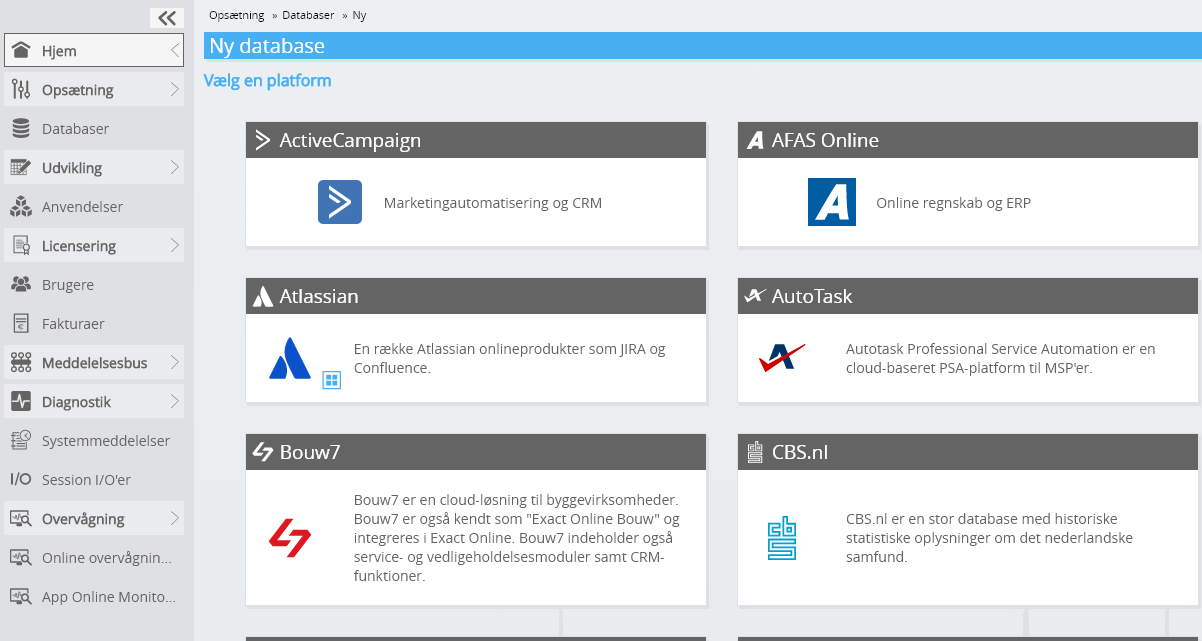
-
Udfyld venligst formularen med loginoplysninger til Salesforce.
Vælg OK-knappen.
Tillykke! Du kan nu behandle data fra Salesforce på Invantive Cloud-webstedet. Det kan du f.eks. gøre med den interaktive SQL-editor.
Install Invantive Drive on Windows
Invantive Drive is a small Windows program. It registers a folder named Invantive Drive in Windows Explorer and fetches a document from the platform the moment you open it, the way OneDrive and Google Drive work.
-
Download the installer of Invantive Drive and run it.
Follow the installer; no settings are needed.
After the installation, Windows Explorer shows a folder named Invantive Drive under This PC, and the Invantive Drive window opens.
Sign in to Invantive Drive and choose the Salesforce database
Invantive Drive signs in with your Invantive Cloud account and lists the databases of that account. Pick the one you created in the previous step.
In the Invantive Drive window, choose Sign in and enter your Invantive Cloud user name and password, plus the code of your authenticator app when asked.
Choose Add database and select the Salesforce database from the list.
A folder named after the Salesforce database appears under Invantive Drive in Windows Explorer, with a subfolder per company and per kind of document.
Open your Salesforce documents in Windows Explorer
Explorer lists the names, dates and sizes of the Salesforce documents. A document is fetched the moment you open it.
- Online only: listed in Explorer, fetched when you open it, no disk space.
- Kept on this device: you opened it or marked it to keep, so it also works without internet.
Each app is a folder and each company a subfolder. A document is fetched the moment you open it.
Browse to a folder and double-click a document; it opens in the program Windows uses for that kind of file.
A cloud icon marks a document that is online only and takes no disk space; a green check mark one that is kept on this device. Right-click a document to keep it on this device or to free up space.
Right-click a document and choose Open in Salesforce to jump to it on the platform, where the platform offers a web page for it.
The Salesforce folders are read-only: Salesforce does not accept files from outside, so nothing is changed or deleted by accident.
What Invantive Drive Can And Cannot Do
Invantive Drive shows documents; it does not copy or move them. A document is fetched only when you open it, and every fetch is an ordinary request to Salesforce within the limits of your subscription. Only a platform that accepts uploads takes a changed file back; the folders of the other platforms are read-only.
Invantive Drive runs on Windows. On any other device the file browser in Invantive Cloud shows the same folders in your web browser.