


Jak propojím Invantive Drive s Visma.net Financials za 5 minut?
Proveďte následující kroky pro připojení Invantive Drive k Visma.net Financials. Potřebujete pouze znalost Invantive Drive, vlastního podnikání a administrativy Visma.net Financials.
Visma.net Financials je online software pro účetnictví. Visma.net Financials je využíván jak velkými účetními firmami, tak velkými podnikateli.
No technical knowledge is needed to show the documents of Visma.net Financials in Windows Explorer with Invantive Drive. This step-by-step plan tells you exactly which steps to go through on Invantive Cloud and on your PC.
Kroky pro připojení Invantive Drive k Visma.net Financials jsou:
- Zaregistrujte si účet Invantive Cloud.
- Vytvořte databázi Visma.net Financials.
- Install Invantive Drive on Windows.
- Sign in to Invantive Drive and choose the Visma.net Financials database.
- Open your Visma.net Financials documents in Windows Explorer.
Invantive Cloud offers a Visma.net Financials connector for Invantive Drive, and 29 other platforms show their documents in the same folder of Windows Explorer.
Pokud máte dotazy, podívejte se na fóra Visma.net Financials.
Registrovat účet na Invantive Cloud
Pokud již účet v Invantive Cloud máte, tento krok přeskočte. V opačném případě proveďte následující kroky jednou a zaregistrujte účet na Invantive Cloud:
-
Přejděte na úvodní stránku Invantive Cloud.
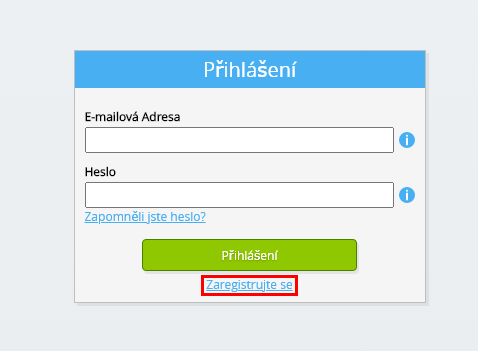
Vyberte tlačítko Přihlásit se.
-
Vyberte tlačítko Zaregistrovat se.
-
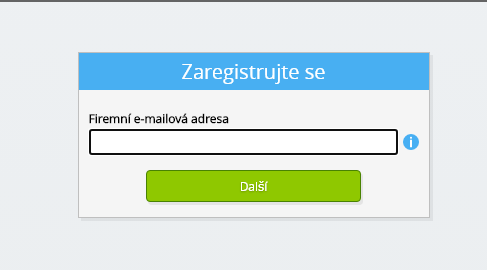
Zadejte svou firemní e-mailovou adresu.
-
Vyberte tlačítko Další.
-
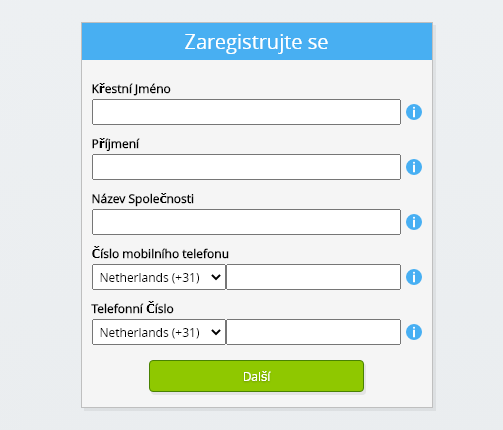
Zadejte své osobní údaje.
-
Vyberte tlačítko Další.
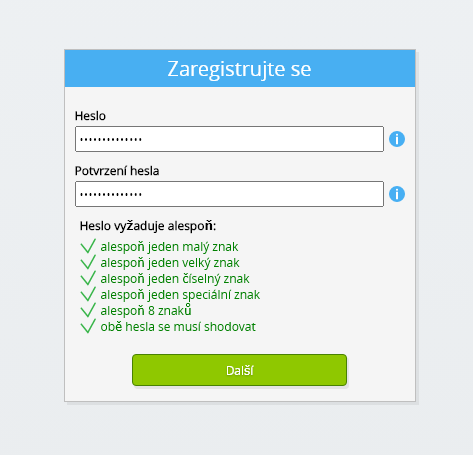
Zadejte své heslo a zopakujte zadané heslo.
-
Vyberte tlačítko Další.
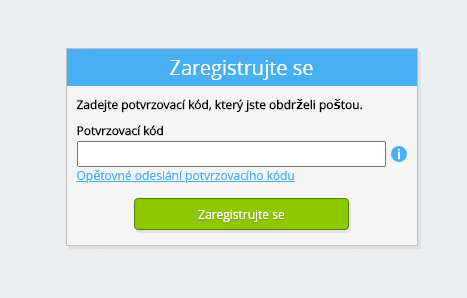
Do 2 minut obdržíte e-mailem šestimístný ověřovací kód.
-
Zadejte šestimístný ověřovací kód.
-
Vyberte tlačítko Zaregistrovat se.
-
Přihlaste se hned teď.

-
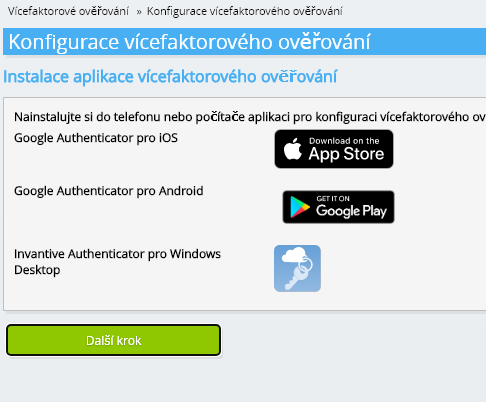
Ujistěte se, že máte v telefonu nainstalovanou ověřovací aplikaci. Vyberte tlačítko Další.
-
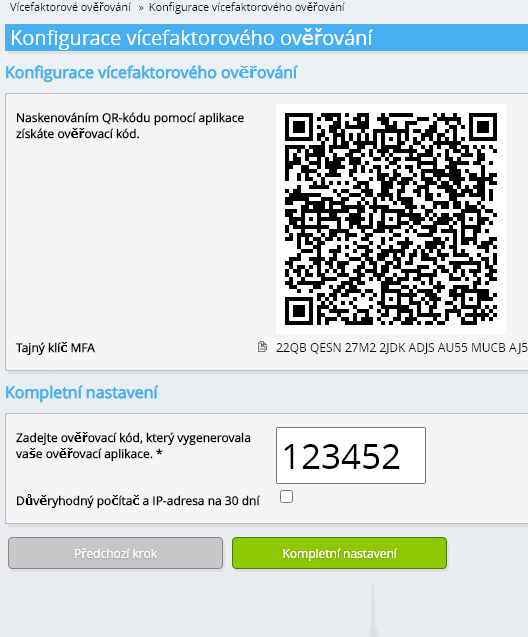
Přidejte zobrazený QR kód do ověřovací aplikace, zadejte aktuální ověřovací kód a zvolte „Dokončit“.
-
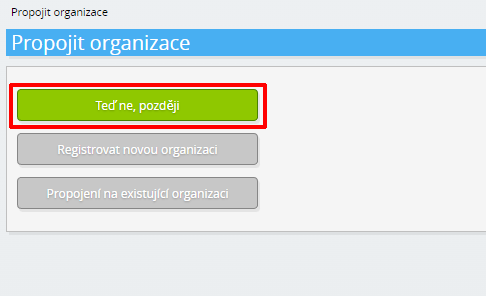
Přeskočit registraci organizace.
-
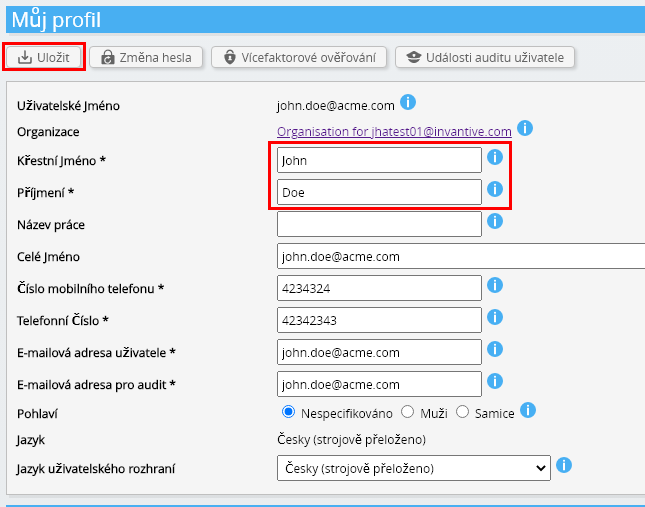
Vyplňte své osobní údaje a zvolte „Uložit“.
-
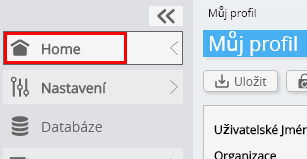
Přejděte na řídicí panel.
-
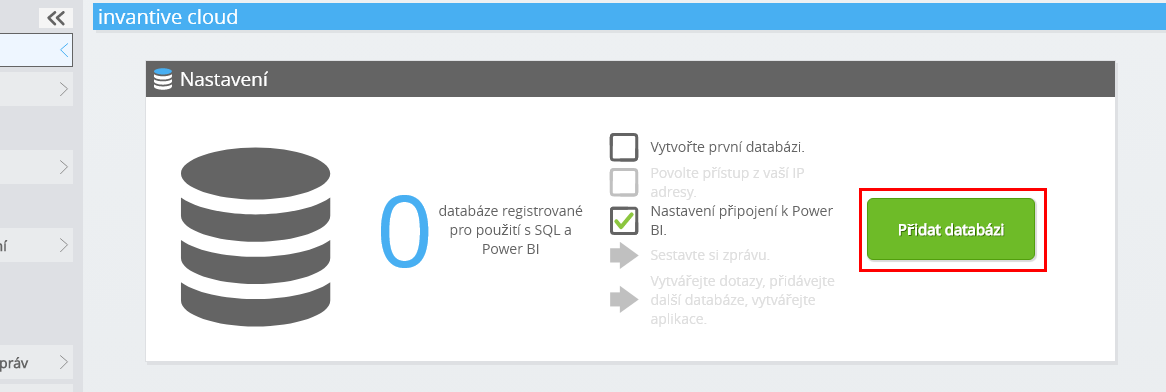
Zobrazí se přístrojová deska Invantive Cloud.
Nyní máte na Invantive Cloud přihlašovací kód, pomocí kterého můžete nastavit spojení s Visma.net Financials a mnoha dalšími platformami. Pro všechny ostatní platformy použijete stejný přihlašovací kód a pracovní postup Invantive.
Vytvořit Visma.net Financials databázi
V tomto kroku jsme nastavili databázi s daty z Visma.net Financials. Databáze je „virtuální“, protože to není tradiční databáze, ale je krmena v reálném čase z Visma.net Financials. Invantive Cloud poskytuje Invantive Drive odkaz v reálném čase na Visma.net Financials. Databáze bude použita pro všechny vaše Visma.net Financials vykazování s Invantive Drive. Takže stačí provést tyto kroky pouze jednou.
-
Klepněte na tlačítko Přidat databázi.
-
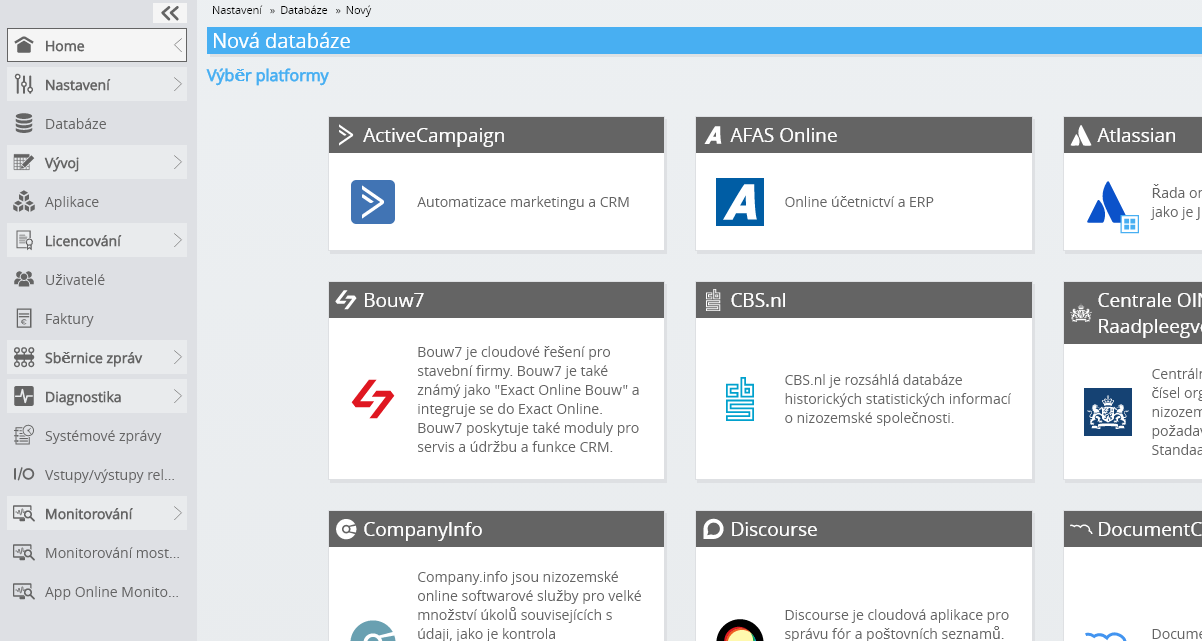
Vyberte Visma.net Financials ze seznamu.
-
Vyplňte prosím formulář s přihlašovacími údaji pro Visma.net Financials.
Vyberte tlačítko OK.
Gratulujeme! Nyní můžete zpracovávat data z Visma.net Financials na webových stránkách Invantive Cloud. Můžete to udělat například pomocí interaktivního editoru SQL.
Install Invantive Drive on Windows
Invantive Drive is a small Windows program. It registers a folder named Invantive Drive in Windows Explorer and fetches a document from the platform the moment you open it, the way OneDrive and Google Drive work.
-
Download the installer of Invantive Drive and run it.
Follow the installer; no settings are needed.
After the installation, Windows Explorer shows a folder named Invantive Drive under This PC, and the Invantive Drive window opens.
Sign in to Invantive Drive and choose the Visma.net Financials database
Invantive Drive signs in with your Invantive Cloud account and lists the databases of that account. Pick the one you created in the previous step.
In the Invantive Drive window, choose Sign in and enter your Invantive Cloud user name and password, plus the code of your authenticator app when asked.
Choose Add database and select the Visma.net Financials database from the list.
A folder named after the Visma.net Financials database appears under Invantive Drive in Windows Explorer, with a subfolder per company and per kind of document.
Open your Visma.net Financials documents in Windows Explorer
Explorer lists the names, dates and sizes of the Visma.net Financials documents. A document is fetched the moment you open it.
- Online only: listed in Explorer, fetched when you open it, no disk space.
- Kept on this device: you opened it or marked it to keep, so it also works without internet.
Each app is a folder and each company a subfolder. A document is fetched the moment you open it.
Browse to a folder and double-click a document; it opens in the program Windows uses for that kind of file.
A cloud icon marks a document that is online only and takes no disk space; a green check mark one that is kept on this device. Right-click a document to keep it on this device or to free up space.
Right-click a document and choose Open in Visma.net Financials to jump to it on the platform, where the platform offers a web page for it.
The Visma.net Financials folders are read-only: Visma.net Financials does not accept files from outside, so nothing is changed or deleted by accident.
What Invantive Drive Can And Cannot Do
Invantive Drive shows documents; it does not copy or move them. A document is fetched only when you open it, and every fetch is an ordinary request to Visma.net Financials within the limits of your subscription. Only a platform that accepts uploads takes a changed file back; the folders of the other platforms are read-only.
Invantive Drive runs on Windows. On any other device the file browser in Invantive Cloud shows the same folders in your web browser.