


كيف يمكنني ربط Invantive Drive بـ Visma.net Financials في 5 دقيقة؟
اتبع الخطوات التالية لتوصيل Invantive Drive بـ Visma.net Financials. كل ما تحتاجه هو معرفة Invantive Drive، وشركتك الخاصة، وإدارة Visma.net Financials.
Visma.net Financials هو برنامج محاسبة عبر الإنترنت. ويستخدم برنامج Visma.net Financials كل من شركات المحاسبة الكبرى ورجال الأعمال الكبار.
No technical knowledge is needed to show the documents of Visma.net Financials in Windows Explorer with Invantive Drive. This step-by-step plan tells you exactly which steps to go through on Invantive Cloud and on your PC.
الخطوات اللازمة لتوصيل Invantive Drive بـ Visma.net Financials هي:
- قم بتسجيل حساب على Invantive Cloud.
- إنشاء قاعدة بيانات Visma.net Financials.
- Install Invantive Drive on Windows.
- Sign in to Invantive Drive and choose the Visma.net Financials database.
- Open your Visma.net Financials documents in Windows Explorer.
Invantive Cloud offers a Visma.net Financials connector for Invantive Drive, and 29 other platforms show their documents in the same folder of Windows Explorer.
إذا كانت لديك أي أسئلة، يرجى مراجعة منتديات الخاصة بـ Visma.net Financials.
تسجيل حساب على Invantive Cloud
تخطَّ هذه الخطوة إذا كان لديك حساب بالفعل على Invantive Cloud. وإلا، فنفِّذ الخطوات التالية مرة واحدة لتسجيل حساب على Invantive Cloud:
-
انتقل إلى صفحة البداية لـ Invantive Cloud.
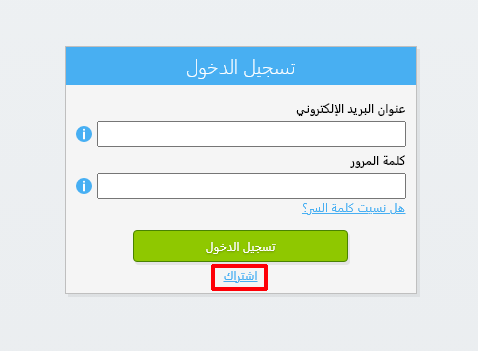
اختر زر «تسجيل الدخول».
-
انقر على زر «التسجيل».
-
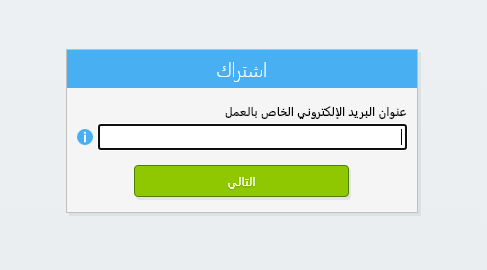
أدخل عنوان بريدك الإلكتروني الخاص بالعمل.
-
اضغط على زر «التالي».
-
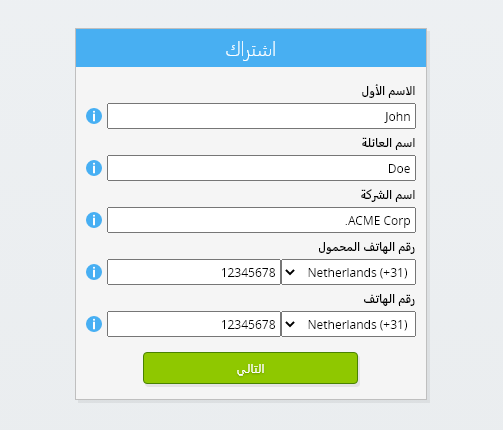
أدخل بياناتك الشخصية.
-
اضغط على زر «التالي».
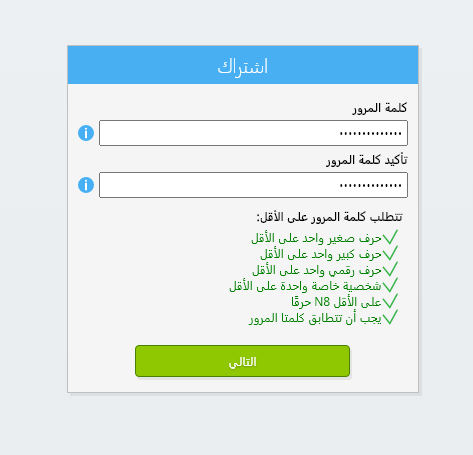
أدخل كلمة المرور الخاصة بك، ثم كررها.
-
اضغط على زر «التالي».
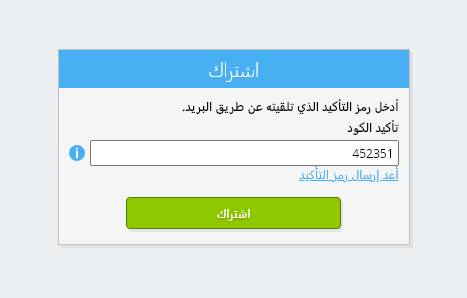
ستتلقى رمز التحقق المكون من ستة أرقام عبر البريد الإلكتروني في غضون دقيقتين.
-
أدخل رمز التحقق المكون من ستة أرقام.
-
انقر على زر «التسجيل».
-
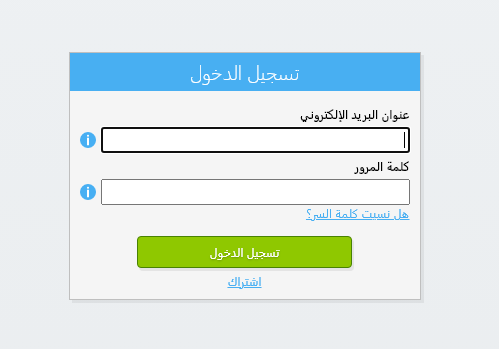
سجّل الدخول الآن.
-
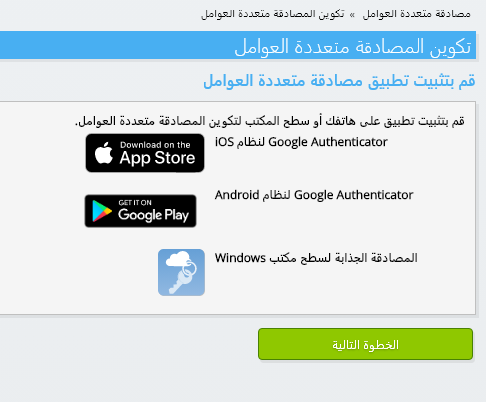
تأكد من تثبيت تطبيق المصادقة على هاتفك. اضغط على زر «التالي».
-
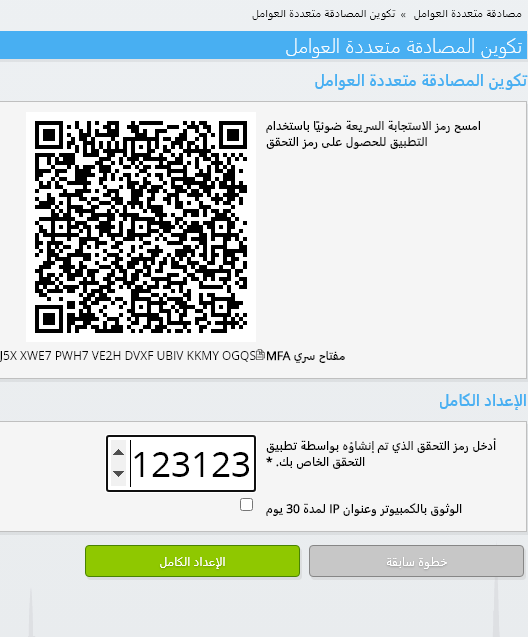
أضف رمز الاستجابة السريعة (QR) المعروض إلى تطبيق المصادقة، وأدخل رمز التحقق الحالي، ثم اختر «إنهاء».
-
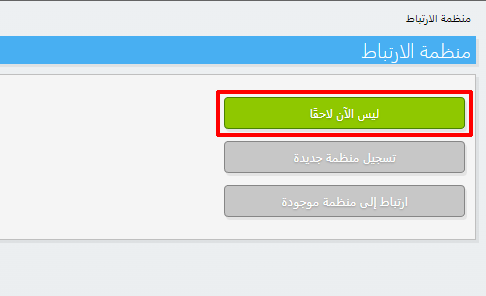
تخطي تسجيل المنظمة.
-
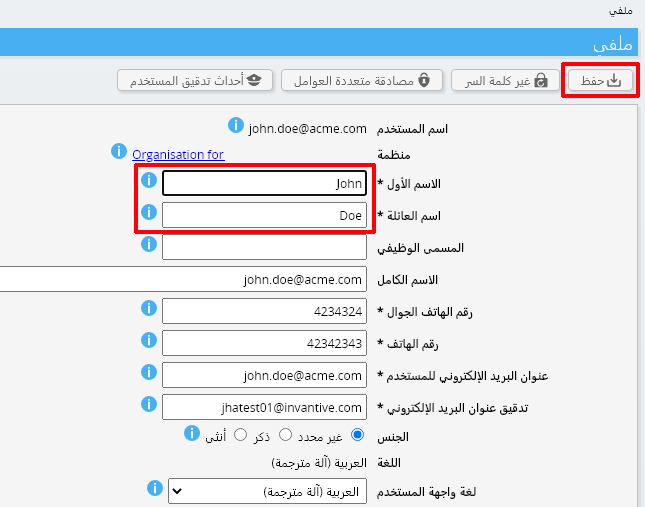
أكمل بياناتك الشخصية واختر «حفظ».
-
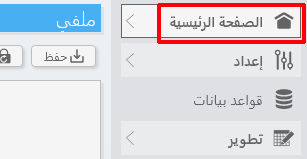
انتقل إلى لوحة التحكم.
-
ستظهر لوحة التحكم الخاصة بـ Invantive Cloud.
لديك الآن رمز تسجيل دخول على Invantive Cloud يمكنك من خلاله إعداد الاتصال بـ Visma.net Financials والعديد من المنصات الأخرى. وستستخدم نفس رمز تسجيل الدخول وسير العمل الخاص بـ Invantive لجميع المنصات الأخرى.
إنشاء قاعدة بيانات Visma.net Financials
في هذه الخطوة، نقوم بإنشاء قاعدة بيانات تحتوي على بيانات من Visma.net Financials. وتُعتبر قاعدة البيانات هذه «افتراضية» لأنها ليست قاعدة بيانات تقليدية، بل يتم تغذيتها في الوقت الفعلي من Visma.net Financials. توفر Invantive Cloud لـ Invantive Drive رابطًا في الوقت الفعلي بـ Visma.net Financials. سيتم استخدام قاعدة البيانات هذه لجميع تقارير Visma.net Financials الخاصة بك باستخدام Invantive Drive. لذا، ما عليك سوى تنفيذ هذه الخطوات مرة واحدة فقط.
-
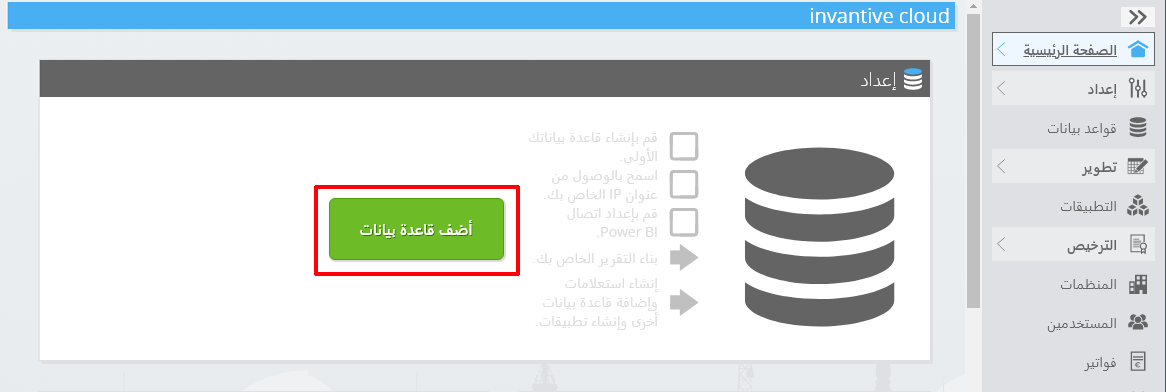
انقر على زر "إضافة قاعدة بيانات".
-
اختر Visma.net Financials من القائمة.
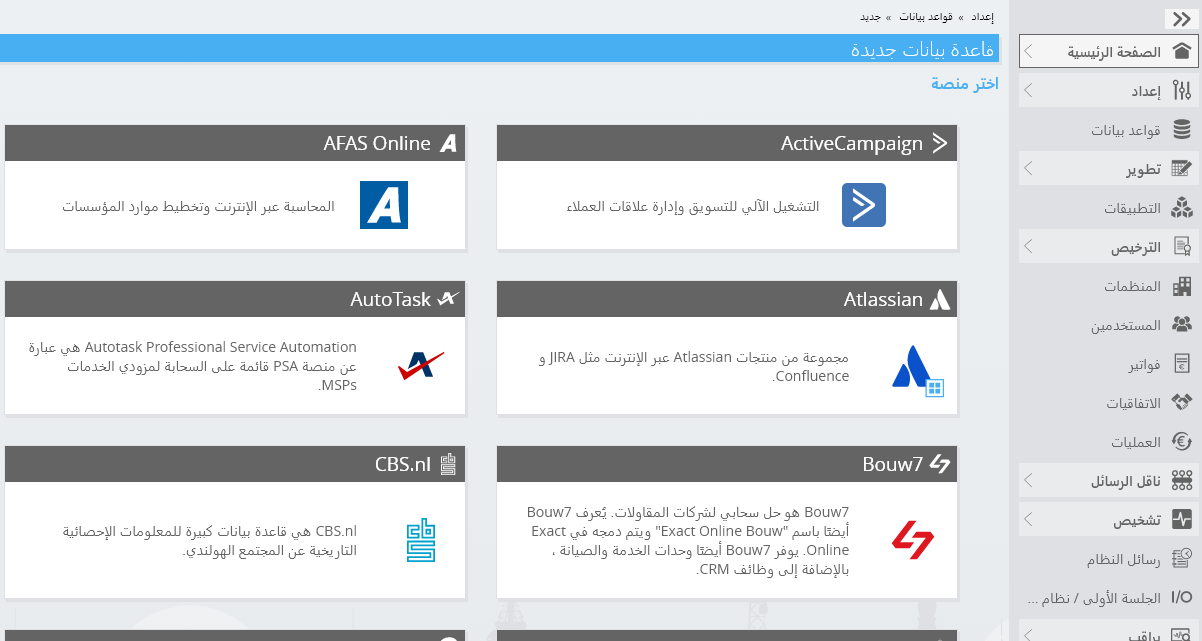
-
يرجى ملء النموذج بمعلومات تسجيل الدخول الخاصة بـ Visma.net Financials.
اضغط على زر «موافق».
تهانينا! يمكنك الآن معالجة البيانات الواردة من Visma.net Financials عبر موقع Invantive Cloud الإلكتروني. ويمكنك القيام بذلك، على سبيل المثال، باستخدام محرر SQL التفاعلي.
Install Invantive Drive on Windows
Invantive Drive is a small Windows program. It registers a folder named Invantive Drive in Windows Explorer and fetches a document from the platform the moment you open it, the way OneDrive and Google Drive work.
-
Download the installer of Invantive Drive and run it.
Follow the installer; no settings are needed.
After the installation, Windows Explorer shows a folder named Invantive Drive under This PC, and the Invantive Drive window opens.
Sign in to Invantive Drive and choose the Visma.net Financials database
Invantive Drive signs in with your Invantive Cloud account and lists the databases of that account. Pick the one you created in the previous step.
In the Invantive Drive window, choose Sign in and enter your Invantive Cloud user name and password, plus the code of your authenticator app when asked.
Choose Add database and select the Visma.net Financials database from the list.
A folder named after the Visma.net Financials database appears under Invantive Drive in Windows Explorer, with a subfolder per company and per kind of document.
Open your Visma.net Financials documents in Windows Explorer
Explorer lists the names, dates and sizes of the Visma.net Financials documents. A document is fetched the moment you open it.
- Online only: listed in Explorer, fetched when you open it, no disk space.
- Kept on this device: you opened it or marked it to keep, so it also works without internet.
Each app is a folder and each company a subfolder. A document is fetched the moment you open it.
Browse to a folder and double-click a document; it opens in the program Windows uses for that kind of file.
A cloud icon marks a document that is online only and takes no disk space; a green check mark one that is kept on this device. Right-click a document to keep it on this device or to free up space.
Right-click a document and choose Open in Visma.net Financials to jump to it on the platform, where the platform offers a web page for it.
The Visma.net Financials folders are read-only: Visma.net Financials does not accept files from outside, so nothing is changed or deleted by accident.
What Invantive Drive Can And Cannot Do
Invantive Drive shows documents; it does not copy or move them. A document is fetched only when you open it, and every fetch is an ordinary request to Visma.net Financials within the limits of your subscription. Only a platform that accepts uploads takes a changed file back; the folders of the other platforms are read-only.
Invantive Drive runs on Windows. On any other device the file browser in Invantive Cloud shows the same folders in your web browser.